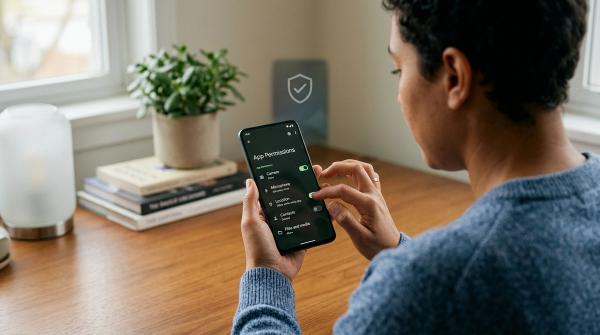
For safer AirDrop and Quick Share transfers, check the file, confirm the person receiving it, and make your device visible only as widely as the transfer needs. Once the right person has the file, return to a narrower receiving setting. A familiar device name is a useful clue, but it should not be your only check.
These tools are handy for sending a photo across a table or moving a document to your laptop. The privacy decision happens before you tap Send: who can find the device, which destination you choose, and what is actually inside the selected file.
This guide covers everyday nearby sharing on iPhone, Android and Windows. Menus differ by software and manufacturer, so use the controls shown on your own device. Direct nearby sharing, a browser download and a cloud sharing link can also follow different routes, even when they begin inside the same sharing menu.
Keep three decisions separate
#Think about a transfer in three parts: discovery, approval and the copy you send.
Discovery controls which nearby devices can find you for sharing. A broad receiving option may make sense while a friend sends you something. It is usually unnecessary while you are simply reading or working.
Approval is the decision to accept a particular transfer. Being discoverable is not an invitation to accept every request. Read the sender and content information, then check with the person you expect to hear from.
The copy is what the other person receives. Before sending an ordinary photo or document, decide whether you are comfortable with that person keeping it. Returning to a private receiving setting afterwards does not retrieve a copy already delivered.
For example, a workshop handout and a private medical form might both be PDFs. They deserve different decisions because of their contents, even if the sharing buttons look identical. Choose the method after deciding what the recipient should receive.
Choose a receiving setting for the actual task
#Use the narrowest available setting that lets you complete the transfer. The names are similar across platforms, but their account rules and timing are not identical.
| Your task | Sensible starting point | What to check afterwards |
|---|---|---|
| Move a file between your own devices | An own-devices option where supported | Both devices belong to you and use the intended account |
| Receive from someone you already know | Contacts-based receiving where supported | The contact and device shown are the person you expect |
| Receive once from someone outside your contacts | Temporary broad visibility, only while together | Restore your usual receiving choice after completion |
| You are not receiving anything | Receiving Off, No one, or another suitably narrow choice | No separate receiving screen remains open |
| Use a work or school device | The organisation's approved transfer method | Do not work around a managed restriction |
This is a decision guide, not a claim that every device has every option. If a control is missing, check the model's current built-in help instead of copying a path intended for another phone.
AirDrop: check the time window and any code prompt
#On iPhone and iPad, open Control Center, press and hold the connectivity controls, then open AirDrop. For a one-off transfer from someone outside your contacts, Apple describes using Everyone for 10 Minutes.
On iOS 16.2 and later, that choice changes after ten minutes. It returns to Contacts Only when you are signed in to an Apple Account, or Receiving Off when you are not. You can choose a narrower setting yourself when the transfer finishes rather than waiting.
Apple's current instructions add an important version condition: when both devices use iOS 26.2 or later, sharing with someone outside your contacts prompts an AirDrop code. The receiver gets the code and gives it to the sender to enter. Apple also describes an Other Known list that keeps this sharing relationship for 30 days, with an option to mark the person unknown sooner in Contacts.
Treat that code as part of the transfer you are arranging in person. If nobody you are speaking with is trying to send a file, there is no reason to cooperate with an unexpected request.
Avoid assuming the ten-minute iPhone rule applies to every Apple screen. Mac receiving controls and older software can look different. Read the choice on the device actually receiving the file.
Quick Share on Android: leave Receive mode when finished
#Google's Android instructions describe Your devices, Contacts, and Everyone for 10 minutes under Who can share with you. Search Settings for Quick Share to find the controls.
Your devices limits discovery to other devices using the same Google Account, including when the screen is off. Contacts makes the device visible to nearby contacts while the screen is on and unlocked. The temporary Everyone option returns to the previous choice after ten minutes.
There is a separate detail worth checking: Google says that while the Quick Share page is in Receive mode, the device is visible to anyone nearby on that screen. Exit Receive mode when the exchange is over. Do not leave it open while assuming a different saved preference is the whole story.
If you use a Samsung Galaxy, follow its own Quick Share controls. Samsung documents different labels and account behaviour, including transfers between devices signed in to the same Samsung account regardless of the receiving settings. A Google-account explanation should not be applied blindly to a Samsung-account feature.
The practical question is simple: which devices does this particular screen say can share with me right now? Check that answer before waiting for the file.
Windows needs its own visibility check
#In Google's Quick Share for Windows app, open Settings and then Device visibility. Its documented options include Everyone, Contacts, Your devices and No one. Do not assume that selecting Everyone here has the same automatic ten-minute limit as the Android option.
When a transfer shows a PIN, compare it on both devices. Google also says transfers between your devices on the same Google Account are automatically accepted, so a missing approval prompt can be expected in that situation.
Closing the app window is not necessarily the same as quitting it: the Windows app can receive in the background. If you want to stop the app completely, use its tray icon and Quit. If you still want the app available for your own devices, change visibility to suit that purpose instead.
For a borrowed laptop, make a deliberate choice about whether to send the file there at all. A convenient destination is not automatically an appropriate place for a private document.
Confirm the person, then the device
#Before sending, ask the recipient to tell you the device name visible on their screen. Compare it with your available destinations. If two similar names appear, stop and resolve the ambiguity instead of choosing the first result.
Then use any confirmation the transfer provides. Compare a displayed PIN where offered, or complete the AirDrop code exchange when applicable. Ask the person to confirm that their own screen has received the request. This connects your tap to the person in front of you.
Here is a hypothetical example. You are sending a seating plan to a colleague in a busy event room. Two laptops have nearly identical names. Rather than testing both with the real plan, ask your colleague to check their device name and receiving setting. Start again once the destination is clear. A short pause is easier than explaining why a stranger received the guest list.
Keep the confirmation specific: “Are you receiving the seating-plan PDF?” is more useful than “Did something pop up?” If the file is confidential and the destination remains uncertain, use the organisation's approved channel instead.
Check the selected file as carefully as the recipient
#A correct destination cannot fix the wrong attachment. Open the file before sharing it, especially if you have several drafts with similar names. Review the selected items together rather than relying on the first thumbnail.
For photos, look for information visible inside the picture: a home address on an envelope, a badge in the background, a child's school name, or another person's private screen. These are examples of what to inspect, not a claim that the sharing service detects them for you.
Also consider information attached to the file. Apple's Photos guidance notes that shared photos can include metadata such as date, time, location, device information and captions. Its sharing Options can expose controls for format and additional photo data; the available choices depend on the software version. Inspect those choices on your phone rather than assuming the transfer removes private details.
For documents, check every page. A form may contain an extra scan, a second person's details or an old draft you did not mean to include. Prepare a suitable copy before opening the sharing panel. If information genuinely needs to be removed, use an appropriate redaction method; a decorative shape over text is not a reliable privacy plan.
You do not need to send a whole collection because the recipient needs one image. Keeping the selection small makes it easier for both of you to verify what arrived.
Android-to-iPhone sharing is no longer one universal case
#Avoid the blanket assumption that every Android phone can share directly with every iPhone, or that none can. Google's current guidance distinguishes devices with direct AirDrop support from devices using a QR-based browser download route. Support depends on the device and software.
For the browser route Google describes, both devices need internet access, and encrypted files are uploaded to Google servers for a download window of 24 hours. That is a different route from simply choosing a nearby device. Samsung also distinguishes direct nearby sharing from QR and link methods, with different connectivity requirements.
Before using a cross-platform option for sensitive material, check what the current transfer screen is offering. Are you choosing a nearby device, creating a download, or sharing a link? If you cannot tell, choose another approved method whose access and storage arrangements you understand.
For an ordinary lunch photo, convenience may be the deciding factor. For a client document, the permitted destination and transfer route matter more than avoiding a few extra taps. The content sets the standard.
What to do with an unexpected request
#Decline a file you were not expecting. You do not need to open it to decide whether you want it. Narrow your receiving setting and leave any open Receive screen.
An unfamiliar request alone is not proof that your phone has been hacked. Avoid turning a confusing notification into a bigger problem by following instructions from an unknown sender. A file transfer should not require you to reveal an account password or cooperate with an unrelated login.
If you accepted something accidentally, pause before opening it. Check the file and its source through your normal device tools. If you also installed software, entered credentials or approved another action, the response should address that action too. On a managed device, contact your IT team and explain what happened without experimenting further.
For repeated unwanted or abusive requests, record what is necessary to report the behaviour safely and use the relevant venue, school, workplace or local reporting channel. Do not forward abusive material merely to demonstrate that it arrived.
A practical transfer from start to finish
#Imagine you want to give a friend three photos from an afternoon out. This is an illustrative workflow, not a report of product testing.
First, choose the three pictures and review them. Remove anything you would not want that friend to keep, including private details visible in the background. Check the photo-sharing options if attached information matters.
Next, agree which person is receiving. Ask your friend to open the appropriate receiving control. Use a contacts-based option if it works for your setup, or enable temporary broader visibility only for the exchange. Keep the devices close and compare the destination shown.
Start the transfer and complete any applicable confirmation. Let your friend tell you the expected items arrived. If the transfer fails, check the receiving setting, software support and required connections before widening anything else. There is no need to change several privacy settings at once.
Finally, return to the preferred receiving choice. On Android, leave Receive mode; on Windows, check the app's visibility or quit it if that is what you intend. If either device uses a shared account, remember that own-device transfers can follow different approval rules.
When another sharing method fits better
#Nearby sharing is useful when the other person needs a copy and you can confirm the destination. It is less suitable when the real task is ongoing collaboration, access that should later expire, or an exchange governed by workplace policy.
For a project draft, consider whether the recipient needs to edit the same document rather than collect another copy. For sensitive records, use the recipient organisation's approved submission method. For a large family collection, decide who should receive which images before choosing the tool.
The aim is a deliberate handover: the right file, the right person, an understood transfer route, and receiving settings that match what you are doing now.