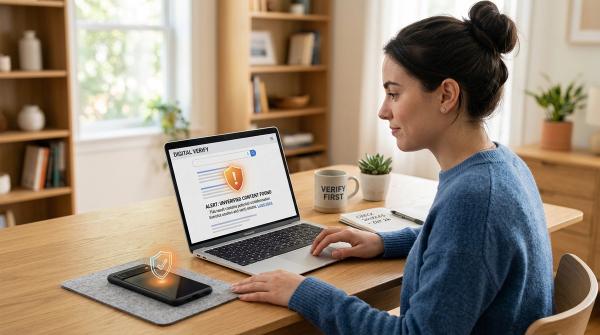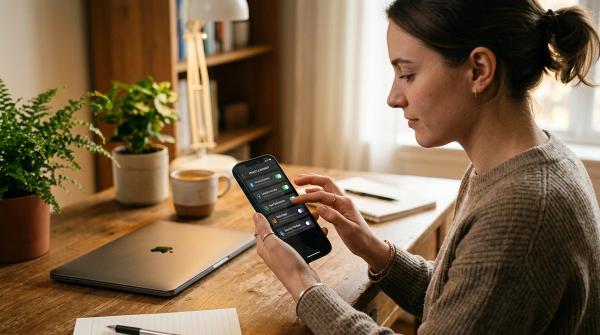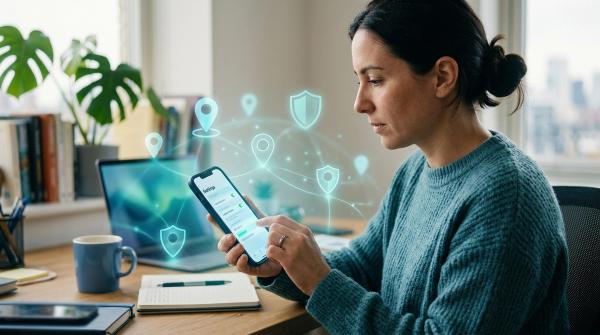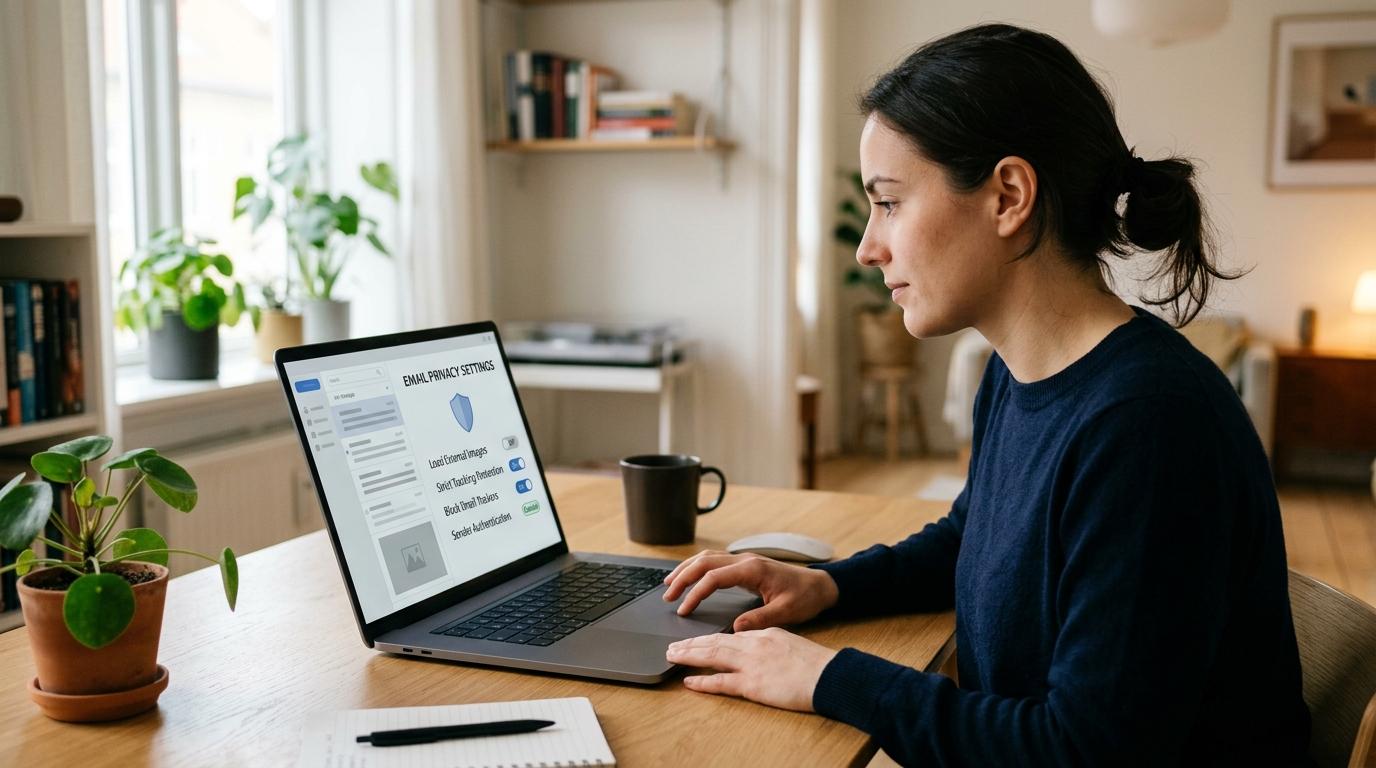
Email tracking pixels are tiny, hidden images inside emails. When they load, they can quietly tell the sender that you opened the message.
The good news? You do not need to be a cybersecurity expert to reduce this kind of tracking. In most cases, the simplest fix is to stop your email app from loading external images automatically.
Here is the quick version:
- In Gmail, choose Ask before displaying external images.
- In Apple Mail, turn on Mail Privacy Protection.
- In Outlook, block external images or automatic picture downloads.
- When you trust a sender, you can still load images manually.
This AllBlogs guide walks you through what email tracking pixels do, what they cannot do, and how to make your inbox a little more private without making email painful to use.
What Are Email Tracking Pixels?
#A tracking pixel is usually a tiny image hidden inside an email. It is often transparent and may be only 1x1 pixel, so you will not see it while reading.
When your email app opens the message and automatically loads remote images, it also requests that tiny image from the sender’s server. That request can act like a silent open receipt.
Tracking pixels are common in newsletters, marketing emails, store promotions, sales outreach, automated business emails, and some suspicious or spammy messages.
Sometimes they are used for normal analytics, like helping a newsletter writer understand how many people opened an issue. Other times, they can feel invasive, especially when a sender is using them to check whether your email address is active.
The important thing to know is this: tracking pixels are not magic. They cannot see everything on your device. They only report information connected to that remote image request.
What Email Tracking Pixels Can Reveal
#When a tracking pixel loads, the sender or email platform may be able to learn things like:
- That you opened the email — the image request can confirm that the message was loaded.
- When you opened it — the server can log the date and time.
- How many times you opened it — repeated image loads may be counted as repeated opens.
- Basic device or app clues — the request may hint at your device, browser, or email app.
- Approximate location — if your real IP address is visible, it may suggest a general location, such as a city or region.
That is why email tracking privacy often comes down to one practical question:
Are external images loading automatically?
If they are, tracking pixels have a much better chance of working.
What Tracking Pixels Cannot Do
#It is also worth keeping things realistic. Email tracking pixels are a privacy concern, but they are not the same as spyware.
A normal email tracking pixel cannot:
- See your exact GPS location
- Read your other emails
- Access your files
- Steal your passwords
- Turn on your camera or microphone
- See what you type before you send a reply
- Control your phone or computer
The issue is usually quieter than that. A sender may learn that your address is active, that you opened the email, and roughly when or where that happened.
That may not sound dramatic, but over time, it can still reveal more about your habits than you intended to share.
Why Blocking External Images Helps
#Most email tracking pixels work because your email app automatically loads images from the internet.
When you block external images, the email still arrives. You can still read the text. Attachments are still there. But the hidden image does not automatically contact the sender’s server.
That means the sender is less likely to get a clean “this person opened the email” signal.
There is one trade-off: blocking external images also blocks normal images, not just invisible pixels. Newsletters, logos, product photos, banners, and promotional emails may look plain until you choose to load the images.
In most email apps, you can still load images manually when you want to.
How to Reduce Email Tracking in Gmail
#Gmail has built-in settings for external images. If your goal is stronger open-tracking protection, set Gmail to ask before loading external images.
Gmail on Desktop or Web
#- Open Gmail.
- Click the gear icon in the top-right corner.
- Select See all settings.
- Stay on the General tab.
- Scroll down to Images.
- Select Ask before displaying external images.
- Scroll to the bottom and click Save Changes.
After this, Gmail will stop automatically showing remote images in every message. When an email contains external images, you may see a prompt asking whether you want to display them.
What This Feels Like in Gmail
#Some emails will look simpler at first. Store emails, newsletters, and company announcements may show blank spaces where images would normally appear.
If you trust the sender and want to see the full email, you can choose to display images. Just remember that loading images may also load any tracking pixel inside that message.
How to Reduce Email Tracking in Apple Mail
#Apple Mail works a little differently.
Instead of simply blocking images by default, Apple offers Mail Privacy Protection. Apple says this feature helps protect your mail activity by hiding your IP address and loading remote content more privately in the background.
In everyday terms, it makes it harder for senders to connect your mail activity to your real IP address or know exactly when you opened a message.
That can make open-tracking data much less reliable.
Turn On Mail Privacy Protection on iPhone or iPad
#- Open Settings.
- Scroll down and tap Mail.
- Tap Privacy Protection.
- Turn on Protect Mail Activity.
Turn On Mail Privacy Protection on Mac
#- Open the Mail app.
- Go to Mail > Settings.
- Click Privacy.
- Enable Protect Mail Activity.
What This Feels Like in Apple Mail
#Apple Mail Privacy Protection is designed to reduce what senders can learn from remote email content. Instead of asking you to click “load images” every time, it handles remote content in a more privacy-friendly way.
The trade-off is that newsletter and marketing analytics become less accurate. A sender may not be able to tell whether you personally opened a message.
One important detail: if you use a Gmail account inside Apple Mail, Apple Mail’s privacy behavior applies when you read messages in the Apple Mail app. If you read the same Gmail account on Gmail web or in the Gmail app, Gmail’s own image settings apply there.
How to Reduce Email Tracking in Outlook
#Outlook also includes settings for external images and automatic picture downloads.
The exact menu can vary depending on which version you use: Outlook on the web, new Outlook, classic Outlook for Windows, Outlook for Mac, Outlook mobile, or a work/school account managed by an organization.
The goal is the same in each case: stop remote images from loading automatically.
Outlook on the Web or New Outlook
#- Open Outlook.
- Click the gear icon to open Settings.
- Look for mail settings related to External images, Message handling, Privacy, or Automatic downloads.
- Choose the option that blocks external images or asks before loading them, if available.
- Save your changes.
Some Outlook versions may offer privacy options that reduce direct exposure. If your main goal is to stop open tracking pixels from firing, blocking automatic image loading is usually the clearer choice.
Classic Outlook for Windows
#- Open Outlook.
- Go to File.
- Select Options.
- Open Trust Center.
- Click Trust Center Settings.
- Go to Automatic Download.
- Choose the option to not download pictures automatically in HTML email messages or RSS items.
- Confirm and save.
What This Feels Like in Outlook
#When Outlook blocks external images, some emails will look less polished at first. You may need to manually download pictures for senders you trust.
That is the basic trade-off: better email tracking privacy, with a little extra clicking when you actually want to see images.
Gmail vs Apple Mail vs Outlook: Quick Comparison
#Email Tracking Privacy Checklist
#Use this checklist for every email app you actually use.
A lot of people change a setting on their laptop but forget their phone. Or they adjust Gmail on the web, then continue opening the same messages in a mobile app with different settings.
1. Find Where You Read Email Most Often
#Start with your real habits. Where do you actually open your emails?
Common options include Gmail website, Gmail app, Apple Mail, Outlook desktop, Outlook web, Outlook mobile, or another email app connected to the same account.
Privacy settings often apply to the app you are using, not just the email address itself.
2. Change Your External Image Settings
#For Gmail, use Ask before displaying external images.
For Outlook, look for settings that block external images, block automatic picture downloads, or ask before loading remote images.
For Apple Mail, enable Protect Mail Activity.
This is the biggest step if your goal is to block email tracking pixels.
3. Load Images Only When You Mean To
#After you block automatic images, your email app may show prompts like:
- “Display images”
- “Download pictures”
- “Load remote content”
- “Show images from this sender”
Use those options intentionally.
It may be fine to load images from your bank, workplace, school, or a newsletter you trust. But if the message is unwanted, suspicious, or just another promotion you do not care about, you can leave images blocked.
4. Remember That Link Clicks Are Separate
#Blocking pixels helps with open tracking. It does not stop click tracking.
If you click a link inside an email, the sender or email platform may know that the link was clicked. Many newsletter and marketing links pass through tracking URLs before sending you to the final page.
If you want more privacy, type the website address directly into your browser or use a saved bookmark instead of clicking the email link.
5. Unsubscribe From Emails You No Longer Want
#Blocking images is useful, but inbox cleanup still matters.
If a newsletter or promotion is real but no longer useful, unsubscribe using the normal unsubscribe option.
That reduces the number of tracking pixels that arrive in your inbox in the first place.
For suspicious or spammy messages, avoid clicking links. Use your email app’s spam or report feature instead.
6. Check Your Phone and Computer Separately
#You may read the same email account in several places.
For example, you might use Gmail in a browser at work, Apple Mail on an iPhone, and Outlook on a laptop.
Check each one. A privacy setting in one app may not protect you when you open the same message somewhere else.
7. Recheck Settings After Updates or New Devices
#Email apps change over time. Menus move. New devices use default settings. App updates sometimes introduce new options.
You do not need to check every week, but it is smart to review your settings when you get a new phone or laptop, install a new email app, your workplace changes email tools, or you notice images loading automatically again.
Newsletter Privacy: What Changes After You Block Pixels?
#Newsletters are one of the most common places people encounter tracking pixels.
Creators, publishers, stores, and companies often use open rates to understand what readers are interested in. Blocking email tracking pixels changes that relationship a little.
You can still read the newsletter, click links if you choose, reply to the sender, and stay subscribed.
But the sender may not get a reliable signal that you opened the email.
That is good for privacy, but it can create small side effects. Some newsletter platforms use open activity to decide who seems inactive. If tracking pixels are blocked for a long time, a sender might assume you are not reading, even if you are.
This does not happen with every newsletter, but it is a real trade-off.
If you genuinely value a newsletter and want to stay on the list, you can engage in other ways, such as replying when it makes sense or updating your subscription preferences.
Practical Privacy Tips for Different Users
#If You Are a Student
#Use image blocking for student discounts, campus promotions, event updates, and random newsletters.
For official school messages, load images only when you actually need them.
If You Work From Email All Day
#Blocking external images can reduce silent open receipts from sales emails, recruiters, cold outreach, and unknown senders.
If you use a work account, your organization may manage some Gmail or Outlook settings for you. That means you may not be able to change everything yourself.
If You Are a Creator
#You might understand both sides. Maybe you use newsletter analytics for your own audience, but you also want privacy as a reader.
A balanced approach is to block automatic images in your personal inbox, then manually load images for senders you trust and value.
If You Manage Family Devices
#Check the default mail app on each phone, tablet, and shared computer.
Turning on Apple Mail Privacy Protection or blocking external images in Gmail and Outlook is a simple family privacy upgrade. It usually only takes a few minutes.
Related AllBlogs reads
#- Email Alias Privacy Checklist for Safer Signups
- AI Email Assistant Permissions Checklist
- Third-Party App Access Cleanup Checklist
- Cloud File Sharing Privacy Checklist
Quick Do and Don’t List
#Do
#- Use Ask before displaying external images in Gmail.
- Turn on Apple Mail Privacy Protection if you use Apple Mail.
- Use Outlook settings to block external images or automatic picture downloads.
- Load images only from senders you trust.
- Remember that clicking links can still be tracked.
- Unsubscribe from newsletters you no longer want.
- Check settings on both your phone and computer.
Don’t
#- Assume private browsing mode stops tracking pixels inside your email app.
- Load images in suspicious messages just to see what they are.
- Treat tracking pixels like viruses.
- Expect one setting to protect every email app on every device.
- Forget that trusted newsletters may look plain until images are loaded.
Final Takeaway
#Email tracking pixels are common, quiet, and easy to miss.
They can reveal when you opened an email, how often you opened it, some device clues, and sometimes your approximate location. They cannot read your inbox, steal your passwords, or turn on your camera.
The easiest beginner-friendly fix is simple:
Stop external images from loading automatically, or use Apple Mail Privacy Protection if you read email in Apple Mail.
Start with the inbox you use most. Then check your phone, tablet, laptop, and any other email apps you use.
A few small settings can make everyday email feel a lot less exposed.