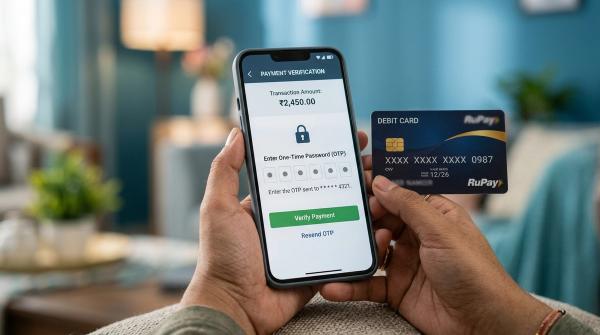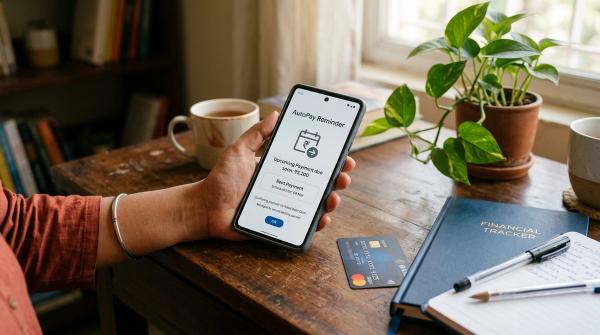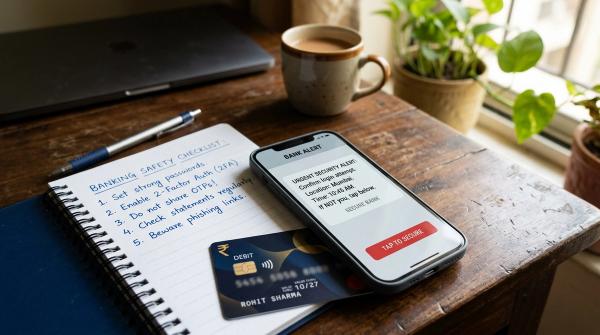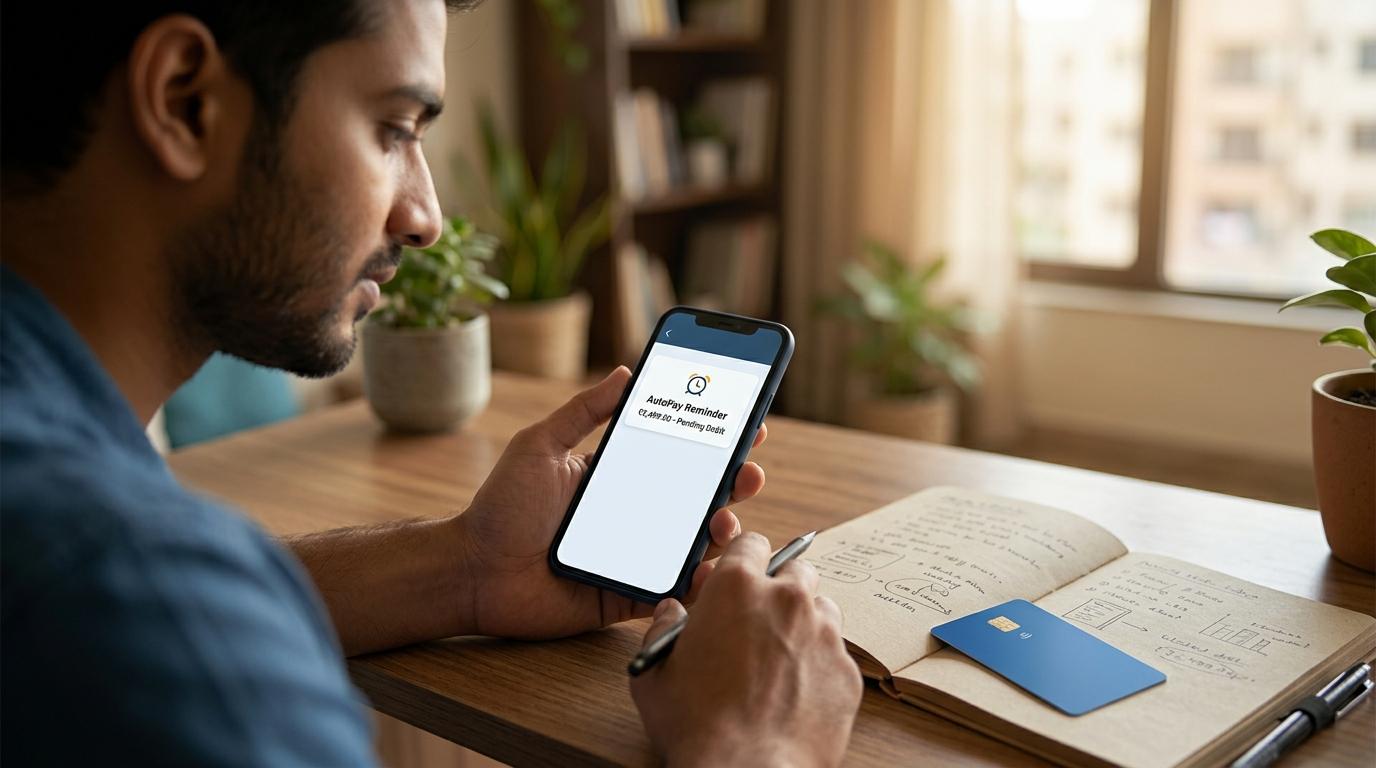
An AutoPay pre-debit alert is the message you receive before money is deducted for a recurring payment.
It could be for a subscription, EMI, utility bill, insurance premium, wallet top-up, FASTag recharge, or any other payment you have set on AutoPay. Under RBI e-mandate 2026, your issuer must send this alert at least 24 hours before the debit.
In simple words, this alert is your heads-up.
It tells you:
- Who is going to collect the money
- How much will be deducted
- When the debit will happen
- Why the payment is being made
Most of the time, the alert is just a reminder for a payment you already know about. But sometimes, it can help you catch something you forgot, no longer need, or did not expect.
Maybe a free trial turned into a paid plan. Maybe you stopped using an app months ago. Maybe your bill amount is higher than usual. Or maybe the merchant name simply does not look familiar.
That is why this 24-hour window matters. It gives you time to check the payment and, if needed, pause or cancel the AutoPay mandate before the money leaves your account.
What RBI e-mandate 2026 Means for You
#The Reserve Bank of India’s Digital Payments - E-mandate Framework, 2026 sets rules for recurring digital payments.
For everyday users, the most important rule is simple:
Your issuer must send a pre-transaction notification at least 24 hours before processing a recurring debit.
This applies to recurring payments made through:
- Credit cards
- Debit cards
- Prepaid Payment Instruments, or PPIs
- Wallets
- UPI recurring payments
- UPI AutoPay mandates
So if you have set up AutoPay for streaming plans, mobile bills, electricity bills, insurance, loan EMIs, FASTag, NCMC top-ups, app memberships or similar services, you should receive a recurring payment alert before the debit.
The rule is not meant to make AutoPay difficult. It is meant to make sure you stay informed before money is deducted.
What an AutoPay Pre-Debit Alert Should Show
#A proper UPI AutoPay notification or recurring payment alert should not leave you guessing.
It should clearly show the key details of the upcoming debit, such as:
- Merchant nameWho is collecting the payment?
- AmountHow much will be deducted?
- Date and time of debitWhen is the payment scheduled?
- Reference detailsWhat is the mandate or transaction reference?
- Reason for debitWhy is this amount being collected?
These details help you answer one very practical question:
“Was I expecting this payment?”
If the answer is yes, you usually do not need to do anything.
If the answer is no, do not ignore the alert. Open your banking, wallet or UPI app and check the mandate before the scheduled debit time.
Quick Checklist: What to Check Before Money Is Deducted
#When an AutoPay pre-debit alert arrives, it is tempting to swipe it away like any other notification.
Try not to.
A quick 30-second check can save you from paying for something you no longer want.
1. Do you recognise the merchant?
#Start with the merchant name.
If it is a service you use regularly, such as your mobile operator, electricity provider, OTT platform, insurer or loan provider, the alert is probably expected.
But sometimes the name in the alert may not exactly match the brand name you know. It may show a payment aggregator, billing partner or legal entity name.
If you are unsure, use the reference number in the alert and compare it with the mandate shown inside your bank, wallet or UPI app.
If you still do not recognise it, take it seriously.
2. Is the amount correct?
#Next, check the amount carefully.
This matters a lot for:
- Mobile and broadband bills
- Electricity and utility bills
- OTT and app subscriptions
- Insurance premiums
- Loan EMIs
- Credit card-linked recurring payments
- Wallet or transport card top-ups
If the amount is higher than expected, open the merchant app or bill statement and check why.
Sometimes the amount changes because of a plan upgrade, taxes, usage charges, late fees or the end of a discount period. But it is better to confirm before the debit happens.
3. Is the debit date and time expected?
#The alert should mention when the money will be deducted.
Check whether the date matches your usual billing cycle, due date or EMI date.
If the debit is earlier than expected, much later than usual, or completely unexpected, review the mandate once.
4. Is the reason for debit clear?
#The alert should explain why the debit is happening.
For example, it may mention a subscription renewal, bill payment, EMI, insurance premium or top-up.
If the reason is vague or confusing, do not assume it is fine. Open your app and check the mandate details.
5. Do you still use the service?
#This is the most useful part of a pre-debit alert.
It forces you to ask:
“Do I still need this?”
Many people keep paying for services they no longer use simply because AutoPay is active.
If you no longer want the service, cancel the AutoPay mandate. If you only want to stop payments for a short time, check whether your app offers a pause option.
6. Are you cancelling AutoPay or the actual service?
#This is where many users get confused.
Cancelling an AutoPay mandate only stops the automatic payment instruction. It may not cancel the actual subscription, insurance policy, bill plan, loan agreement or service contract.
So if you want to stop the service completely, you may need to do two things:
- Cancel the AutoPay mandate in your bank, wallet or UPI app.
- Cancel the service from the merchant’s app, website or customer support.
What to Do After Receiving an AutoPay Alert
#Pause vs Cancel AutoPay Mandate
#When people search for how to stop UPI AutoPay, they often use “pause” and “cancel” as if they mean the same thing.
They do not.
Some apps may say Pause, Cancel, Revoke, Stop AutoPay, Manage Mandate or Recurring Payments.
If you are not sure which mandate to choose, match the merchant name and reference number from the alert with the details shown in your app.
How to Pause or Cancel an AutoPay Mandate
#The exact steps can vary depending on whether you use a UPI app, bank app, wallet app or card issuer app. But in most cases, the process looks something like this:
- Open your UPI, wallet or banking app.
- Go to the profile, payments, settings or services section.
- Look for AutoPay, Mandates, UPI AutoPay or Recurring Payments.
- Select the mandate that matches the merchant or reference number in the alert.
- Choose Pause if you only want to stop it temporarily.
- Choose Cancel, Revoke or Stop if you want to end the mandate.
- Complete the required authentication in the app.
After that, check the mandate status. It should show as paused, cancelled, revoked or inactive, depending on the app.
Also remember: if you want to stop the actual service, not just the payment, visit the merchant’s app or website and cancel it there too.
Where You May See AutoPay Pre-Debit Alerts
#You may receive an AutoPay pre-debit alert for many types of recurring payments, including:
- OTT subscriptions
- Music streaming plans
- Mobile postpaid bills
- Broadband bills
- Electricity and utility bills
- Insurance premiums
- Loan EMIs
- Credit card recurring payments
- Debit card recurring payments
- Wallet or PPI-based payments
- UPI AutoPay mandates
- FASTag top-ups
- NCMC top-ups
- App memberships
- Cloud storage plans
- Digital services and software subscriptions
The alert may come through:
- SMS
- App notification
- In-app message
- Any other channel used by your issuer
The channel is less important than the content. What matters is that you can clearly see the merchant, amount, debit date and time, reference details and reason before the payment is processed.
Red Flags You Should Not Ignore
#Most AutoPay alerts will be routine. But some deserve immediate attention.
Be careful if:
- You do not recognise the merchant.
- The amount is different from what you expected.
- The debit date does not match your normal billing cycle.
- You already cancelled the service but still received an alert.
- You see multiple mandates for the same service.
- The reason for debit is unclear.
- The reference number does not match any mandate in your app.
- You cannot find the mandate at all.
- The alert is for a service you never remember signing up for.
If something feels wrong, open your banking, wallet or UPI app and check the mandate. If needed, pause or cancel it before the scheduled debit time.
What Happens If You Ignore the Alert?
#If the alert is for a genuine payment and everything looks correct, ignoring it is usually fine. The recurring payment should happen as scheduled.
But if the payment is unwanted, incorrect or suspicious, ignoring the alert can lead to a deduction you did not want.
That is the whole point of the 24-hour pre-debit notification. It gives you a small but useful window to review the payment before money is taken.
A good habit is to treat every pre-debit alert like a quick payment check.
You do not have to panic. Just look at the merchant, amount and date. If everything makes sense, move on. If it does not, act before the debit time.
A Simple Rule for Everyday Users
#Whenever you receive an AutoPay pre-debit alert, ask yourself three questions:
- Do I know this merchant?
- Is this amount correct?
- Do I still want this payment to happen?
If the answer to all three is yes, you probably do not need to do anything.
If even one answer is no, open your bank, wallet or UPI app and review the mandate.
Final Takeaway
#An AutoPay pre-debit alert is not just another notification to clear from your phone.
It is your 24-hour chance to check a recurring payment before money is deducted.
Under RBI e-mandate 2026, the alert should give you enough information to identify the merchant, amount, debit timing, reference and reason. Use that information.
If the payment looks right, let it go through.
If something looks wrong, open your app and review the mandate.
If you no longer need the service, pause or cancel AutoPay before the debit happens.
AutoPay is useful because it saves time. But the control should still stay with you.