If you have unused money in UPI Lite, first look for a Transfer Out option in your UPI app. If it is not available, use Disable, Close, or Deregister UPI Lite from the app’s UPI Lite settings, then confirm the credit in your linked bank account before changing phones or uninstalling the app.
UPI Lite is useful for small daily payments, but it also creates one common confusion: the money came from your bank account, so why does it not automatically show back in your bank balance?
The reason is simple. Once you load money into UPI Lite, it becomes a separate Lite balance for quick small payments until you spend it, transfer it back, or close UPI Lite properly.
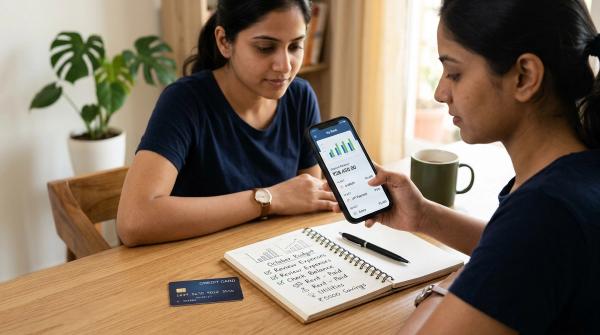
UPI Lite balance vs bank account balance
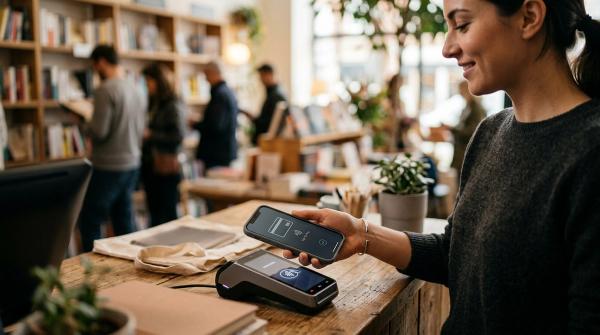
#When you make a normal UPI payment, the amount is usually debited directly from your bank account. UPI Lite works differently. It is meant for quick small-value payments, so you first load a Lite balance and then spend from that balance.
NPCI’s UPI Lite guidance treats Lite balance as something users should manage carefully, especially while changing devices. A simple way to think about it is: do not leave UPI Lite balance behind on an old phone.
How to transfer UPI Lite balance back
#Different apps use different wording. You may see Transfer Out, Manage UPI Lite, UPI Lite Settings, Close UPI Lite, Disable UPI Lite, or Deregister UPI Lite.
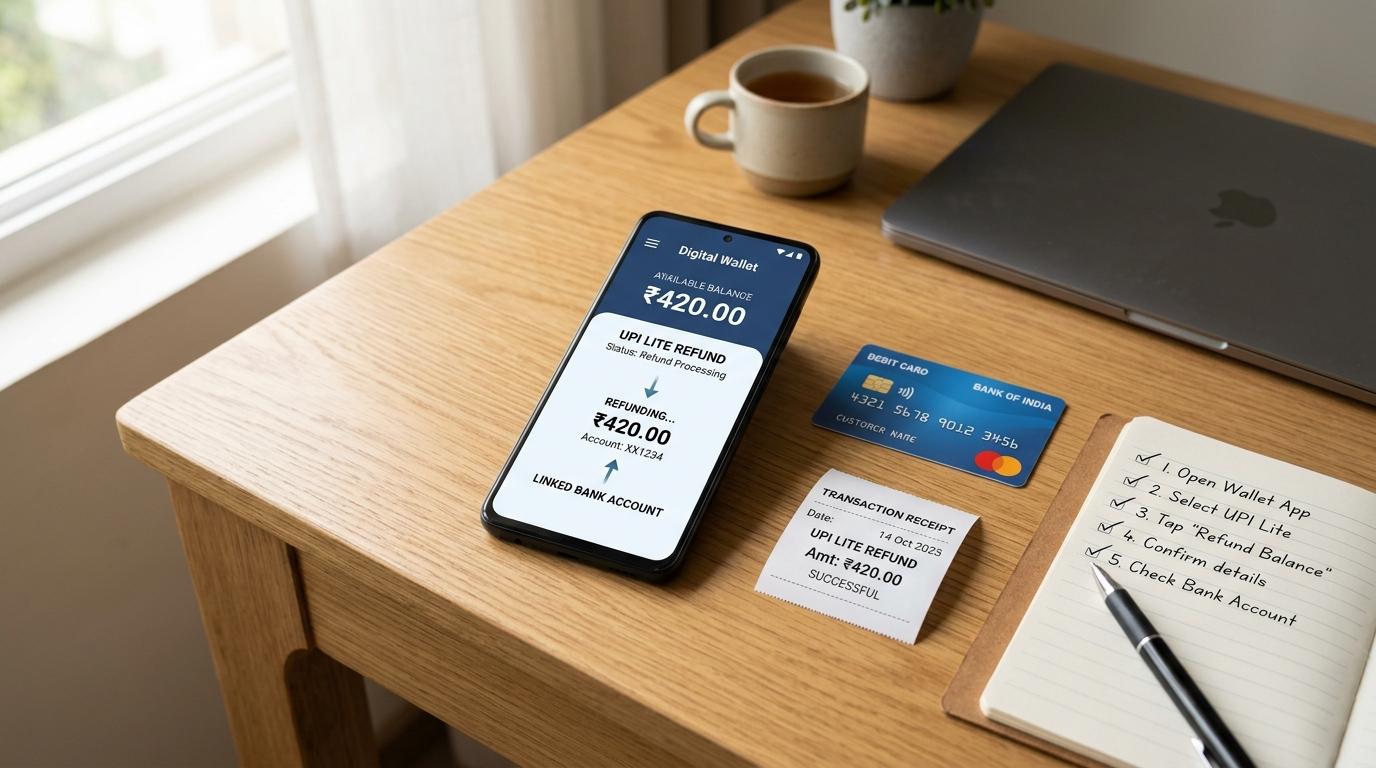
Method 1: Use Transfer Out if your app shows it
#Some apps let you move unused UPI Lite balance back to the linked bank account without fully closing UPI Lite.
Typical steps:
- Open your UPI app.
- Go to profile, bank account, or UPI Lite section.
- Open UPI Lite settings or Manage UPI Lite.
- Look for Transfer Out or a similar option.
- Confirm the transfer.
- Check your linked bank account statement.
If your app does not show Transfer Out, do not assume the money is stuck. Your app may expect you to disable or close UPI Lite instead.
Method 2: Disable, close, or deregister UPI Lite
#For many users, closing UPI Lite is the clearest way to release unused balance back to the linked account.
Typical steps:
- Open the UPI app where UPI Lite is active.
- Go to UPI Lite settings.
- Tap Disable, Close, or Deregister UPI Lite.
- Follow the app instructions.
- Enter your UPI PIN only inside the trusted app if the app asks for it to authorise closure.
- Wait for the app confirmation.
- Check your bank statement or passbook entry.
Do not rely only on a success screen. Confirm the actual credit in the linked bank account.
Before changing phones: UPI Lite safety checklist
#Changing phones is where many UPI Lite balance problems begin. Since UPI Lite is connected to your app and device setup, handle the balance before selling, exchanging, repairing, resetting, or retiring your old phone.
- Open the UPI app on your old phone.
- Check the current UPI Lite balance.
- Use Transfer Out if available.
- If not available, choose Disable, Close, or Deregister UPI Lite.
- Confirm the money is back in your linked bank account.
- Save a screenshot or note of the closure/transfer confirmation.
- Only then uninstall the app, reset the phone, or exchange the device.
- Set up UPI Lite on the new phone only if you still want to use it.
The simple rule: move the balance back before leaving the old phone.
What if you already changed phones?
#If you still have the old phone, open the same UPI app there and try to transfer out or disable UPI Lite from that device.
If you no longer have the old phone, check your current UPI app for any option to manage the earlier Lite setup. If nothing appears, raise a support request inside the UPI app and contact your linked bank through official channels.
Avoid random “UPI Lite refund customer care” numbers from search results, WhatsApp forwards, Telegram groups, or social media comments. Many refund scams start exactly that way.
Failed UPI Lite payment: what to check first
#A UPI Lite payment can still fail, stay pending, or confuse the merchant. For example:
- UPI Lite balance is deducted but the merchant says payment was not received.
- The app shows processing, pending, or failed.
- The payment does not clearly appear in the bank statement because it was a Lite transaction.
- You closed the app too quickly and cannot tell whether it went through.
Follow this sequence before paying again or escalating.
1. Check transaction history inside the UPI app
#Open the exact UPI app used for the payment and check transaction history. Some apps show UPI Lite payments separately from normal UPI payments.
Look for statuses such as:
- Successful
- Failed
- Pending
- Refunded
- Processing
This status decides your next step.
2. Ask the merchant to refresh their payment history
#If you are still at the shop, ask the merchant to check their app, soundbox, or settlement screen. Do not pay again blindly.
If you must pay again because the merchant has not received the first payment, keep proof of both payments.
3. Check Lite balance and bank statement
#A failed or reversed UPI Lite transaction may reflect back in Lite balance or through the linked account depending on the app, bank, and transaction status. Check both places before assuming money is lost.
4. Raise a dispute from the same transaction
#The best complaint path is usually from the exact transaction inside your UPI app. Use options like Help, Support, Raise dispute, Report issue, or UPI complaint.
This connects your complaint to the correct transaction reference and reduces confusion.
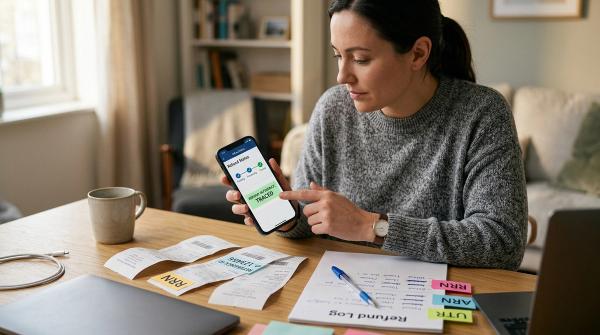
Proof to save before complaining
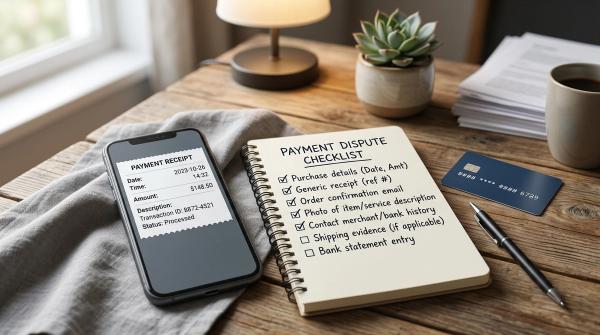
#Keep these details ready:
- Screenshot of the UPI Lite transaction.
- Transaction ID, UTR, or reference number if shown.
- Date and time.
- Amount.
- Merchant name or UPI ID if visible.
- UPI Lite balance before and after, if available.
- Screenshot of failed, pending, processing, or refund status.
- Bank account statement entry if money moved there.
- Confirmation screen if you disabled or deregistered UPI Lite.
Do not post full transaction details publicly. If you complain on social media, hide mobile numbers, account details, UTRs, and reference numbers.
Where to raise a UPI Lite refund complaint
#Start inside the UPI app used for the transaction. Open the transaction and use its support or dispute option.
If that does not resolve the issue, contact the bank linked with your UPI Lite setup through official channels only:
- Bank mobile app.
- Bank official website.
- Bank branch.
- Official bank email or support route.
You can also check official NPCI or BHIM UPI pages for complaint and dispute routes where available. Do not use unofficial helpline numbers.
UPI PIN and refund scam warnings
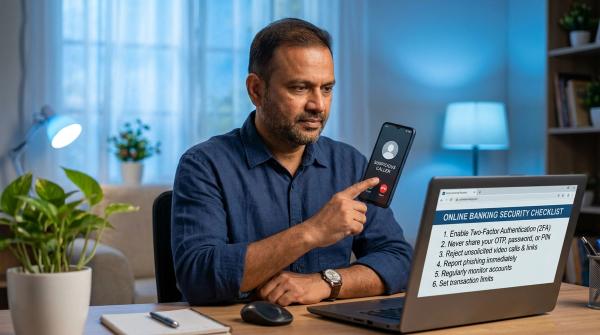
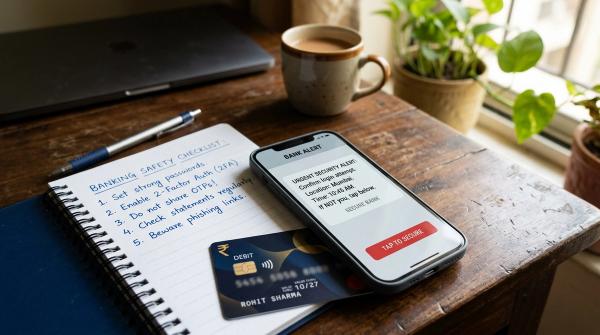
#UPI Lite refund confusion is often used by scammers. Use these rules every time:
- You do not enter your UPI PIN to receive money. A refund or credit does not need payment approval.
- You may need your UPI PIN to add money or close UPI Lite. Enter it only inside your trusted UPI app.
- Never share OTPs, UPI PINs, card PINs, or passwords.
- Do not install screen-sharing apps for refund help.
- Do not call random customer-care numbers. Use the app or bank’s official support route.
- Do not approve collect requests for refunds. Approving a collect request can debit your account.
UPI Lite limits can change
#UPI Lite balance limits, per-transaction limits, and daily usage limits can change. Apps and banks may also display limits differently based on their rollout and NPCI guidance.
Before relying on UPI Lite for daily use, check:
- Your own UPI app.
- Your bank’s official UPI Lite terms.
- NPCI or BHIM UPI official pages.
This matters if you use UPI Lite frequently for many small payments in one day.
Practical habits to avoid UPI Lite balance problems
#- Keep only a small amount in UPI Lite for daily payments.
- Transfer out or disable UPI Lite before changing phones.
- Save screenshots when closing UPI Lite or raising disputes.
- Update UPI apps only from the official app store.
- Use a strong phone lock.
- If your phone is lost or stolen, contact your bank quickly through official channels.
- Never trust refund links or “support” numbers sent by strangers.
Related AllBlogs reads
#If you want more context, read these related AllBlogs guides:
- UPI Lite vs Normal UPI for deciding when Lite makes sense.
- UPI Payment Failed but Money Debited for normal UPI refund steps.
- Wrong UPI Payment for first 24-hour recovery checks.
- UPI AutoPay Not Cancelling for recurring mandate issues.
UPI Lite is built for speed, not for storing large idle balances. If you want your money back, look for Transfer Out first. If that is not available, disable or deregister UPI Lite and confirm the bank credit. Treat the balance like cash, save proof, and use only official support channels if something goes wrong.
This article is for general consumer awareness only. UPI features, app flows, and limits may change. Always verify current details in your UPI app, your bank’s official terms, or NPCI/BHIM UPI pages.