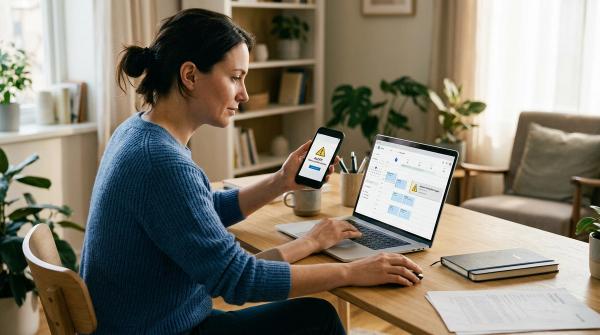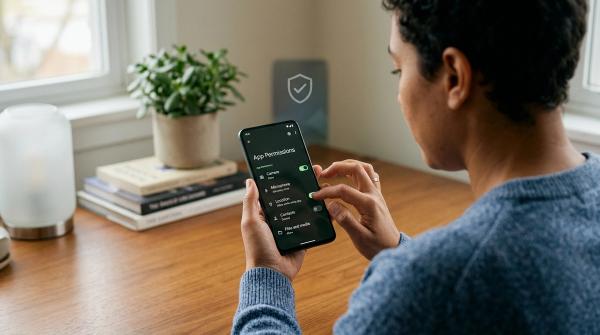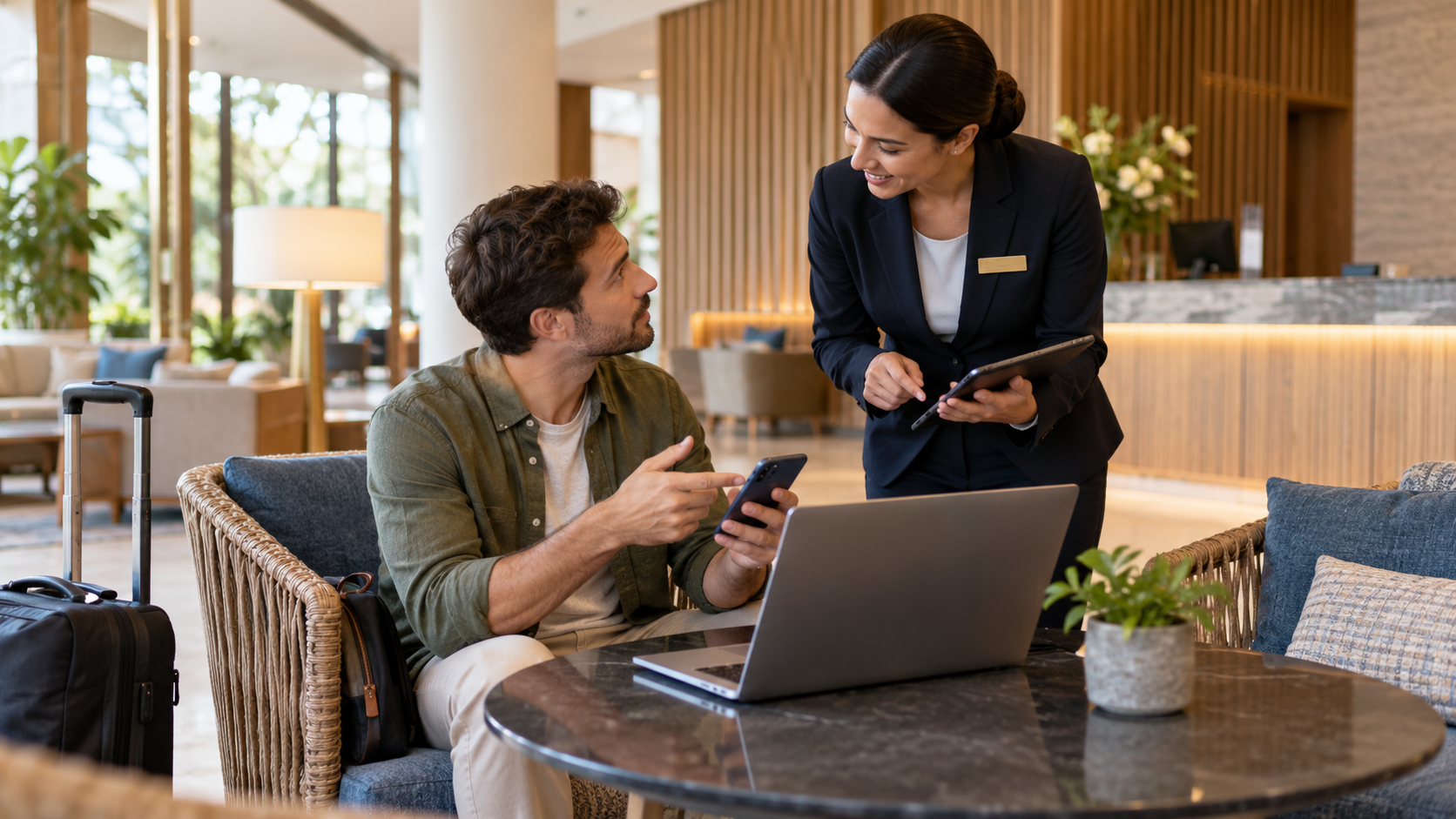
If a hotel Wi-Fi sign-in page suddenly asks you to install a browser update, certificate, app, or run a command, stop. A guest portal may ask you to accept terms or enter a hotel access detail, but it should not need you to install or run software. Confirm the request through hotel staff or instructions you already trust.
This is a specific risk worth recognizing: Microsoft reported attackers using some hospitality captive portals to redirect travelers to fake account prompts and software updates. The activity was targeted, so it does not mean every hotel network is compromised. It does mean the screen that appears after joining Wi-Fi deserves a careful look.
What a hotel Wi-Fi sign-in page is for
#A captive portal is the web page a guest network may show after you join its Wi-Fi name. It can ask you to accept the venue’s terms, enter a room number, use a voucher, or provide another venue-specific access detail the venue uses to grant access. The process differs by hotel and country. There is no one standard page that every hotel must use.
A portal is a connection gate, though. It is not proof that every page it opens is genuine. The page might be operated by a hotel or its Wi-Fi provider, and a network’s sign-in equipment can have its own security problems. An attacker can also create a lookalike network nearby. So treat a portal as a request to check, not as a trusted authority over your device.
That distinction matters because a real hotel may use a sign-in page and a malicious page may imitate one. A hotel name, familiar logo, room-number field, or padlock icon does not settle the question by itself.
If the guest portal shows an update prompt, stop first
#| What appears | A sensible response |
|---|---|
| A network name confirmed by the front desk or official guest instructions | Join only after checking the spelling; ask if a near-match or second network appears. |
| Terms of use, a guest code, or a room detail the hotel told you to expect | Check that the page is part of the hotel’s stated process, then share only what is needed. |
| A request for your work, Microsoft, Google, Apple, banking, or email password when you did not start that sign-in | Stop. Do not enter it into a guest-network page. Ask your organization or hotel through a separate channel. |
| A device code that you are told to enter at an account sign-in page | Stop unless you personally started that sign-in and understand which device or session you are approving. A real sign-in site can still be used in a scam. |
| A browser, operating-system, certificate, security, VPN, or “network repair” download | Do not install it from the portal or a pop-up. Check for updates through your device’s own settings later. |
| Instructions to copy and paste text into Terminal, PowerShell, Command Prompt, or another system tool | Close the page. Joining Wi-Fi should not require you to run a command. |
| An unfamiliar payment, card, or identity-data request | Do not submit it until you confirm the exact requirement directly with the hotel. |
A legitimate process can vary, so do not treat any one field as automatic proof of fraud. The important question is whether the request matches instructions you verified independently and makes sense for guest internet access.
What to check before a portal login
#Ask for the exact network name
#Use the name printed in the room or confirmed by staff. If you see two similar choices, a network with an unexpected extra word, or a name that appears to offer “faster” access, ask before selecting one. A lookalike network can copy a venue’s name. The strongest practical check is to ask a person at the front desk or use official hotel information you already have, not a phone number or link displayed in a suspicious page.
A correct name is useful, but it does not guarantee that the hotel’s equipment is uncompromised. Microsoft reported in 2026 that attackers had manipulated traffic through some hospitality networks using captive portals. The point is not that every hotel network is affected; it is that seeing the expected network name does not make unexpected software or sign-in requests safe.
Decide whether you need the network
#For sensitive work or account recovery, use the connection method your organization recommends; mobile data may be an option when your plan and signal allow it. A company-managed VPN can protect a route to work systems, but it does not make a fake login page legitimate or a portal download safe.
What the sign-in page can reasonably ask
#Hotels do not all use the same login design. One property might ask you to accept terms; another may use a room number, guest code, or another venue-specific detail. Confirm the property’s actual method before deciding that an unfamiliar form is normal. The category of information matters: ask what exact fields it should request.
Then keep the information proportionate. A guest connection should not be a reason to hand over your main email password, work account credentials, payment PIN, recovery code, or an authentication code you did not request. A page asking for an unusual amount of personal data deserves a pause even if the hotel name appears on it. Ask why that information is needed and whether there is another way to connect.
Five prompts that should stop the process
#An update appears inside the portal
#A guest network may redirect your browser to its terms or sign-in page. That is different from a website telling you that your browser, operating system, video player, antivirus, or Wi-Fi driver must be updated before you can connect.
Do not download the file. Close the page and use your device’s built-in update settings when you are on a connection you trust. Microsoft’s October 2026 update to its threat-intelligence report described fake browser and operating-system update prompts delivered through manipulated hospitality captive portals. Those observations are about a targeted campaign, not evidence that every hotel login page is malicious. They are a good reason to keep software updates inside the official settings on your device.
A certificate or security tool must be installed
#A portal asking you to install a certificate, configuration profile, app, browser extension, VPN, or “security utility” is not a normal step to accept casually for personal guest Wi-Fi. These items can change what your device trusts or how it connects. Do not install them just because a page says access will fail otherwise.
A workplace may manage certificates and other settings on a company device. If that applies, stop and confirm with your own IT team using its known support channel. Do not treat a hotel portal as your IT department.
A company login or device code appears
#If you were trying to get hotel internet, an unexpected Microsoft 365, Google, Apple, or work-account login is a reason to stop and verify. Do not type the same work password you use elsewhere into a page that appeared during Wi-Fi setup.
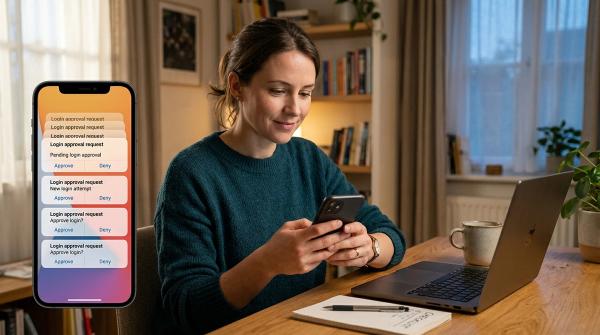
Device-code sign-in can be a legitimate way to authenticate a device, but it can also be abused: Microsoft describes attackers persuading people to enter a code that authorizes the attacker’s session. Only enter a code when you started the sign-in yourself, requested the code, and can identify the device or account session you are approving. A real sign-in website does not prove that the request that sent you there is safe.
The page asks you to run a command or install an app file
#A real network connection does not need you to open a system tool, paste text, disable security, or install an app from an unfamiliar download. If you see “manual verification,” “fix your browser,” or a command to copy, leave the page. You can read more about fake CAPTCHA and paste-and-run prompts, which use a related trick in a different setting.
The page uses urgency to rush you
#Messages like “your device is infected,” “security check failed,” or “install now or lose access” are pressure tactics, not proof that a device has a problem. Do not click its cleanup, scan, support, or cancel buttons. Close the tab or browser and ask the hotel separately.
A warning that appears as a browser notification can also come from a site that was granted permission rather than from your operating system. If that is what you are seeing, this browser notification scam guide explains the difference and how to remove a site’s notification permission.
A safe way to continue
#Confirm before tapping
#Check the network name with official hotel instructions or staff. Do not choose a lookalike just because it has a stronger signal. If the sign-in page appears to come from a different company, asks for information you did not expect, or tries to send you somewhere unrelated, pause and confirm what the hotel actually uses.
Share only the expected access details
#Read the request before submitting. A room detail, guest code, or terms agreement may match the hotel’s process; an unrelated account password or security code does not. If the request is unclear, ask staff for the exact connection steps. Do not provide more information just to make a pop-up go away.
Keep updates and account recovery separate
#Do not install software, certificates, browser add-ons, or mobile packages from a captive portal. If your browser or device genuinely needs an update, open the device’s own settings or the official app store after you have left the questionable page. If you need to sign into an account, use its normal app or a saved bookmark rather than a login page unexpectedly inserted into Wi-Fi setup.
Use a connection that fits the task
#For work access, follow your company’s approved remote-access process. A VPN can protect some network traffic, but it cannot prevent you from typing a password into a convincing fake page or running a malicious download. It is one tool, not a reason to ignore a suspicious portal prompt.
The National Cybersecurity Alliance makes a useful distinction: encryption can protect information in transit, but a scam site can still ask you for the information directly. That is why checking what you are being asked to do matters as much as checking the connection.
Disconnect when you are done
#When you leave, turn off Wi-Fi or remove the hotel network from your saved networks if you do not want your device to reconnect automatically on a later visit. Menu names differ by phone and computer. You do not have to clear everything or change every password simply because you used a verified guest connection; focus on any unusual prompt or activity you actually encountered.
If you already entered something or installed a file
#The right next step depends on what happened. A page opening is not the same as installing software or approving a login. Use the branch that matches your action.
You opened a page but entered nothing
#Close it and disconnect from that network if the page was unexpected. Do not return through the same redirect. Check the hotel’s instructions with staff. If no password, code, file, or permission was involved, do not assume that your accounts or device have been taken over.
You entered a password or code
#From a different connection you trust, open the account’s official app or type its usual address yourself. Change the password if you entered it on an unexpected page, and also change it anywhere else you reused it. Review recent sign-ins, sign out sessions you do not recognize where the service allows it, and check that recovery email and phone details still belong to you.
If you entered a device code you did not request, check the account’s active sessions and connected devices promptly. For a work account, contact your IT or security team right away; they can check the organization’s sign-in logs and revoke access. If you shared a bank or payment credential, contact the provider through the number on your card or its official app.
You downloaded, installed, or ran something
#If you only downloaded a file, do not open it. If you installed an app, accepted a certificate/profile, or ran copied instructions, disconnect the device from Wi-Fi and do not use it to sign in to important accounts until you have advice. On a company device, contact IT using another phone or device. On a personal device, use the operating-system maker’s official support or a trusted technician. A quick uninstall or scan may not establish that everything is safe, especially after a command was run.
If you are helping someone else, ask what they tapped or entered without blaming them. The difference between a page view, a password, a code, and an installation helps decide what to do next. Keep screenshots only if they do not expose passwords, private codes, or other people’s information.
The short rule
#Before connecting, verify the exact network name. At the portal, enter only details that match the hotel’s confirmed guest process. Stop if it unexpectedly asks for a work or main-account password, a device code you did not request, an update, a certificate, an app, or a command. Use mobile data or ask staff through a separate channel if the request feels wrong.
Afterward, respond to what actually happened: change exposed credentials from a trusted connection, tell IT about a work-account prompt, and get help if anything was installed or run. That is a more useful routine than treating every public network as automatically safe or automatically dangerous.