Quick answer
#The safest everyday lock screen notification privacy setting is to keep alerts on but hide message previews until your phone is unlocked. On iPhone, use Settings > Notifications > Show Previews > When Unlocked. On Android, use Settings > Notifications > Notifications on lock screen > Hide sensitive content. Then review WhatsApp, SMS, email, banking, payment and work apps first.
Your lock screen is useful for quick glances. Missed calls, delivery updates, reminders, messages, emails, calendar alerts — everything shows up without you having to unlock your phone.
That convenience is great until your phone is lying face-up on a table and someone else can read what just popped up.
A notification might reveal a WhatsApp message, an email subject line, a banking alert, a calendar event, a private chat, or even an OTP code. You may not notice it because you’re used to seeing these alerts. But anyone nearby can catch a glimpse too.
The good news is that you don’t have to turn off notifications completely. You can keep alerts and hide the sensitive preview text.
Why lock screen notification privacy matters
#Most people think about phone privacy in terms of passcodes, Face ID, fingerprints, app locks and two-factor authentication.
Those are important. But your lock screen is often where private information leaks first.
A simple notification preview can show:
- Who messaged you
- Part of a private conversation
- Email subject lines
- WhatsApp messages
- SMS codes and OTPs
- Banking or payment alerts
- Work chat snippets
- Calendar event names
- Personal reminders
It’s not always about “hiding something.” Sometimes you just don’t want your family, classmates, coworkers or strangers in a café reading your notifications by accident.
The goal is simple: your phone should tell you something arrived without showing the private details until you unlock it.
The best setting for most people
#For most users, the best balance is:
- iPhone:
Settings > Notifications > Show Previews > When Unlocked - Android:
Settings > Notifications > Notifications on lock screen > Hide sensitive content
With these settings, your phone can still show that you received a notification. But the message itself stays hidden until the phone is unlocked.
That means you still get alerts, sounds and vibrations — just without exposing your private content on the lock screen.
iPhone: how to hide notification previews
#iPhones have a built-in option called Show Previews. This controls when notification content is visible.
For everyday privacy, choose:
Settings > Notifications > Show Previews > When Unlocked
This lets your iPhone show notification previews only after you unlock it with Face ID, Touch ID or your passcode.
So if your phone is locked on a desk, someone may see that you got a message — but they won’t see what it says.
Step-by-step: change notification previews on iPhone
#- Open the Settings app.
- Tap Notifications.
- Tap Show Previews.
- Choose one of these options:
For most people, When Unlocked is the sweet spot. It keeps your phone convenient without putting your messages on display.
Hide previews for only one iPhone app
#You don’t have to use the same setting for every app.
Maybe you’re fine with weather alerts showing on the lock screen, but you don’t want previews from WhatsApp, Messages, Gmail, banking apps or work apps.
To change previews for one app:
- Open Settings.
- Tap Notifications.
- Scroll down and select the app.
- Tap Show Previews.
- Choose When Unlocked or Never.
This is especially useful for apps that contain private conversations, financial alerts, work updates or account verification codes.
Android: how to hide sensitive lock screen notifications
#Android phones also let you hide notification content from the lock screen. The exact wording can vary depending on your phone brand, but the idea is the same.
You want the phone to show that a notification arrived without showing the actual message.
On many Android phones, look for:
Settings > Notifications > Notifications on lock screen > Hide sensitive content
This usually keeps the notification visible while hiding the message preview.
Step-by-step: hide sensitive content on Android
#- Open Settings.
- Tap Notifications.
- Look for Notifications on lock screen, Lock screen notifications or a similar option.
- Choose one of the following:
For most people, Hide sensitive content is the best option.
If you want the strictest setup, choose Don’t show notifications.
Samsung, Xiaomi, Redmi and other Android phones
#On many Samsung Galaxy phones:
- Open Settings.
- Tap Notifications.
- Tap Lock screen notifications.
- Choose Hide content.
Some Android brands place this setting under Lock screen instead of Notifications.
Look for options with names like:
- Lock screen notifications
- Show notifications but hide content
- Hide sensitive content
- Hide content
- Don’t show notifications on lock screen
If you can’t find it, use the search bar inside Settings and type lock screen notifications or hide sensitive content.
Apps you should check first
#You don’t need to review every app on your phone right away. Start with the apps most likely to show private information.
A weather alert or sports score probably isn’t a big privacy issue. But anything connected to money, identity, work, school, health, relationships or private conversations deserves a quick check.
WhatsApp notification privacy: don’t skip this one
#WhatsApp is one of the first apps you should review.
Its notifications often show the sender’s name and the message text. That’s helpful when you’re alone. It’s less ideal when your phone is on a table during lunch, sitting beside you in class or visible during a meeting.
For better WhatsApp notification privacy:
- On iPhone, use Show Previews > When Unlocked or Never.
- On Android, choose Hide sensitive content or Hide content for lock screen notifications.
A practical setup is:
- Keep WhatsApp notifications turned on.
- Hide the message preview.
- Keep sound or vibration if you still want alerts.
- Unlock your phone to read the full message.
This keeps WhatsApp useful without letting every message appear on your lock screen.
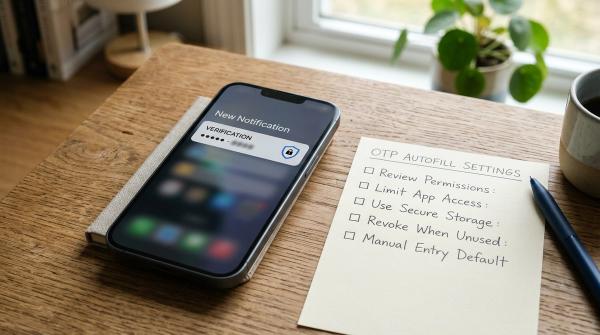
OTP notification safety: keep codes off the lock screen
#OTPs, or one-time passwords, are short codes used to confirm logins, transactions, password resets and account changes.
They often arrive through SMS, email, banking apps or authentication apps.
The problem is simple: if an OTP appears clearly on your lock screen, someone nearby may be able to see it without unlocking your phone.
That doesn’t mean every OTP notification is dangerous. But hiding OTP previews is a smart habit.
For better OTP safety:
- Hide SMS previews on the lock screen.
- Hide email previews if you receive codes by email.
- Review banking and payment app notifications.
- Avoid leaving your phone face-up in public when waiting for a code.
The OTP will still arrive. It just won’t be openly visible before your phone is unlocked.
Convenience vs privacy: choose what works for you
#You don’t have to go from “show everything” to “show nothing.”
There are three basic levels:
Most convenient
#Notifications show with full previews. This is fast, but least private.
Balanced
#Notifications appear, but message content stays hidden until the phone is unlocked. This is best for most people.
Use:
- iPhone: When Unlocked
- Android: Hide sensitive content
Most private
#Nothing, or almost nothing, appears on the lock screen.
Use:
- iPhone: Never
- Android: Don’t show notifications
This is more private, but less convenient because you’ll need to unlock your phone more often.
If you live with others, work in a shared office, travel often, attend classes, or regularly place your phone on tables and counters, the balanced option is usually enough.
Quick lock screen privacy checklist
#iPhone checklist
#- Go to Settings > Notifications > Show Previews.
- Choose When Unlocked for a good balance.
- Choose Never for stricter privacy.
- Review sensitive apps one by one.
- Check WhatsApp, Messages, Mail, Gmail, banking apps, payment apps and work apps first.
- Hide previews for any app that may show private content.
Android checklist
#- Go to Settings > Notifications.
- Find Notifications on lock screen or Lock screen notifications.
- Choose Hide sensitive content or Hide content.
- Choose Don’t show notifications if you want maximum privacy.
- Check WhatsApp, SMS, email, banking, payment and work apps first.
- Use Settings search if the menu name is different on your phone.
Common mistakes to avoid
#Leaving SMS previews visible
#Many OTPs still arrive by SMS. If your SMS previews are visible on the lock screen, those codes may be visible too.
Only changing WhatsApp settings inside WhatsApp
#WhatsApp has its own notification controls, but your phone’s system-level lock screen settings matter too. Check your iPhone or Android notification settings first.
Forgetting email apps
#Emails can contain password reset links, order details, travel updates, private conversations and work information. Gmail, Outlook and Apple Mail are worth reviewing.
Assuming every Android phone uses the same menu names
#Android settings vary across Samsung, Pixel, Xiaomi, Redmi, OnePlus, Motorola and other brands. If you can’t find the option, search Settings for lock screen notifications or hide sensitive content.
Turning off all notifications when you don’t need to
#You may not need to disable everything. In many cases, hiding previews is enough.
Sources checked
#This guide was checked against current Apple Support guidance for iPhone notification settings and Google Android Help guidance for lock screen notifications. Menu names can vary by phone model and software version, so use your Settings search if the exact wording is different.
Final takeaway
#Lock screen notification privacy is one of the easiest privacy upgrades you can make.
You don’t need a new app. You don’t need technical knowledge. You just need to change one setting.
On iPhone, use:
Settings > Notifications > Show Previews > When Unlocked
On Android, use:
Settings > Notifications > Notifications on lock screen > Hide sensitive content
Then review your most sensitive apps: WhatsApp, SMS, email, banking, payment and work apps.
Your phone can still alert you. It just doesn’t need to show your private messages to everyone around it.