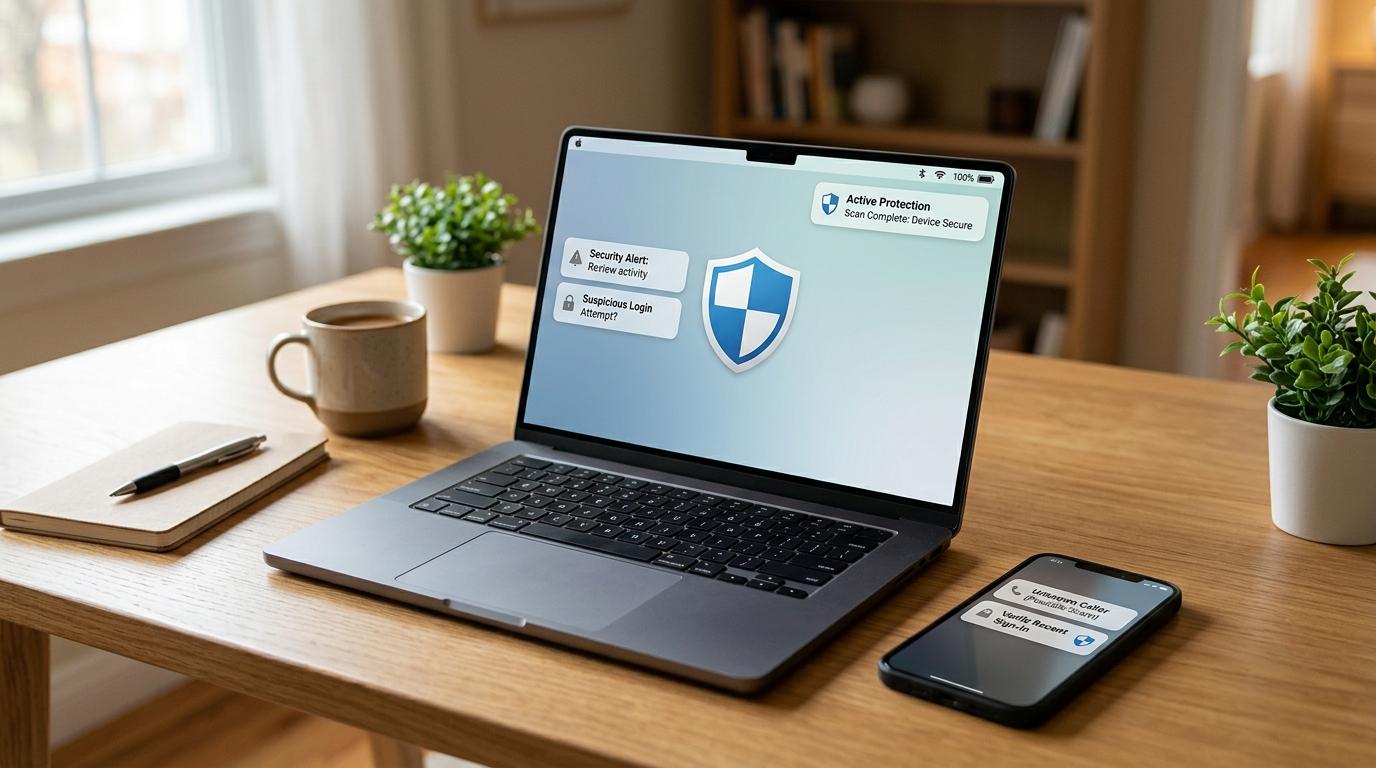
A browser notification scam happens when a website tricks you into allowing notifications, then uses those notifications to send scary messages like “Your device has a virus” or “5 threats found.” The goal is to make you panic and click a link, call a fake support number, install a risky app, pay for a fake service, or share sensitive information.
Most of these alerts do not prove your phone, laptop, or computer is infected. In many cases, you accidentally gave a website permission to send notifications. The fix is usually to remove that website from your browser’s allowed notification list.
What is a browser notification scam?
#Browser notifications are a real feature. Trusted websites use them for email alerts, calendar reminders, school portals, work tools, news updates, or shopping notifications.
The scam begins when a dishonest website misuses the same feature. You may land on a page that says:
- “Click Allow to prove you are human”
- “Click Allow to watch the video”
- “Press Allow to download your file”
- “Tap Allow to continue”
- “Allow notifications to close this window”
That Allow button is the trap. It is not a CAPTCHA. It does not prove you are human. It gives that website permission to send notifications through your browser.
Later, even after you leave the site, it can send alerts to your desktop or phone. Because those alerts appear near normal system notifications, they can look official.
How fake virus alerts usually work
#Most fake browser notification scams follow a predictable pattern:
- You land on a suspicious page. This may happen on low-quality streaming sites, file download pages, fake CAPTCHA pages, suspicious ad pages, or fake “continue” pages.
- The page asks you to click Allow. It may pretend this is needed to play a video, download a file, confirm your age, or prove you are not a robot.
- You allow notifications. The website is added to your browser’s allowed notification list.
- Scary alerts begin. You may see messages like “Virus detected,” “Your device is damaged,” “Banking details exposed,” or “Antivirus expired.”
- The alert pushes urgent action. It may ask you to click, call, renew, install, or download something.
- The real danger starts if you follow the instructions. The notification itself is often permission abuse. The risk rises if you download software, call scammers, install remote access apps, enter passwords, share OTPs, or provide payment details.
If you see one of these alerts, pause. The alert is designed to rush you.
Real security alert vs fake browser notification scam
#Safety rules before you do anything
#- Do not call phone numbers shown in scary pop-ups. Even if the alert uses a familiar company name, do not trust the number.
- Do not install remote access tools for someone you do not know. If a stranger tells you to install AnyDesk, TeamViewer, UltraViewer, or a similar app, stop.
- Do not share OTPs, passwords, UPI PINs, card PINs, recovery codes, or login links. Real support teams do not need these.
- Do not click buttons like “Scan,” “Clean now,” “Renew,” or “Remove virus” inside the warning.
- Do not panic. A browser notification is not proof that your device has a virus.
- Do not download apps from the alert page. Use official app stores or trusted official websites only.
For families, the safest rule is simple: close the browser and ask someone trusted before clicking anything.
Step-by-step checklist to remove suspicious browser notifications
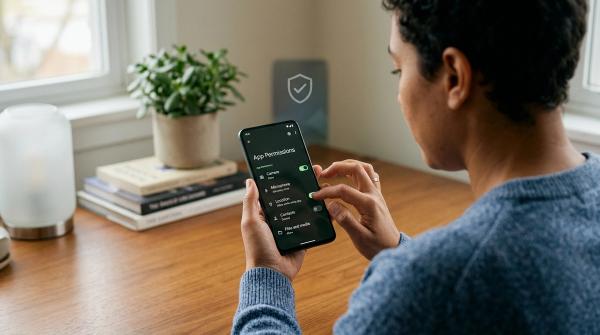
#Browser menus change, so your screen may look slightly different. The basic idea is the same: find websites allowed to send notifications, then remove or block anything suspicious.
- Do not click the fake alert.
- Close the browser tab if it is still open.
- If alerts keep appearing, close the browser completely.
- Reopen the browser from its normal icon.
- Go to notification settings.
- Look for unfamiliar websites in the allowed notifications list.
- Remove or block suspicious sites.
- Restart the browser and check whether the alerts have stopped.
How to stop fake virus alerts in Google Chrome
#- Open Google Chrome.
- Click the three dots in the top-right corner.
- Select Settings.
- Go to Privacy and security.
- Select Site settings.
- Click Notifications.
- Review websites allowed to send notifications.
- Find any suspicious or unfamiliar website.
- Click the three dots next to that site.
- Choose Remove or Block.
If you rarely use website notifications, consider changing Chrome’s notification settings so websites cannot ask to send notifications, or use quieter notification prompts where available.
How to remove fake pop-ups in Microsoft Edge
#- Open Microsoft Edge.
- Click the three dots in the top-right corner.
- Select Settings.
- Go to Cookies and site permissions.
- Select Notifications.
- Under Allow, review listed websites.
- If you see a site you do not recognize, click the three dots next to it.
- Choose Remove or Block.
If fake virus alerts return, check the list again. More than one suspicious website may have been allowed.
How to block site notifications in Mozilla Firefox
#- Open Mozilla Firefox.
- Click the menu button with three horizontal lines.
- Select Settings.
- Go to Privacy & Security.
- Scroll to Permissions.
- Next to Notifications, click Settings.
- Review the list of websites.
- Select suspicious websites.
- Choose Block or Remove Website.
- Click Save Changes.
Firefox may also let you block new notification requests in the future. This is useful if you almost never want websites to send alerts.
How to stop fake alerts in Apple Safari
#- Open Safari on your Mac.
- In the top menu bar, click Safari.
- Select Settings or Preferences.
- Click the Websites tab.
- Select Notifications in the sidebar.
- Review the websites listed.
- Select any suspicious site.
- Choose Deny or click Remove.
If you use Safari on iPhone or iPad, check Apple’s official Safari Support pages for instructions for your exact device and iOS version.
What if you already clicked the fake alert?
#Clicking a fake notification once does not always mean your device is infected. What matters is what happened after you clicked.
Use this checklist:
- If a web page opened, close it.
- If a file downloaded, do not open it. Delete it.
- If you installed an unknown app, uninstall it.
- If you entered a password, change that password from the official website or app.
- If you reused that password elsewhere, change it on those accounts too.
- If you shared an OTP, UPI PIN, card details, or banking information, contact your bank or payment provider using official channels.
- If you gave someone remote access, disconnect from the internet, remove the remote access tool, change important passwords from another trusted device, and check financial accounts for unusual activity.
- If you downloaded or installed anything suspicious, run a scan using your device’s built-in security tools or trusted security software.
Do not call the number again to “cancel” anything. Use official support channels only.
How to avoid fake browser alerts in the future
#- Be suspicious of any website that says “Click Allow to continue.”
- Allow notifications only from websites you know and actually want alerts from.
- Check the website address before trusting any warning.
- Keep your browser updated.
- Download apps only from official app stores or official product websites.
- Teach family members that real support teams do not ask for OTPs, passwords, or remote access through scary pop-ups.
- Review browser notification permissions every few months.
- If you use a shared family computer, consider blocking notification prompts by default.
This matters for students, workers, freelancers, and creators who often move through unfamiliar research sites, download pages, file converters, video tools, and design resources.
Quick takeaway
#Fake virus alerts are often just browser notifications from a website you accidentally allowed.
Do not click the alert. Do not call the number. Do not install anything from the warning.
Instead, open your browser settings, go to Notifications or Site Permissions, and remove or block suspicious websites.
Sources to verify
#For the latest browser menu names and scam safety guidance, check Google Chrome Help, Microsoft Edge Support, Mozilla Support, Apple Safari Support, and FTC phishing/scams guidance.