A UPI AutoPay safety checklist is simple: before approving any mandate, check the merchant name, amount, frequency, start date, end date, and mandate type.
In plain words, ask yourself: Who is taking the money? How much can they take? How often can they take it? And for how long? If you cannot answer these clearly, do not approve the mandate yet.
UPI AutoPay is useful for OTT subscriptions, utility bills, app plans, donations, EMIs, insurance premiums, and other recurring payments. You do not have to remember every due date, which is convenient. But convenience should not turn into carelessness.
A UPI AutoPay mandate is different from a normal one-time UPI payment. When you approve a mandate, you are giving a merchant permission to debit your bank account later, based on the terms you accept. So before you enter your UPI PIN, pause for 30 seconds.
That small pause can help you avoid unwanted renewals, surprise free-trial charges, higher-than-expected debits, or payments you approved months ago and forgot about.
This guide explains how to approve, review, pause, modify, revoke, and monitor UPI AutoPay mandates safely.
What Is a UPI AutoPay Mandate?
#A UPI AutoPay mandate is your permission for a merchant to automatically debit your bank account at a set frequency, within the amount and time period you approve.
For example, a mandate could be for:
- ₹149 every month for an OTT subscription
- A variable electricity bill up to a fixed maximum limit
- A recurring donation
- A free app trial that renews after a few days or weeks
- An EMI or loan repayment instruction
- An insurance premium payment
The most important thing to remember is this: the mandate terms decide how the payment will work.
That means you should carefully check the merchant name, debit amount, maximum limit, frequency, start date, end date, and purpose of the payment.
NPCI’s UPI AutoPay framework allows users to view and manage mandates. NPCI’s October 2025 updates refer to mandate actions such as revoke, pause, and modify, and say payer actions require UPI PIN authentication. NPCI’s UPI HELP pilot also supports mandate-related actions such as view, pause, resume, and revoke.
So once you approve a mandate, you are not necessarily stuck with it forever. But you do need to know where to find it and how to control it.
UPI AutoPay Safety Checklist Before You Approve
#Before you enter your UPI PIN, check every detail on the mandate screen.
If anything feels unclear, cancel the approval and check again later. A genuine merchant request can usually be recreated. A wrong approval can become a headache.
The One Rule for UPI PIN Safety
#Your UPI PIN is not just another password. It is the key used to approve payments or make important changes to payment instructions.
Keep this rule in mind: Never enter your UPI PIN because someone else is telling you to. Enter it only when you personally understand and want to approve the action shown inside your trusted UPI app.
Do not share your UPI PIN with anyone. Do not type it because someone on a call is guiding you. Do not enter it to “receive a refund.” Do not enter it during a screen-sharing session.
For UPI AutoPay, actions such as approving, pausing, modifying, resuming, or revoking a mandate may require UPI PIN authentication. But no bank, UPI app, customer-care executive, merchant, or official support person should ask you to tell them your PIN.
A simple safety line helps: If someone is pressuring you to enter your UPI PIN, stop immediately.
Where to Find Mandates in UPI Apps
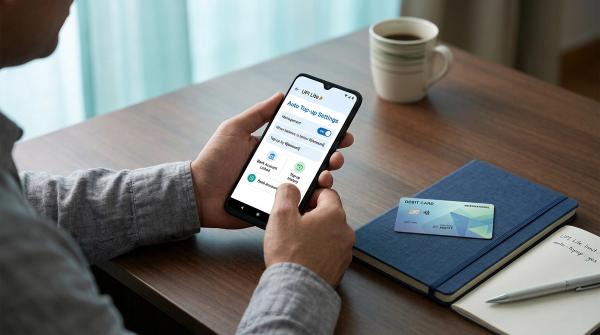
#UPI AutoPay mandates are usually available inside your UPI app settings. The exact wording can change from app to app, and sometimes after an app update.
Look for labels such as:
- AutoPay
- UPI AutoPay
- Mandates
- Recurring payments
- Subscriptions
- UPI settings
- Payment settings
A typical path is:
- Open your UPI app.
- Go to profile, settings, or payment settings.
- Search for UPI AutoPay, Mandates, or Recurring Payments.
- Open the mandate list.
- Check active, pending, paused, failed, expired, or revoked mandates.
If your app has a search bar inside settings, type “mandate” or “autopay.” It is often much faster than tapping through every menu.
Use official in-app routes only. Do not search the web for random “UPI customer care” numbers. Fake helpline numbers are a common fraud route.
How Often Should You Review UPI AutoPay Mandates?
#You do not need to check your mandates every day. But you should review them regularly.
A practical routine is to check them:
- Once every month if you use many subscriptions
- After starting any free trial
- After cancelling an app, OTT plan, donation, or service
- Before changing your main bank account
- After receiving any debit alert you do not recognise
- Before closing a loan or switching EMI payment methods
- After changing phones or installing a new UPI app
Think of it like checking your bank statement. It is not about panic. It is about staying aware.
A five-minute review can save you from months of unwanted recurring payments.
Pause vs Revoke vs Modify: What Each Option Means
#UPI AutoPay gives you more than one way to control a mandate. The right option depends on what you want to do.
Pause
#Pause means temporarily stopping future debits without fully deleting the mandate.
Use pause when you want to stop a subscription for a short time, may resume the service later, need time to check a bill or service issue, or are unsure whether you want to cancel permanently.
Be careful with EMIs, loans, insurance premiums, school fees, rent, or other obligation-based payments. Pausing a UPI AutoPay instruction does not automatically cancel your responsibility to pay the merchant, lender, insurer, or service provider. If payment is still due, you may need to pay through another official method.
Revoke or Delete
#Revoke means permanently cancelling the mandate. Once revoked, the merchant should not be able to debit future payments under that mandate.
Use revoke when you cancelled a subscription, a free trial is ending, you no longer recognise or trust the mandate, a service has ended, or you no longer use the app or merchant.
One common mistake is deleting an app and assuming the payment will stop. Deleting an app from your phone is not the same as cancelling its payment mandate. If the mandate is still active, the payment instruction may continue.
Modify
#Modify means changing mandate terms, where supported. This may include changes to the amount, limit, debit date, validity, or other available parameters, depending on the merchant, bank, and UPI app.
Treat every modification like a fresh approval. Read the updated terms carefully before entering your UPI PIN.
What to Do After an Unknown UPI Debit
#An unknown UPI debit can be stressful. But many “unknown” debits turn out to be old subscriptions, annual renewals, app trials, donations, or mandates approved months earlier.
Start with a calm check.
1. Open Your UPI App and Check Mandates
#Go to AutoPay, Mandates, or Recurring Payments.
Look for the merchant name, amount, and debit date. Check whether the mandate is active, when it was approved, what the frequency is, what the maximum limit is, and whether the debit amount matches the mandate.
Sometimes the merchant name on the mandate may not exactly match the brand name you remember. An app may use a parent company name or payment partner name. If you are unsure, verify through official merchant support.
2. Check SMS, Email, and App Notifications
#Search for old alerts from your bank, UPI app, or merchant.
Search your inbox for the merchant name, “mandate,” “autopay,” “subscription,” “renewal,” “recurring,” or the amount debited.
Also check your app store subscriptions, OTT accounts, biller accounts, and email receipts.
3. Revoke the Mandate if You Do Not Want Future Debits
#If you recognise the mandate but no longer want it, revoke it from your UPI app.
If you do not recognise it, consider revoking it first to prevent future debits, then raise a complaint through official channels.
4. Raise a Complaint Through Official Channels
#Use only trusted routes, such as:
- Your UPI app’s in-app help or transaction history support
- Your bank’s official app, website, branch, or customer-care channels
- Official NPCI UPI HELP routes, where available
- The merchant’s official support channel, if you recognise the merchant
Avoid risky shortcuts. Do not call numbers found in random search results, social media comments, or forwarded WhatsApp messages. Do not install screen-sharing apps if someone asks you to.
Do not share OTPs, UPI PINs, debit card details, net banking passwords, CVV, full card numbers, or remote access permissions.
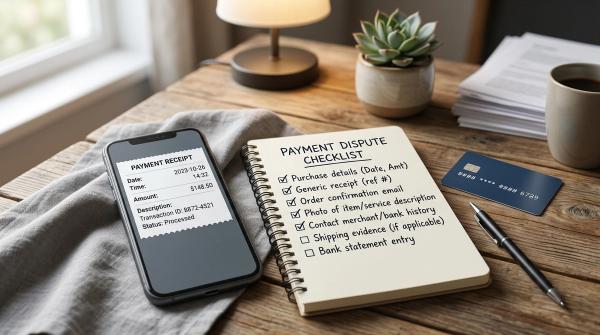
5. Keep Records
#Save proof in case you need to follow up. Take screenshots of the debit transaction, mandate details, complaint reference number, merchant communication, and bank or UPI app responses.
This makes it easier to explain the issue if you need to contact your bank, UPI app, merchant, or official grievance channel again.
Safe Ways to Approve a UPI Mandate
#Use these habits whenever you approve a UPI AutoPay mandate:
- Approve only when you started the service yourself.
- Read the merchant name carefully.
- Check the maximum amount, not just the advertised plan price.
- Look at the frequency before approving.
- Check the first debit date.
- Check whether the mandate has an end date.
- Avoid approving while distracted, sleepy, travelling, or on a call.
- Do not approve payment requests sent by strangers.
- Be extra careful with “free trial” offers.
- Set a reminder before a trial renewal date.
- Revoke mandates for apps and services you no longer use.
- Review active mandates after changing phones or UPI apps.
- Do not let anyone rush you into entering your UPI PIN.
The best safety tool is not fear. It is attention.
RBI and NPCI: What Users Should Know
#NPCI UPI AutoPay is part of the UPI ecosystem and is designed to support recurring digital payments with user consent.
NPCI’s October 2025 communication says users can view mandates and manage actions such as revoke, pause, and modify. It also says payer actions require UPI PIN.
The UPI HELP pilot supports mandate functions such as view, pause, resume, and revoke.
RBI’s 2025 authentication directions, applicable from April 1, 2026, require digital payment authentication to follow two-factor authentication principles. In simple words, the direction is towards stronger user authentication for digital payment approvals.
But stronger systems do not mean users should approve everything without reading. The system gives you controls. Your job is to use them carefully.
Quick Monthly UPI AutoPay Review Routine
#Once a month, do this simple check:
- Open your main UPI app.
- Go to AutoPay, Mandates, or Recurring Payments.
- Review all active mandates.
- Revoke services you no longer use.
- Pause only if you understand the payment impact.
- Check mandates with high maximum limits.
- Review pending requests.
- Match mandates with your bank statement.
- Report unknown debits through official support.
This usually takes only a few minutes. But it gives you much better control over your recurring UPI payments.
Final Takeaway
#UPI AutoPay is convenient, but every mandate deserves a quick check before approval.
Before entering your UPI PIN, read the merchant name, amount, frequency, start date, end date, and maximum limit. Make sure you understand what you are allowing.
Keep your UPI PIN private. Review mandates regularly. Pause only when the stop is temporary. Revoke when you are done with a service.
A safe UPI AutoPay habit is not complicated. It is just a calm 30-second check before approval, followed by a quick monthly review.