Here’s the whole idea in one line:
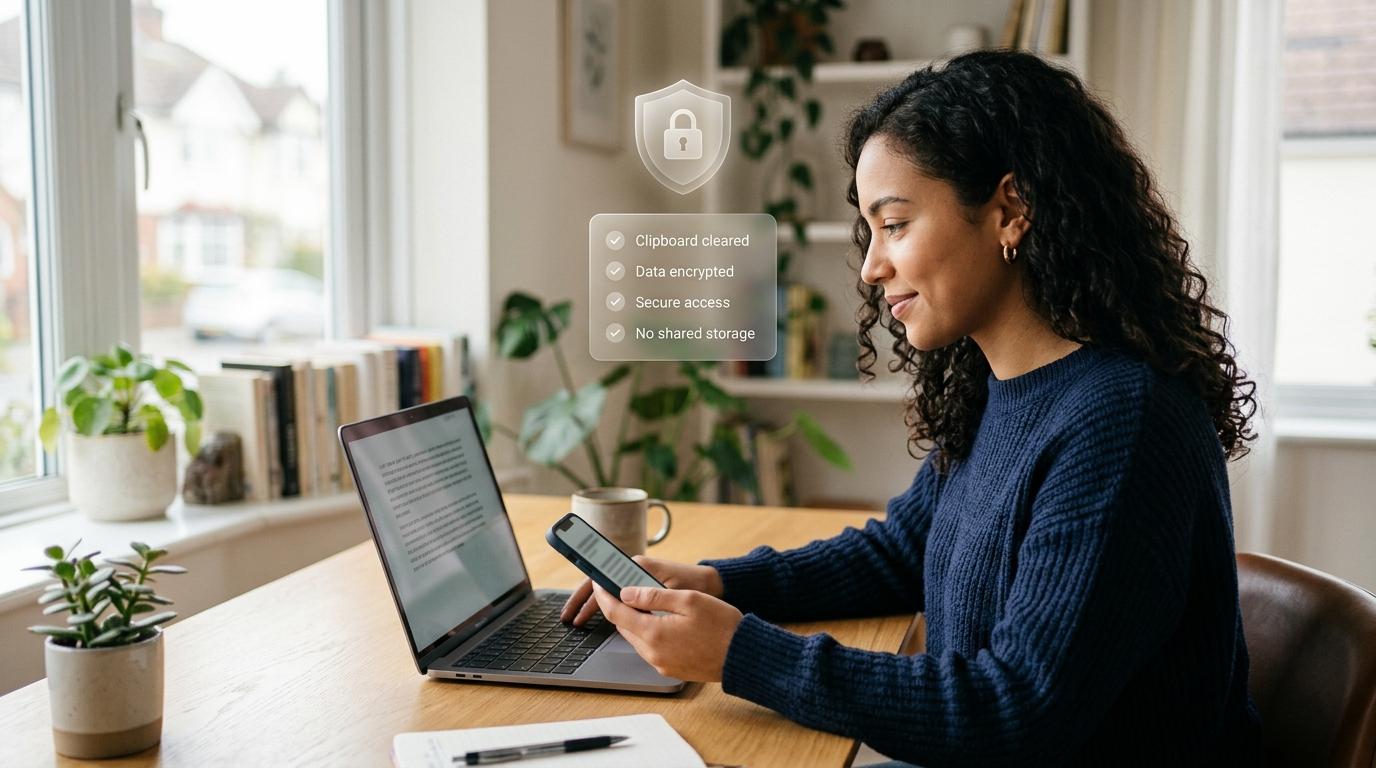
Copy it. Paste it. Clear it.
That’s the habit.
Most of us copy and paste all day without thinking about it. A password from a password manager. A six-digit OTP from SMS. A home address into a delivery app. A private message we want to rewrite before sending. A bank detail, a flight booking number, a work note, a screenshot.
Usually, nothing goes wrong.
But your clipboard is not a private vault. It is more like a temporary holding tray on your phone or computer. Whatever you copy sits there, ready to be pasted again. Depending on your device, keyboard, apps, clipboard history, and sync settings, that copied item may be available in more places than you realize.
That does not mean you need to panic or stop using copy and paste. Copying text is normal. It is useful. We all do it.
It just means your clipboard deserves the same basic care you already give to passwords, OTPs, and private chats.
This clipboard privacy checklist is for everyday use. No fear, no complicated tech talk. Just practical steps for iPhone, Android, Windows, Mac, password managers, clipboard managers, AI tools, translators, and shared devices.
Why Clipboard Privacy Matters
#When you tap or press Copy, your device temporarily stores that item so you can paste it somewhere else.
That copied item might be something harmless, like a recipe or a song title.
Or it might be something more sensitive, like:
- A password
- An OTP or two-factor authentication code
- A bank account number
- A card number
- A UPI ID or payment detail
- A home address
- A hotel address
- A passport or government ID number
- A private message
- A work note
- A recovery code
- A crypto seed phrase
- A login link or password reset link
- A screenshot with personal information
The problem is not that every app is secretly watching your clipboard. That would be an exaggeration.
The real issue is simpler: the clipboard was designed for convenience, not secrecy.
Some apps may be able to access copied content. Some keyboards keep clipboard history. Some laptops sync copied items across devices. Some clipboard manager apps save everything you copy unless you tell them not to.
So if you are wondering, “Can apps read clipboard data?”, the honest answer is:
Sometimes, yes. It depends on your device, operating system, app permissions, settings, keyboard, and clipboard tools.
Modern iPhone and Android versions have improved clipboard privacy with alerts and controls. That helps. But the safest habit is still very simple:
Do not leave sensitive information sitting on your clipboard longer than necessary.
Think of your clipboard like a piece of paper in your hand. Fine for a minute. Not a good place to store secrets.
What You Should Not Leave on Your Clipboard
#You do not need to worry about every little thing you copy.
If you copy a grocery list, a movie name, or a random quote, that is usually not a big deal.
Focus on the things that would cause trouble if they were pasted into the wrong place, saved by an app, synced to another device, or seen by someone else.
Be careful with:
- Passwords and passphrases
- Password manager master passwords
- OTPs and two-factor authentication codes
- Account recovery codes
- Bank details, card numbers, UPI details, or payment information
- Government ID numbers, passport details, tax IDs, student IDs, or Aadhaar-like IDs
- Home addresses, hotel addresses, delivery instructions, or travel plans
- Private messages, medical details, legal notes, or family information
- Confidential work notes or client details
- Crypto seed phrases and wallet recovery phrases
- Screenshots with personal or financial information
- API keys, admin links, work credentials, or internal URLs
If you copy one of these, use it and clear it.
That small habit can prevent a lot of awkward or risky mistakes.
Copied Item vs Risk vs Safer Habit
#Step-by-Step Clipboard Privacy Checklist
#Use this routine whenever you copy something private or important.
1. Pause before copying
#Before you copy, ask yourself:
Would it matter if another app, person, or synced device saw this?
If the answer is yes, treat it as sensitive.
That includes passwords, OTPs, private messages, IDs, bank details, addresses, recovery codes, screenshots, and work information.
You do not need to overthink it. Just pause for one second.
That one-second pause is often enough to prevent a mistake.
2. Use autofill when you can
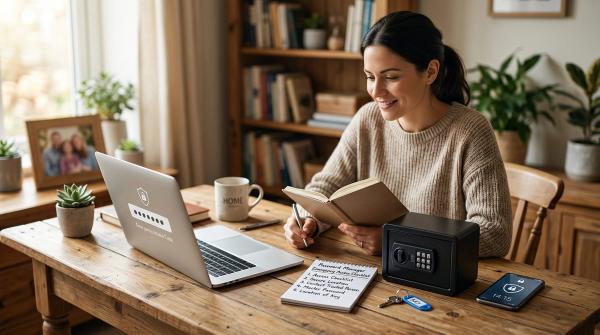
#For passwords, use your password manager’s autofill feature whenever possible.
Autofill is usually safer than copying because it often avoids putting the password onto the general clipboard.
For example, this is better:
Password manager autofill → login field
Instead of:
Copy password → paste password → forget it on clipboard
This is one of the easiest copied passwords safety habits because it does not require much effort. Let the password manager do the work.
3. Paste directly into the final place
#Try not to move sensitive information through multiple apps.
Avoid doing this:
Password manager → Notes app → browser → chat app → login page
Every extra stop creates another chance for the information to be saved, synced, pasted wrongly, or left behind.
Better:
Password manager → login field → clear clipboard
The same goes for OTPs, ID numbers, bank details, addresses, and private messages.
Copy once. Paste once. Clear once.
4. Clear or overwrite the clipboard right after
#Most people do not need a special app to clear the clipboard.
A simple method is to overwrite it with something harmless.
You can do this:
- Open a safe text field, such as Notes, search, or a blank message draft.
- Type something harmless, like
clear,done, or a blank space. - Select that text.
- Tap or press Copy.
This replaces the sensitive copied item with harmless text.
One important note: if clipboard history is turned on, overwriting the latest item may not delete older saved clips. In that case, you may need to clear clipboard history separately.
5. Turn off clipboard history if you do not use it
#Clipboard history can be helpful. It lets you reuse things you copied earlier.
But that convenience has a downside.
If you copied a password, ID number, OTP, private message, bank detail, or work note, clipboard history may save it even after you are done.
If you do not actually need clipboard history, turn it off.
If you do use it, check it regularly and delete anything sensitive.
6. Check clipboard sync between devices
#Some phones, tablets, and computers can share copied items with each other.
That can be useful. It can also surprise you.
You might copy something on your phone and find it available on your laptop. Or copy a private address on your computer and have it show up on your tablet.
This matters especially if:
- You share devices with family
- You use both personal and work devices
- You travel often
- You use school, office, hotel, or library computers
- Other people sometimes use your laptop or tablet
If you do not need clipboard sync, consider turning it off.
7. Be careful with clipboard manager apps
#Clipboard managers can be genuinely useful.
Writers, coders, designers, students, researchers, office workers, and creators often use them to save repeated text and speed up work.
But some clipboard managers save a long history of everything you copy.
Before using one, check whether it can:
- Exclude password managers
- Ignore specific apps
- Pause clipboard recording
- Clear all history quickly
- Avoid cloud sync
- Delete sensitive clips one by one
- Explain how saved clips are protected
If a clipboard manager saves your last 100 copied items, that history may include a password, OTP, bank detail, ID number, private message, or client note.
That is not something you want sitting around forever.
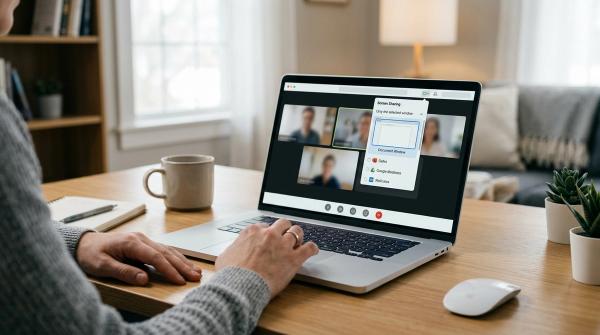
8. Do not paste sensitive data into random AI, translation, or grammar tools
#AI tools, translation apps, grammar checkers, summarizers, and browser extensions can be very useful.
But they are not the right place for raw private information.
Avoid pasting:
- Passwords
- OTPs
- Full ID numbers
- Bank details
- Passport details
- Medical information
- Legal documents with personal details
- Private family chats
- Work secrets
- Crypto recovery phrases
- Account recovery codes
If you need help rewriting, translating, or summarizing something sensitive, remove personal details first.
Take out names, addresses, account numbers, phone numbers, client names, ID numbers, and anything else that identifies a person or account.
A simple rule:
If you would not post it publicly, do not paste it into a random tool either.
9. Clear the clipboard on shared, public, or work devices
#Be extra careful when using:
- School computers
- Office laptops
- Borrowed phones
- Library PCs
- Hotel computers
- Shared family devices
- Cyber café or public computers
Before you leave, clear the clipboard.
Also close apps, sign out of accounts, and avoid saving passwords in browsers you do not control.
Clipboard mistakes are more likely to matter on shared devices because someone else may use the same device right after you.
10. Make “paste, clear, continue” automatic
#You do not need to become paranoid.
You just need a small habit:
Copy → paste → clear.
That one routine covers most everyday clipboard privacy risks.
iPhone Clipboard Privacy Notes
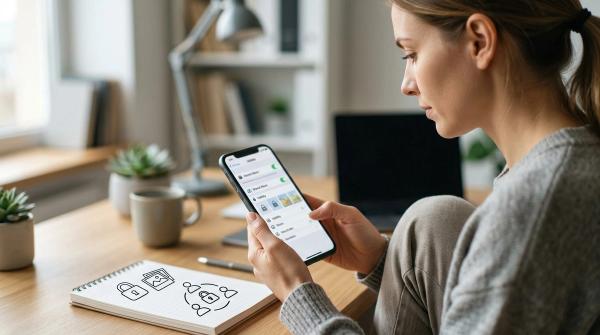
#iPhone clipboard privacy has improved over time. Newer iOS versions may show paste alerts, and some apps have paste permission controls.
Still, the basic advice is the same:
Do not leave passwords, OTPs, IDs, addresses, or private messages sitting on the clipboard.
What to know on iPhone
#- iOS may show a banner when one app pastes from another app.
- Some apps may ask before pasting from other apps.
- Some apps may offer paste permission settings.
- Apple’s Universal Clipboard can share copied items between iPhone, iPad, and Mac.
- iPhone does not have a simple everyday Clear Clipboard button.
How to clear the clipboard on iPhone
#To overwrite your iPhone clipboard:
- Open Notes, Messages, Safari search, or another safe text field.
- Type a harmless word or a blank space.
- Select it.
- Tap Copy.
That replaces the previous copied item with something harmless.
Check paste permissions for apps
#On supported iOS versions:
- Open Settings.
- Scroll to the app you want to check.
- Look for Paste from Other Apps.
- Choose Ask, Deny, or Allow, if available.
If an app keeps trying to paste when you did not ask it to, check its settings. It may be harmless, but it is still worth reviewing.
Review Universal Clipboard and Handoff
#If you do not want copied items moving between your Apple devices:
- Open Settings on iPhone.
- Go to General.
- Tap AirPlay & Handoff.
- Turn off Handoff if you do not need it.
This can reduce accidental clipboard sharing between your iPhone, iPad, and Mac.
Android Clipboard Privacy Notes
#Android clipboard privacy depends on your Android version, phone brand, keyboard app, and settings.
A Pixel, Samsung, OnePlus, Xiaomi, Motorola, or another Android phone may all look slightly different.
Do not worry if your menus do not match exactly. The idea is the same: clear sensitive copied items and check whether your keyboard or phone saves clipboard history.
What to know on Android
#- Android uses a system clipboard for copied content.
- Some Android versions show a notification when an app accesses the clipboard.
- Some keyboards, like Gboard, include clipboard history.
- Samsung Keyboard and other keyboards may also save copied clips.
- Phone brands may add their own clipboard features.
How to clear the clipboard on Android
#A simple overwrite method works on most Android phones:
- Open a safe text field.
- Type a harmless word or blank space.
- Select it.
- Tap Copy.
This replaces the latest copied item.
Clear Gboard clipboard history
#If you use Google’s Gboard:
- Open any text field so the keyboard appears.
- Tap the clipboard icon, if you see it.
- Review saved clips.
- Delete sensitive clips.
- Turn off clipboard history if you do not need it.
If you use Samsung Keyboard or another keyboard, look for a similar clipboard panel and delete saved sensitive items there.
Watch for clipboard access alerts
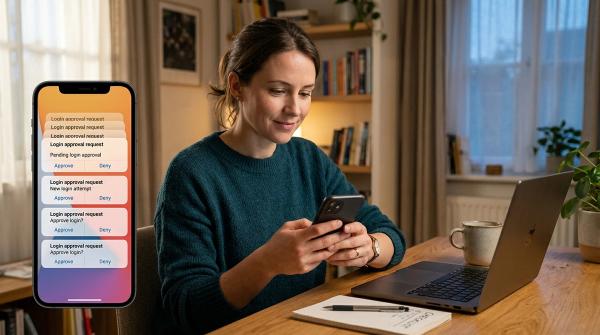
#If Android shows that an app accessed your clipboard when you did not paste anything, pause for a moment.
It might be harmless.
But if you recently copied a password, OTP, bank detail, ID number, address, or private message, clear the clipboard and review that app.
Laptop Clipboard Checklist: Windows and Mac
#Phones get a lot of attention, but laptops often hold even more sensitive information.
Think about work passwords, tax files, client notes, invoices, school portals, resumes, admin dashboards, private emails, and banking pages.
A lot of that passes through copy and paste.
Windows Clipboard Privacy
#Windows 10 and Windows 11 include clipboard history.
To view clipboard history:
- Press Windows key + V.
- Review saved clipboard items.
- Delete individual items if needed.
- Use Clear all to remove the full history.
To turn off clipboard history:
- Open Settings.
- Go to System.
- Select Clipboard.
- Turn off Clipboard history if you do not use it.
- Turn off Sync across your devices if you do not want copied items shared between Windows devices.
This is one of the most important clear clipboard history steps for Windows users.
Mac Clipboard Privacy
#Mac does not show a built-in clipboard history like Windows does, but the latest copied item can still be pasted until it is replaced.
To overwrite the clipboard on Mac:
- Open a safe text field.
- Type a harmless word or blank space.
- Select it.
- Press Command + C.
If you use Apple’s Universal Clipboard, copied items may be available across your Apple devices when Handoff is enabled.
To review Handoff on Mac:
- Open System Settings.
- Go to General.
- Open AirDrop & Handoff.
- Turn off Handoff if you do not want clipboard sharing across Apple devices.
Password Manager and OTP Copying Safety
#Password managers are much safer than reusing passwords or saving passwords in Notes.
But how you use the password manager still matters.
Safer password habits
#Use autofill whenever possible. It reduces the need to copy passwords onto the general clipboard.
If you must copy a password:
- Paste it directly into the login field.
- Do not paste it into Notes, email, chat, or a document first.
- Clear the clipboard immediately after use.
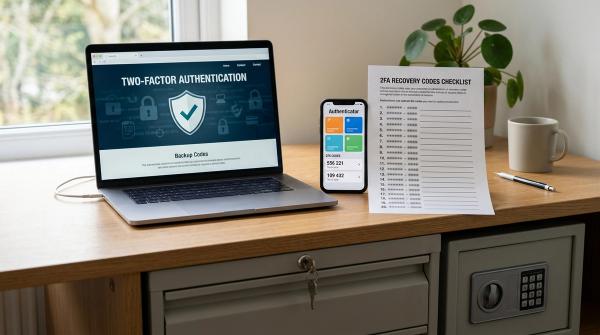
- Turn on auto-clear clipboard if your password manager offers it.
- Avoid copying your password manager master password.
Many password managers have a setting that clears copied passwords after a short time.
If yours has that option, turn it on.
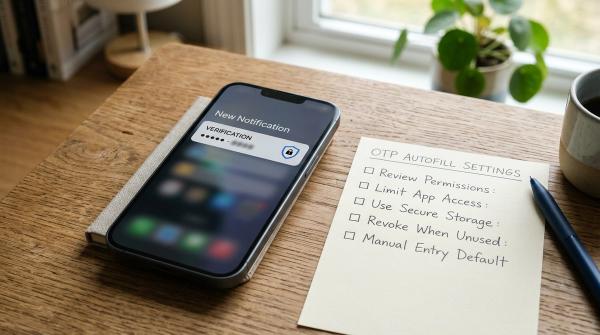
OTP clipboard safety
#OTPs are temporary, but they are still sensitive while valid.
For better OTP clipboard safety:
- Type the code manually when you can.
- If you copy it, paste it immediately.
- Clear or overwrite the clipboard after pasting.
- Do not paste OTPs into chat apps, AI tools, notes, or email drafts.
- Be extra careful if clipboard history is turned on.
Once an OTP is used or expired, the risk is usually lower. Still, clearing it is a good habit.
Clipboard Managers and Cloud Sync
#Clipboard managers can save time, especially if you write, code, design, research, study, or use repeated text.
But they can also quietly save things you forgot you copied.
Before using one, ask:
- Does it store clipboard history locally?
- Does it sync copied items to the cloud?
- Can it ignore password managers?
- Can it ignore banking or work apps?
- Can you pause it quickly?
- Can you clear clipboard history easily?
- Does it explain how saved clips are protected?
- Can you delete sensitive clips one by one?
A safer setup is:
- Keep clipboard history off unless you truly need it.
- Exclude password managers where possible.
- Clear old history often.
- Avoid cloud sync for sensitive copied content.
- Do not use unknown clipboard apps with broad permissions.
A clipboard manager that remembers everything can be helpful, but it is also one more place where private data may sit.
AI, Chat, Translation, and Browser Extension Caution
#This matters more now than it used to.
Many people copy text into AI tools, translation apps, grammar checkers, summarizers, browser extensions, and note apps.
These tools are useful. But they are not always private enough for sensitive information.
Avoid pasting:
- Passwords
- OTPs
- Bank details
- Full ID numbers
- Passport scans or details
- Private medical information
- Confidential work data
- Legal documents with personal details
- Private family chats
- Crypto recovery phrases
- Account recovery codes
Also be careful with browser extensions. Some extensions request broad permissions, such as the ability to read or change data on websites.
That does not automatically mean the extension is bad, but you should be selective.
A good rule:
If you would not post it publicly, do not paste it into a random app, extension, AI tool, or website.
If you need help rewriting or translating sensitive text, remove personal details first.
Names, addresses, account numbers, phone numbers, client names, ID numbers — remove them before pasting.
What to Do If You Copied an OTP by Mistake
#First, do not panic.
Most OTPs expire quickly, and many only work for one specific login attempt.
Do this:
- Paste the OTP only into the correct login screen, if you still need it.
- Immediately overwrite the clipboard with a blank space or harmless word.
- If clipboard history is enabled, open it and delete the OTP.
- If clipboard sync is enabled, clear it on other synced devices too.
- If you pasted the OTP into the wrong app or chat, do not send it. Delete it if possible.
- If you think someone else used the code, secure the account from its official settings.
For most normal mistakes, clearing the clipboard and moving on carefully is enough.
What to Do If You Copied a Password by Mistake
#If you copied a password and only pasted it into the correct login field, clear the clipboard and continue.
If you pasted it into the wrong place, take it more seriously.
That includes pasting it into:
- A chat
- An email draft
- A shared document
- An AI tool
- A translation app
- An unknown website
- A public or shared computer
A practical response:
- Clear or overwrite the clipboard.
- Delete the password from the wrong place if possible.
- Change the password if it may have been exposed.
- Turn on two-factor authentication for that account, if available.
- If you reused the same password anywhere else, change it there too.
The lesson is not “never copy passwords.”
Sometimes you have to.
The better lesson is:
Do not let copied passwords linger.
A Simple Everyday Clipboard Privacy Checklist
#Save this short version.
Before copying sensitive data, ask:
- Can I use autofill instead?
- Do I really need to copy this?
- Am I copying from and pasting into trusted apps?
- Is clipboard history turned on?
- Is clipboard sync turned on?
- Am I using a shared, public, school, or work device?
- Could this be pasted into the wrong place by mistake?
After pasting:
- Clear or overwrite the clipboard.
- Delete it from clipboard history if history is enabled.
- Check synced devices if needed.
- Do not paste the same item into notes, chats, AI tools, or translators.
- Close apps and sign out if you are on a shared device.
For families, students, workers, creators, travelers, and seniors, the key habit is simple:
Copy only when needed. Paste carefully. Clear right after.