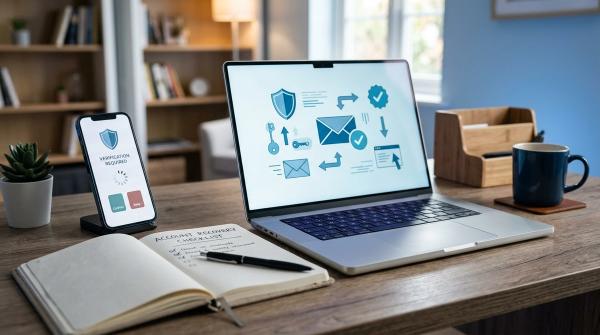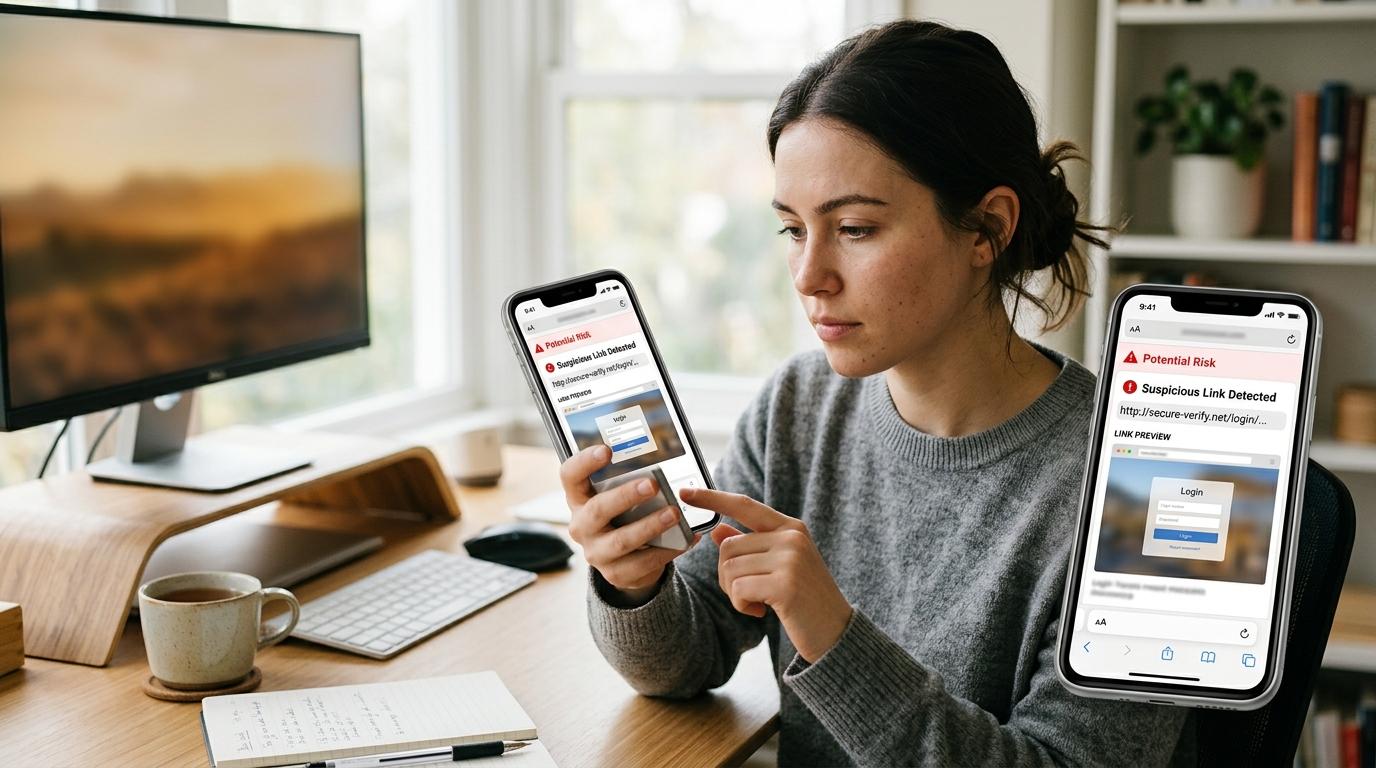
To check if a link is safe, start with one simple rule: don’t click in a hurry.
Take a few seconds. Preview the real address. Read the domain slowly. Ask yourself why this link was sent to you in the first place.
On a computer, hover over the link. On a phone, press and hold it. If the message feels urgent, unexpected, money-related, or asks for passwords, OTPs, PINs, card details, or personal information, stop and verify it another way.
A safe link checker can help, but think of it as one clue, not a final answer.
We’ve all seen messages like these.
Your parcel is stuck. Your account will be blocked. You’ve won cashback. Someone sent you a “job offer.” A friend DMs you a strange video link. A message promises a refund, prize, coupon, creator collaboration, or “limited-time” benefit.
And then there’s the link.
It might look official. It might use the right logo. It might even sound serious enough that you feel you should tap immediately.
That’s exactly what scammers want.
They want you worried, curious, excited, or distracted. A phishing link doesn’t always look fake at first glance. Some scam pages are clean, polished, and professional. Some have HTTPS. Some copy real brands so closely that they feel normal.
The good news? You don’t need to be a cybersecurity expert.
You just need one habit: slow down before you click.
This guide gives you a calm, practical checklist you can use whenever a link feels even slightly suspicious.
Disclaimer: This article is for general digital safety awareness. It is not legal, financial, or professional cybersecurity advice. No checklist or tool can promise 100% safety every time.
Why suspicious links fool people so easily
#Suspicious links work because they show up in places we already trust.
They may come through:
- WhatsApp or Telegram
- SMS
- Instagram, Facebook, X, or LinkedIn DMs
- School or office groups
- Marketplace chats
- Delivery updates
- Banking, tax, UPI, or KYC messages
- Comments or messages sent to creators
The message might say:
- “Your account will be blocked.”
- “KYC update required today.”
- “Your parcel is on hold.”
- “Click to receive your refund.”
- “Is this you in this video?”
- “Your invoice is attached.”
- “You won a reward.”
- “Payment failed, update now.”
These messages are designed to rush you.
Official consumer safety guidance warns people to be careful with unexpected links and attachments. Public cyber-safety guidance also recommends basic cyber hygiene, such as pausing before acting, using strong authentication, and keeping devices updated.
That’s the real goal here.
Not panic. Just a pause.
Step-by-step checklist before clicking
#Use this step-by-step checklist before clicking any link that feels unexpected, urgent, or slightly off.
1. Ask yourself, “Was I expecting this?”
#Before you inspect the link, look at the situation.
Be extra careful if:
- The message came out of nowhere.
- It creates panic or pressure.
- It asks for money, passwords, OTPs, PINs, card details, or personal information.
- It says you must act immediately.
- It came from a friend, but the wording doesn’t sound like them.
- It promises free money, a prize, a guaranteed job, or a huge discount.
- It asks you to install an app or download a file.
- It says your account, wallet, card, or delivery will be blocked.
This matters especially for messages about banking, delivery, UPI, taxes, school fees, exams, jobs, and account recovery.
If a message says your bank account, social media account, wallet, or email will be blocked, don’t use the link inside that message. Open the official app yourself. Type the official website into your browser. Or call the company using a number you already trust.
A genuine company usually won’t mind if you take a safer route.
2. Preview the link without opening it
#The text you see is not always the real destination.
A message may show:
www.examplebank.com
But the actual link behind it could lead somewhere completely different.
So preview the link first.
On a computer
#Move your mouse over the link, but don’t click.
Look at the bottom corner of your browser or email app. You should see the real web address there.
Now read it slowly.
On a phone
#Press and hold the link gently.
Many phones and apps will show a preview or a menu with the full address.
If it opens by mistake, don’t type anything. Don’t sign in. Don’t approve anything. Close the page and continue with the checks below.
3. Read the domain carefully
#The domain is the most important part of a web address.
For example:
https://support.amazon.com/help
The key part is:
amazon.com
That tells you the site belongs to Amazon.
Now compare these:
This is where many people get tricked.
Scammers often place a brand name somewhere in the link, but not in the part that actually matters.
Usually, the real domain name appears just before endings like:
.com.in.org.net
For endings like .co.in, check the name right before the full ending. For example, in example.co.in, the important name is example.
If you’re not sure, don’t guess. Go to the official website yourself.
4. Watch for lookalike spellings
#Phishing pages often use names that look almost right.
Look carefully for:
- Extra letters, like
appple.com - Missing letters, like
amazn.com - Swapped letters or characters
rnused to look likem- Numbers used as letters, like
0instead ofo - Hyphenated names that sound official, like
bank-support-login.in - Extra words such as
secure,verify,update,reward,help, orloginaround a brand name
A fake site can use a real-looking logo. It can copy the same colors. It can even look cleaner than the real website.
Design is not proof.
The domain matters more.
5. Don’t trust a link only because it has HTTPS
#A padlock or https:// means the connection is encrypted.
That’s good, but it does not mean the website is genuine.
A scam website can also have HTTPS. These days, fake websites can get a padlock too.
So yes, HTTPS is better than no HTTPS. But it is not enough.
Still check:
- The domain
- The spelling
- The sender
- Why the link was sent to you
- What the page is asking you to enter
If a page asks for your OTP, UPI PIN, full password, or card details, stop immediately.
6. Be careful with shortened links
#A shortened link hides the final destination.
You may see links starting with:
bit.lytinyurl.com- Social media short links
- Campaign links in SMS or WhatsApp messages
Short links are not always bad. Many genuine businesses, creators, and teams use them.
But if a shortened link comes from an unknown sender, or if it is connected to money, banking, rewards, delivery, jobs, or urgent account warnings, be careful.
Safer options:
- Ask the sender what the link is for.
- Use a URL expander to see the final destination.
- Use a suspicious link checker for another clue.
- Visit the official website or app yourself.
- If it claims to be from a bank, courier, school, employer, platform, or government service, verify directly.
And honestly, if the message feels pushy, don’t click just because the link looks short and neat.
7. Use a URL safety check, but don’t depend on it completely
#A URL safety check can help you see whether a link has already been reported as unsafe.
You can use tools such as:
- Google Safe Browsing Site Status
- Reputable multi-scanner services
- Security tools from trusted antivirus companies
These tools are useful. They can sometimes warn you about known scam pages, malware pages, or suspicious domains.
But they are not perfect.
A new scam site may not be flagged yet. A clean result does not mean the link is definitely safe. It only means the tool did not find a known problem at that moment.
Use a scanner as one part of your decision, not the whole decision.
A good rule:
If the message feels suspicious, the domain looks odd, or the page asks for risky information, don’t click or continue just because a safe link checker says it found nothing.
Safe checks vs risky habits
#A simple “safe enough to click?” test
#Before clicking, ask yourself these five questions:
- Was I expecting this message?
- Do I know and trust the sender?
- Does the domain exactly match the real company or service?
- Is the message free from threats, pressure, or unrealistic rewards?
- Would I still trust it if I opened the official app or website myself?
If your answer is “no” or “not sure” to any of these, don’t click yet.
Verify another way.
What to do if you already clicked
#First, don’t panic.
Clicking a link is not always the same as losing your account or money. The risk depends on what happened after you clicked.
Ask yourself:
Did you type something? Download something? Approve a prompt? Sign in? Share an OTP?
That’s what matters now.
If you only opened the page
#If you did not enter anything, download anything, approve anything, or sign in:
- Close the tab.
- Don’t go back to the link.
- Clear the page from your browser history if you’re worried you may reopen it by mistake.
- Watch for follow-up messages.
- Keep your browser and phone updated.
You probably avoided the biggest risk, which is giving sensitive information to a fake page.
If you entered a password
#If you typed your password into a suspicious page:
- Go to the real website or app directly.
- Change your password immediately.
- Turn on two-factor authentication, if available.
- Sign out of other sessions if the service gives you that option.
- Watch for login alerts or account changes.
If you used the same password on other sites, change it there too.
Reused passwords make one mistake much more serious.
If you entered banking, card, UPI, OTP, or PIN details
#Act quickly, but try to stay calm.
- Contact your bank, card provider, wallet provider, or payment app through official support channels.
- Follow their instructions to block, secure, or monitor your account.
- Change related passwords if needed.
- Do not share more OTPs, PINs, passwords, or card details with anyone who calls or messages you after that.
- Save screenshots or messages if you may need to report the incident.
No genuine support person should ask for your UPI PIN, full password, or OTP.
If something downloaded
#If a file downloaded unexpectedly:
- Don’t open it.
- Delete it from your downloads folder.
- Run a scan using your device’s built-in security tool or a trusted security app.
- Update your browser, apps, and operating system.
- Watch for strange behavior, such as unknown apps, pop-ups, or repeated login alerts.
If your device starts acting weird, ask a trusted technician or the official device support channel for help.
A simple rule for families, students, seniors, and teams
#If you’re helping parents, children, students, or coworkers stay safer online, keep the advice simple:
“Don’t click urgent links. Show me first, or open the official app yourself.”
That one sentence can prevent a lot of trouble.
For family groups, school groups, and office chats, it also helps to agree on a basic rule: nobody should forward bank, reward, investment, job, loan, or delivery links without checking them first.
People forward things fast.
Scammers know that.
Quick examples
#Example 1: SMS about a blocked bank account
#Message: “Your bank KYC will expire today. Click here to avoid account block.”
Safer response: Don’t click. Open the bank’s official app or website yourself. You can also call the number printed on your card or listed on the official website.
Example 2: WhatsApp UPI reward link
#Message: “You received ₹2,000 cashback. Claim now.”
Safer response: Don’t enter your UPI PIN, OTP, or bank details through a link. Open your payment app directly and check there.
Example 3: Delivery fee message
#Message: “Your parcel is held. Pay small fee to release.”
Safer response: Go to the courier’s official tracking page or app. Type the tracking number manually, if you have one.
Example 4: Friend sends a strange video link
#Message: “Is this you?”
Safer response: Ask your friend separately. Call them if needed. Their account may have been hacked or misused.
Example 5: Job offer link in a DM
#Message: “Congratulations, you are selected. Pay registration fee here.”
Safer response: Be very careful. Search for the company yourself, check the official careers page, and never pay random “registration” fees through a link.
Related AllBlogs guides to read next
#These existing AllBlogs guides cover nearby safety habits without duplicating this checklist:
- Fake Delivery Text Message Checklist for package scam warning signs.
- Restaurant QR Code Menu Safety for QR-code scam and privacy checks.
- WhatsApp Two-Step Verification Checklist for safer WhatsApp account setup.
- Browser Extension Permissions Checklist for risky extension permissions before installing add-ons.
Final takeaway
#You don’t need to be a cybersecurity expert to avoid most suspicious links.
Pause first. Preview the link. Read the domain carefully. Be careful with shortened links. Verify urgent messages through official apps, websites, or known phone numbers.
Use a URL safety check or safe link checker for extra clues, but don’t let any tool replace your own judgment.
When in doubt, don’t click.
Open the official app or website yourself.