Sharing a file from Google Drive, OneDrive, or iCloud is easy. Maybe too easy.
You click Share, copy a link, paste it into an email or message, and move on. But that little link can carry more access than you meant to give. Sometimes a file is shared with the wrong permission. Sometimes a folder includes old documents you forgot about. Sometimes an “anyone with the link” setting stays open for months.
The safest habit is simple: share private files with specific people, give them View access unless they truly need more, and remove access when they no longer need the file. That one habit can prevent a lot of accidental exposure.
This guide walks through the cloud file sharing privacy settings that matter most when sharing files through Google Drive, Microsoft OneDrive, and Apple iCloud Drive. The exact buttons and wording may change depending on your device, account type, country, or whether you use a personal, school, or work account. But the basic rules are the same everywhere.
The Big Question: Who Should Be Able to Open the File?
#Most sharing mistakes start with this one decision.
Should the file be available only to people you choose? Or should anyone with the link be able to open it?
Specific people, restricted access, or invited people only
#For anything private, this is usually the better choice.
With this option, you type in the email addresses of the people who should have access. They may need to sign in, verify their email, or open an invitation before they can see the file.
Use this for files like:
- ID scans
- School forms or records
- Invoices
- Medical documents
- Travel documents
- Contracts
- Private family photos
- Work documents
- Tax or financial paperwork
Yes, it can be slightly less convenient. The other person may need an account or may have to click through an invite. But that extra step is also what keeps a forwarded link from spreading too easily.
If the file is sensitive, a little inconvenience is usually worth it.
Anyone with the link
#This option is convenient, but it is also easy to misunderstand.
“Anyone with the link” usually means exactly that: if someone has the link, they may be able to open the file. They do not necessarily need to be the person you originally sent it to.
That link could be forwarded, pasted into the wrong group chat, left in an old email thread, or accidentally posted somewhere public.
This setting is usually fine for low-risk files, such as:
- Public event flyers
- Brochures
- General class handouts
- Public resources
- Portfolio samples
- Documents you are happy for others to share
But avoid it for anything private.
A good test is this: if you would be uncomfortable with a stranger opening the file, do not use an open link.
Choose the Right Permission: View, Comment, or Edit
#After you decide who can access the file, check what they are allowed to do with it.
This part matters just as much.
View
#View is the safest default.
It lets the other person open and read the file, but they cannot change the original. This is usually the right choice for PDFs, photos, receipts, records, final documents, forms, reports, and scans.
If the person only needs to read or check something, View is enough.
Comment
#Comment is useful when you want feedback but do not want someone editing the actual file.
Use Comment for drafts, proposals, school projects, creative work, review documents, and shared plans.
This lets people leave notes or suggestions without changing the original content directly.
Edit
#Edit gives the other person the most control.
Depending on the service and file type, they may be able to change, delete, rename, move, or overwrite the file. They may also be able to affect the work of other people who have access.
Only use Edit when the person truly needs to work inside the file.
A teammate updating a shared spreadsheet may need Edit. Someone reading a final invoice probably does not.
Check Download, Copy, Print, and Expiry Options
#Sharing permissions are not just about View, Comment, and Edit.
Some cloud services also let you control whether people can download, print, copy, or keep access after a certain date.
These settings vary by platform and account type, so you may not see every option. Still, it is worth checking.
Download, print, and copy controls
#Google Drive, OneDrive, and some business or school accounts may offer controls that limit whether viewers can download, print, or copy a file.
These controls can be helpful, especially for sensitive documents.
Use them for files like:
- Private PDFs
- Business reports
- Personal records
- Confidential documents
- Files someone should read but not keep
Just remember: these settings are not perfect protection.
Someone can still take a screenshot, photograph the screen, or manually copy the information. Think of these controls as a speed bump, not a locked vault.
They reduce casual resharing, but they cannot stop every determined person.
Expiry settings
#Expiry settings are useful when someone only needs temporary access.
Instead of leaving a file available forever, you can make access end after a certain date or time.
Use expiry for one-time document reviews, travel documents, contractor access, school forms, medical paperwork, temporary project files, and files needed for only a few days.
Not every personal account includes expiry options. If you do not see an expiry setting, set a reminder on your phone or calendar to remove access later.
It is not fancy, but it works.
Google Drive Privacy Settings to Check
#In Google Drive, open the file or folder and click Share.
The design may change over time, but these are the main settings to look for.
General access
#For private files, choose Restricted instead of Anyone with the link.
Then add the email addresses of the people who should be able to open the file.
Before sending, check each person’s permission:
- Viewer
- Commenter
- Editor
For sensitive files, Viewer is usually the safest choice.
Link access
#If you copy a Google Drive link, do not assume it is private.
Check whether the link is restricted to invited people or open to anyone with the link.
This small detail makes a big difference.
A restricted link is much safer for private files. An open link is easier to share, but it can travel beyond the person you sent it to.
Download, print, and copy settings
#Google Drive may let you prevent viewers and commenters from downloading, printing, or copying a file.
If the file is sensitive and you see these options, consider turning them off.
Again, this will not stop screenshots or photos of the screen. But it does make casual saving and forwarding harder.
Be careful with folders
#Folders deserve extra caution.
When you share a folder, you may be sharing everything inside it. That can include old drafts, personal notes, images, receipts, or documents you forgot were there.
Before sharing a folder, open it and check what is inside.
If the person only needs one file, share that one file instead.
OneDrive Privacy Settings to Check
#In Microsoft OneDrive, select the file or folder and choose Share.
The exact wording may differ depending on whether you use a personal OneDrive account, a school account, a work account, or Microsoft 365.
Choose the audience
#For sensitive files, choose Specific people when that option is available.
This limits access to the people you name.
Be careful with broader options like:
- Anyone with the link
- People in your organization
- People with existing access
Those options can be useful, especially at work, but they can also expose the file to more people than you intended.
Choose the permission
#If the person does not need to change the file, set the permission to View.
Only allow editing when collaboration is actually required.
This is one of the easiest ways to avoid accidental changes, deleted content, or unwanted edits.
Expiration and password options
#Some OneDrive accounts and sharing methods offer expiration dates or password-protected links.
If you see these options, they can be helpful for temporary sharing.
For example, if someone only needs to view an invoice for two days, an expiring link is safer than a permanent one.
If you use a password, avoid sending the link and password in the same message. For example, you could send the link by email and the password by text, phone call, or another channel.
That way, if one message is forwarded or seen by the wrong person, they do not automatically have everything they need.
iCloud Drive Privacy Settings to Check
#iCloud Drive sharing may appear in different places depending on how you use it.
You might share through iCloud.com, Finder on a Mac, the Files app on iPhone or iPad, or Apple apps like Pages, Numbers, or Keynote.
The names may vary slightly depending on your device and software version, but the privacy choices are similar.
Who can access
#For private files, choose Only people you invite instead of Anyone with the link, when that option is available.
This is the same basic rule used in Google Drive and OneDrive: sensitive files should go to named people, not to whoever happens to get the link.
Permission
#Choose View only unless the person needs to make changes.
Give editing access only when you are truly collaborating on the file.
Be careful with iCloud folders
#As with Google Drive and OneDrive, folder sharing can expose more than you intended.
A folder may contain older files, drafts, screenshots, photos, or documents you no longer think about.
If someone needs one document, share one document.
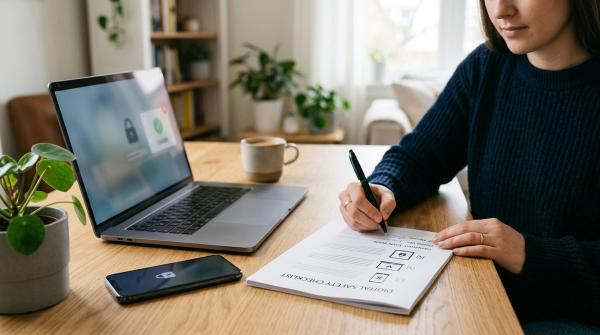
Before You Send: Cloud File Sharing Privacy Checklist
#Before sending a cloud link, take a minute to run through this checklist.
- Am I sharing the right file? Open it first. Make sure it is the correct version, not an old draft, duplicate, or file with extra pages.
- Should this be a PDF? If the person only needs to read the document, a PDF may be safer than a live editable file. If they need to collaborate, keep it in an editable format.
- Is the file name too revealing? A name like
passport_scan_full_name.pdforchild_medical_record.pdfgives away private information before the file is even opened. Use a clear but less revealing name when possible. - Am I sharing a file or a folder? If it is a folder, check every item inside. When in doubt, share only the single file needed.
- Have I chosen specific people? For private files, use specific people, restricted access, or only people you invite.
- Is the permission set to View? Use View unless the person genuinely needs Comment or Edit access.
- Have I checked download, print, and copy settings? If the platform offers these controls, adjust them for sensitive files.
- Can I set an expiry date? If access is temporary, set an expiry. If that option is not available, set a reminder to remove access later.
- Am I sending passwords separately? If a link or file is password-protected, do not send the password in the same message as the link.
- Is this the right place to send it? A private email may be better than a group chat. A direct message may be better than a shared workspace channel.
After Sharing: Cleanup Checklist
#Privacy does not end when the link is sent.
Old shared links are easy to forget, and forgotten access is one of the most common cloud-sharing problems.
Once the person has finished with the file, do a quick cleanup.
- Confirm they received it. Make sure the right person got the link and was able to open the file.
- Remove access when the task is done. Go back into the sharing settings and remove anyone who no longer needs access.
- Turn off public links. If you used “anyone with the link,” disable that link as soon as it is no longer needed.
- Review shared folders. If you shared a folder for a project, remove access when the project ends.
- Check old shared files occasionally. Every few months, or at least once a year, look through your shared files. Remove access from old school documents, invoices, medical papers, travel files, work folders, and anything else that no longer needs to be shared.
- Do not delete unless you mean to. Deleting a file may break the link, but it also removes the file from your storage. If you want to keep the file, change the sharing permissions instead.
A Realistic Approach When People Are Not Technical
#Sometimes the safest option is not the easiest option for the person receiving the file.
A relative may not want to sign in. A small office may ask for a simple link. A contractor may not use the same cloud service as you. Real life is messy.
When you cannot use the ideal setting, reduce the risk where you can:
- Use View instead of Edit
- Set an expiry date if available
- Use a password if the service supports it
- Send the password separately
- Remove access as soon as the transfer is done
- Avoid sharing entire folders
- Do not use open links for highly sensitive files unless there is no practical alternative
This is the real-world trade-off.
Specific people is safer. Anyone with the link is easier. If you need convenience, add time limits and clean up the access quickly.
Simple Rules to Remember
#If you remember only a few things, remember these:
- Use specific people for sensitive files.
- Use View unless editing is truly needed.
- Avoid sharing folders unless you checked everything inside.
- Set expiry dates or reminders for temporary access.
- Remove access when the file is no longer needed.
Safe sharing is not about being paranoid. It is about giving people only the access they need, only for as long as they need it.