WhatsApp two-step verification adds a private 6-digit PIN to your account when your number is registered again. Turn it on in Settings > Account > Two-step verification, add a recovery email, and never share your SMS registration code or PIN. It will not stop every scam, but it gives your account an extra lock against takeover attempts.
What WhatsApp two-step verification actually does
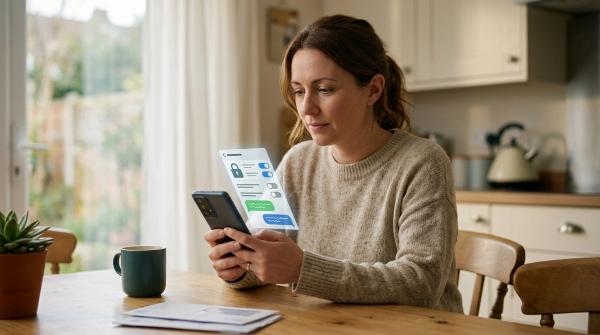
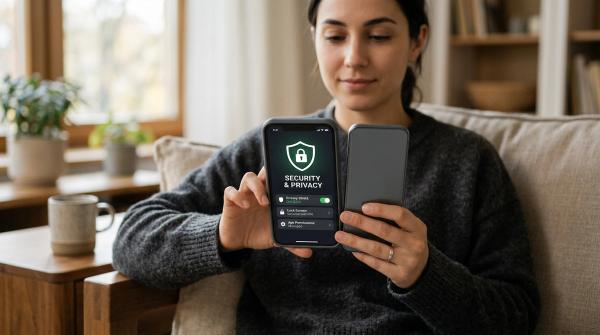
#WhatsApp two-step verification is an optional security feature that can ask for your 6-digit PIN when your phone number is registered again. Think of it as a second lock after the SMS registration code.
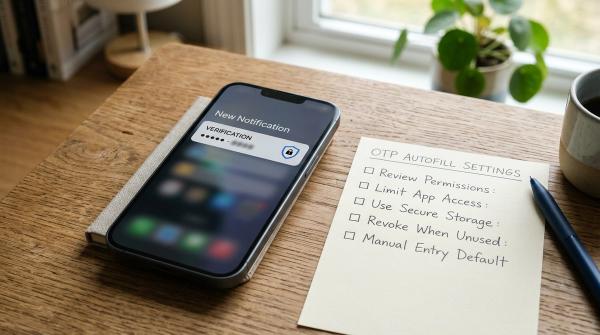
- The SMS registration code proves that someone has access to your phone number at that moment.
- The two-step verification PIN is a private code that you create inside WhatsApp.
- The recovery email helps you reset the PIN if you forget it.
If a scammer tricks you into sharing your WhatsApp SMS registration code, two-step verification can still slow them down or stop them because they would also need your PIN. But it does not make you scam-proof. If you share your SMS code, share your PIN, or type both into a fake website, you can still lose control of your account.
How to turn on WhatsApp two-step verification on Android
#- Open WhatsApp.
- Tap the three-dot menu in the top-right corner.
- Tap Settings.
- Tap Account.
- Tap Two-step verification.
- Tap Turn on or Enable.
- Create a 6-digit PIN that you can remember.
- Confirm the PIN.
- Add a recovery email address.
- Confirm the email address and save it.
Do not skip the email step just because it looks optional. It can save you stress later if you forget your PIN.
How to turn on WhatsApp two-step verification on iPhone
#- Open WhatsApp.
- Tap Settings at the bottom-right corner.
- Tap Account.
- Tap Two-step Verification.
- Tap Turn On.
- Enter your chosen 6-digit PIN.
- Confirm the PIN.
- Add your recovery email address.
- Confirm the email address and tap Done.
Your WhatsApp account now has an extra safety check.
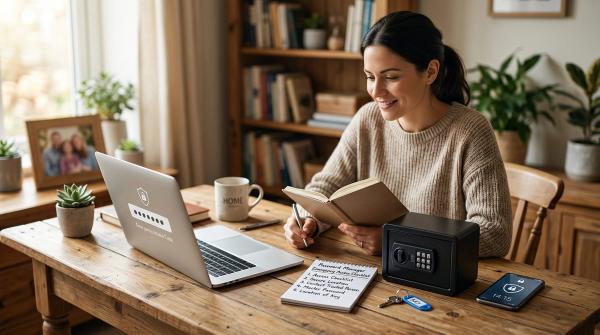
PIN and recovery email checklist
#A good rule: if someone can guess your PIN from your Instagram bio, birthday posts, family details, vehicle number, or address, do not use it.
Your recovery email should be typed carefully. Small mistakes like gmial.com instead of gmail.com can create problems later. Take ten seconds to check spelling before saving it.
OTP and account takeover scam red flags
#Most WhatsApp takeover scams are simple. A scammer tries to register your WhatsApp number on another phone. WhatsApp sends a code to your phone. Then the scammer tries to make you send that code to them.
Watch for these red flags:
“I sent my code to you by mistake”
#A known contact may message: “I accidentally sent my verification code to your number. Can you send it?” Do not forward it. The person’s account may already be compromised, and the code may actually be for your WhatsApp.
“WhatsApp support” asking for a code
#WhatsApp support will not ask you in chat to send your SMS code or two-step verification PIN. Be suspicious of messages saying your account will be blocked, upgraded, suspended, or verified only if you share a code.
Urgency and fear
#Scammers push panic: “Do this in 5 minutes,” “your account will be deleted,” or “your number is being reported.” Slow down. Real account safety does not require sending private codes to a random chat.
Sudden money or code requests from friends
#If a friend suddenly asks for money, gift cards, OTPs, or verification codes, confirm it with a normal phone call. Do not trust the chat alone.
Fake security links
#Phishing pages can look like WhatsApp login, WhatsApp Web, or account security pages. Do not enter WhatsApp codes on random websites. Use the official app for account settings.
What two-step verification does not protect
#Two-step verification is useful, but it is not magic.
It does not:
- Stop every scam message.
- Protect you if you share both your SMS code and PIN.
- Protect you if you type codes into a fake website.
- Lock your physical phone if someone has it unlocked.
- Automatically remove old linked devices.
You still need safe habits: do not click suspicious links, do not share private codes, and do not send money based only on a WhatsApp message.
Follow-up checks after enabling two-step verification
#Review Linked Devices
#- Open WhatsApp.
- Go to Settings.
- Tap Linked Devices.
- Review every device listed.
- If you do not recognize one, tap it and choose Log Out.
An unknown linked device may mean someone can view your WhatsApp activity from that session.
Check privacy settings
#Go to Settings > Privacy and review:
- Last Seen and Online — consider “My Contacts” or a more restricted option.
- Profile Photo — “My Contacts” is safer than public for many users.
- About — avoid revealing school, workplace, address, or personal details.
- Groups — limit who can add you to random groups.
Make a family OTP rule
#Use one simple household rule:
“No one in this family will ever ask for a WhatsApp OTP, SMS code, or PIN on chat.”
If someone appears to ask, call them first.
If you receive a WhatsApp code you did not request
#Do not panic. Do this:
- Do not share the code with anyone.
- Do not reply to messages asking for it.
- Check whether two-step verification is enabled.
- Review Linked Devices.
- Warn close contacts if you receive suspicious messages from someone you know.
- If you clicked a suspicious link, stop entering details and close the page.
Receiving a code does not always mean your account has been taken over. The danger starts when you share it.