If you’re new to digital art, choosing your first device can feel weirdly stressful. There are screenless tablets, iPads, pen displays, standalone tablets, graphics tablets… and everyone online seems to have a different opinion.
Here’s the simple version:
Choose an iPad or standalone tablet if you want the easiest, most flexible way to start drawing. Choose a screenless drawing tablet if you already have a computer and want to spend less. Choose a pen display if you want to draw directly on a screen at your desk and you’re okay with cables, setup, and needing a computer.
The best beginner tablet is not always the most powerful one. It’s the one you’ll actually reach for when you feel like drawing.
Short Answer: What Should You Buy?
#Buy a screenless drawing tablet if you already have a laptop or desktop and want the most affordable way to start learning digital art.
Buy an iPad or standalone tablet if you want something easy, portable, and natural-feeling. You can draw right on the screen without setting up a full desk workspace.
Buy a pen display if you want a bigger “artist desk” setup where you draw directly on a screen while using your computer’s art software.
For most absolute beginners, an iPad or similar standalone tablet feels the easiest. You pick it up, open an app, and start drawing. There’s very little standing between you and the actual art part.
For beginners on a tighter budget, especially if there’s already a computer at home, a screenless drawing tablet is still one of the smartest first buys.
A pen display can be wonderful, but it’s not always the best first purchase. It can involve more setup than a beginner wants to deal with.
Who This Guide Is For
#This guide is for first-time digital artists, hobby illustrators, students, parents buying a first drawing setup, and anyone who has searched for drawing tablets and immediately thought, “Why are there so many of these?”
Maybe you’ve watched artists online make character designs, soft painted backgrounds, anime-style portraits, comics, or polished illustrations and thought, “I want to try that.”
Then you start shopping and suddenly you’re seeing terms like:
- Screenless drawing tablet
- iPad for drawing
- Pen display
- Graphics tablet
- Display tablet
- Standalone tablet
They sound similar, but they are not the same thing.
This guide keeps the choice practical. No pretending there’s one perfect answer for everyone. No acting like you need the most expensive setup before you’re “serious enough” to start.
We’re going to look at what each option actually feels like to use, especially when you’re still building the habit of drawing.
First, Know the Three Main Types
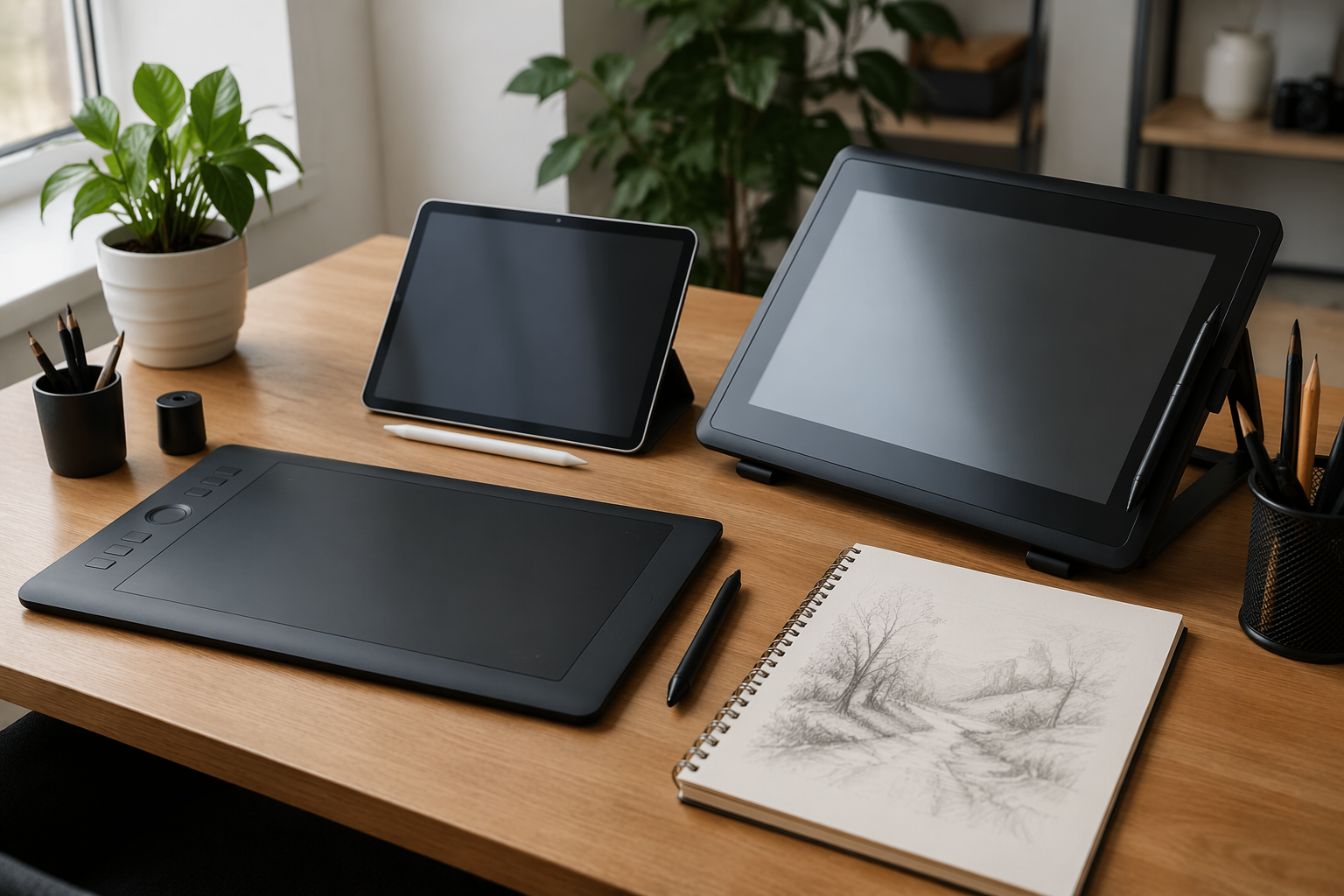
#Before comparing a drawing tablet vs iPad vs pen display, it helps to understand what each one actually is.
1. Screenless Drawing Tablet
#A screenless drawing tablet, also called a pen tablet or graphics tablet, is a flat pad that connects to your computer.
You draw on the tablet with a stylus, but you look at your computer monitor while drawing. Your hand moves on the tablet, and the cursor moves on the screen.
This has been a classic beginner setup for years.
It can feel strange at first. Your hand is down on the desk, your eyes are up on the monitor, and your brain needs a little time to connect the two. But many people adjust faster than they expect.
2. iPad or Standalone Tablet
#An iPad, or another standalone tablet used for drawing, has its own screen, battery, apps, and operating system.
You draw directly on the screen with a compatible stylus. You do not need a separate computer just to sketch, paint, or practice.
This is often the most beginner-friendly option because it feels closest to using a sketchbook. You touch the pen to the screen, and the line appears right there.
3. Pen Display
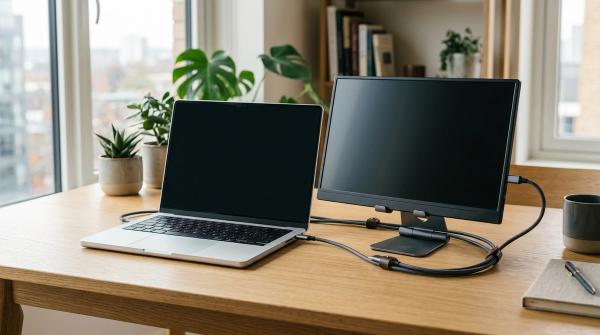
#A pen display is a screen you draw on, but it usually needs to be connected to a computer.
Think of it like a drawing monitor. You plug it into your laptop or desktop, open your art software, and draw directly on the display with a stylus.
It gives you the direct drawing feel of an iPad, but with desktop software and a more fixed desk setup.
Option 1: Screenless Drawing Tablet
#A screenless drawing tablet is usually the most affordable option in this comparison. It’s also the simplest piece of hardware: a drawing surface and a pen. Your computer handles the software.
You connect it to a Mac or Windows computer, install the driver if needed, open your drawing program, and start.
The big adjustment is the hand-eye disconnect. You are drawing on the tablet, but watching the result on your monitor. At first, your lines may not land exactly where you expect. It can feel like your hand and your eyes are having a small argument.
But after a few sessions, a lot of beginners get used to it.
That’s why screenless tablets are still popular. They are not flashy, but they work.
Best For
#- Beginners who already own a laptop or desktop
- Students and hobbyists trying to keep costs low
- People who want to use desktop drawing software
- Anyone with limited desk space
- Learners who don’t mind a short adjustment period
Avoid If
#- You do not own a computer
- You really want to draw directly on the screen
- You get frustrated quickly when tools feel unfamiliar
- You want to draw in bed, on the sofa, or while traveling
- You hate installing drivers or adjusting settings
What It Feels Like to Use
#A screenless drawing tablet does not feel like paper. It feels more like controlling a digital brush through muscle memory.
That might sound negative, but it really isn’t. Once you adapt, it can feel fast, comfortable, and surprisingly natural. Some artists even prefer it because their hand doesn’t cover the artwork while they draw.
It can also be better for posture. Instead of bending over a screen, you can look straight ahead at your monitor.
For beginners who are serious but budget-aware, this is often the most sensible first step.
It may not be the most exciting option, but it’s practical.
Option 2: iPad or Standalone Tablet for Drawing
#An iPad for drawing is popular with beginners for one big reason: it removes a lot of friction.
You pick it up, open a drawing app, and start.
No separate monitor. No desktop tower. No cable pile. No need to sit at the same desk every time.
You draw directly where the line appears, which feels natural if you’re coming from pencils, pens, markers, or a sketchbook. For sketching, color studies, thumbnails, note-taking, and casual illustration, that convenience matters a lot.
The tradeoff is cost. You need the tablet, a compatible stylus, and drawing apps. You may also want a case, screen protector, extra storage, or cloud backup.
And please check stylus compatibility carefully. Don’t just assume “Apple Pencil works with iPad” or “this pen works with this tablet.” Sometimes it does. Sometimes it does not.
Exact model numbers matter.
Best For
#- Absolute beginners who want the easiest start
- Students who also need a tablet for notes, reading, or media
- Hobby artists who draw in different rooms or outside the house
- Creators who want to sketch ideas quickly
- Parents buying for a beginner who may not want a full computer setup
Avoid If
#- You are on a strict budget
- You already have a good computer and only need a drawing input device
- You want a large desktop canvas without buying a bigger tablet
- You depend on specific desktop-only software
- You prefer using a keyboard heavily while drawing
What It Feels Like to Use
#An iPad or standalone tablet feels like a digital sketchbook.
That is the whole appeal. You can draw at your desk, on the couch, in class, at a cafe, or while traveling. For beginners, this can make a huge difference because there are fewer steps between “I feel like drawing” and actually drawing.
That convenience often leads to more practice.
The downside is the price. Once you add the stylus, case, screen protector, apps, and storage, the total can climb quickly.
It’s also very easy to overbuy. A beginner does not need the most advanced tablet model to start making good art. A fancy device will not magically fix anatomy, color, perspective, or shaky lines.
Annoying, but true.
Option 3: Pen Display
#A pen display sits somewhere between the other two options.
Like an iPad, it lets you draw directly on a screen. Like a screenless drawing tablet, it usually depends on a computer. It does not replace your laptop or desktop. It acts as a screen you can draw on.
This is the option a lot of beginners are drawn to because it looks like what professional artists use in studio videos.
And yes, drawing on a larger screen can feel amazing.
But a pen display usually comes with more setup.
You may need power, display, and USB connections. You need desk space. You need the right ports or adapters. You may need to adjust drivers, pen calibration, display settings, and your physical workspace.
That doesn’t make it bad. It just means it’s better for a certain kind of beginner.
Best For
#- Traditional artists moving into digital art
- Beginners who already have a stable desk setup
- People who want to use desktop art software
- Artists who dislike the hand-eye disconnect of screenless tablets
- Users with enough room for a second screen or drawing monitor
Avoid If
#- You want portability
- You do not own a computer
- Your desk is small or already crowded
- You hate cable management
- You want the simplest beginner setup possible
What It Feels Like to Use
#A pen display feels direct and immersive. Your hand and eyes are in the same place, so it can be easier to understand at first than a screenless drawing tablet.
But it is usually less spontaneous.
You probably won’t grab a pen display for a quick five-minute sketch in bed. It belongs on a desk, connected and ready to use.
For the right person, that’s perfect. For a casual beginner, it can become one more thing that feels like effort.
And beginners usually need less effort between them and practice, not more.
Drawing Tablet vs iPad vs Pen Display: Practical Comparison
#Here’s the comparison without getting buried in spec sheets.
Easiest to Start
#Winner: iPad or standalone tablet
You turn it on, open an app, and draw. That’s the main reason so many beginners love this route.
Second: Screenless drawing tablet
It needs a computer connection and may require a driver install, but once it’s set up, it’s simple enough.
Most setup-heavy: Pen display
A pen display can be excellent, but it often involves more cables, display settings, and desk planning.
Lowest Entry Cost If You Already Own a Computer
#Winner: Screenless drawing tablet
If you already have a laptop or desktop, a screenless tablet is usually the cheapest way to start digital art.
Second: Pen display
Entry-level pen displays are more affordable than they used to be, but they still cost more than many screenless tablets and still need a computer.
Usually highest total cost: iPad or standalone tablet
A tablet plus a compatible stylus can become a bigger purchase, especially if you’re buying everything from scratch.
Most Portable
#Winner: iPad or standalone tablet
This is the clear choice if you want to draw anywhere.
Second: Screenless drawing tablet
Small screenless tablets are easy to carry, but they still need a computer.
Least portable: Pen display
Most pen displays are made for a desk and need to be connected to a computer.
Most Natural Drawing Feel for Beginners
#Winner: iPad or pen display
Both let you draw directly on the screen, so they usually feel easier to understand at first.
Screenless tablets take practice
The hand-eye disconnect is real. It is not impossible, just unfamiliar.
Some people adjust in a day or two. Some need longer. Some never really enjoy it, and that’s fine too.
Best for Desktop Software
#Winner: Screenless drawing tablet or pen display
Both connect to a computer, so they work well if you want desktop art programs and a full keyboard setup.
iPad depends on your app needs
The iPad has excellent drawing apps, but if your workflow depends on specific desktop software, check that before buying.
Don’t buy first and figure it out later. That is how you end up annoyed.
Best for Building a Daily Drawing Habit
#This depends on your personality.
If you draw more when the device is always nearby, an iPad or standalone tablet may help.
If you already sit at your computer every day, a screenless tablet may fit naturally into your routine.
If you have a dedicated art desk and like a studio feeling, a pen display may encourage longer sessions.
The best device is not always the most powerful one. It’s the one that makes drawing feel easy to start.
What to Check Before Buying
#Do this before you hit checkout.
1. Do You Already Own a Computer?
#This is the first question.
A screenless drawing tablet needs a computer.A pen display usually needs a computer.An iPad or standalone tablet does not need a separate computer for basic drawing.
If you are buying for a child, student, or beginner who does not have access to a laptop or desktop, a screenless tablet may not be enough on its own.
2. Is the Stylus Included?
#Do not assume the pen comes in the box.
Some drawing tablets include the stylus. Some standalone tablets require a separate stylus purchase. Compatibility can also vary between tablet models and pen generations.
Check the exact model, not just the brand.
It’s boring, but it matters.
3. Is Your Operating System Supported?
#For screenless tablets and pen displays, check driver support for your current version of Windows or macOS.
This matters more than beginners expect. A good tablet can become frustrating fast if the driver is unstable or unsupported on your system.
4. What Apps Will You Use?
#Think about software before hardware.
If you want a simple sketching app, a standalone tablet may be enough.If you want desktop art software, a computer-connected tablet or pen display may make more sense.If you need free or low-cost software, check your options before choosing the device.
Also check current app pricing. Some apps are one-time purchases, some use subscriptions, and some are free.
The app matters because that’s where you’ll spend your time, not on the tablet specs page.
5. How Much Space Do You Have?
#Measure your desk if you are considering a pen display.
Will there be room for the display, keyboard, mouse, and maybe a stand? Will your arm have enough space to move? Will you need to pack everything away after each session?
If the setup is annoying, you may draw less.
That sounds obvious, but it’s one of the biggest reasons people stop using gear they were excited to buy.
6. What Size Active Area Do You Need?
#For a screenless drawing tablet, the active area is the part that actually detects the pen. It may be smaller than the full physical size of the tablet.
Very small tablets are portable, but they can feel cramped. Very large tablets can be comfortable, but they need more desk space.
For beginners, comfort matters more than chasing the biggest size.
7. Are You Buying for Drawing Only, or for Everything Else Too?
#An iPad or standalone tablet can also be used for notes, reading, browsing, video, schoolwork, and general everyday tasks.
A screenless drawing tablet or pen display is more specialized. That can be great if you want fewer distractions, but less useful if you need one device for many things.
If the device needs to handle school, art, Netflix, notes, and random internet browsing, a standalone tablet makes more sense.
If it only needs to help you draw at your computer, a screenless tablet may be enough.
Best Choice by Buyer Type
#Best for Absolute Beginners
#iPad or standalone tablet
It is the easiest to understand. You draw on the screen, the line appears under the pen, and you can practice almost anywhere.
Just avoid overbuying. A beginner does not automatically need the newest or most advanced model.
Best for Budget-Conscious Beginners With a Computer
#Screenless drawing tablet
This is the practical pick if you already have a laptop or desktop. It gives you access to digital drawing without paying for a full standalone device.
Expect a few awkward practice sessions while your hand and eyes adjust. That is completely normal.
Best for Traditional Artists Moving to Digital
#Pen display
If you are used to drawing or painting directly where you look, a pen display may feel more natural than a screenless tablet.
Just make sure you are ready for a desk-based setup.
Best for Students
#iPad or standalone tablet
If the same device will be used for drawing, notes, reading, and general study, a standalone tablet can make a lot of sense.
Check stylus compatibility and storage needs before buying.
Also think about whether you’ll actually carry it around. A tablet that stays at home because it feels too bulky, too fragile, or too expensive to take anywhere may not be as useful as you imagined.
Best for a Child or Teen Beginner
#It depends on the household setup
If there is already a shared computer and the budget is tight, a screenless drawing tablet can be a good starter.
If ease of use matters more, a standalone tablet is usually simpler.
If you choose a pen display, remember that it needs a computer and a proper desk arrangement.
For younger beginners, simple usually wins.
Mistakes to Avoid
#Mistake 1: Buying the Device Your Favorite Artist Uses
#Professional artists often choose their setup based on years of habits, paid work, desk space, and specific software needs.
That does not mean the same setup is right for a beginner.
Buy for your routine, not someone else’s studio.
Mistake 2: Ignoring Setup Friction
#This is a big one.
If drawing means clearing your desk, plugging in three cables, opening drivers, adjusting a stand, and hunting for the pen, you may stop before you even start.
Beginners need practice more than perfect gear.
A slightly less fancy device that you use every day is better than an expensive one you avoid.
Mistake 3: Giving Up on a Screenless Tablet Too Quickly
#A screenless drawing tablet feels strange at first. That does not automatically mean you bought the wrong thing.
Give yourself time. Practice simple lines, circles, shapes, and short sketches before judging it.
Your first few drawings may look worse than expected. That is normal. Frustrating, yes, but normal.
Mistake 4: Assuming Every Stylus Works With Every Tablet
#Stylus compatibility is not universal.
Always check the exact device model and the exact pen model. This is especially important with standalone tablets.
“Same brand” does not always mean “compatible.”
Mistake 5: Forgetting Software Costs
#Hardware is only part of the setup.
You may also need a drawing app, cloud storage, brushes, or a subscription, depending on your workflow.
You do not need to buy everything at once, but you should know what is required to start.
Mistake 6: Buying Too Large Too Soon
#A big pen display looks exciting, but it also needs space.
If your desk is small, a large device can become uncomfortable fast. For beginners, a comfortable setup beats an impressive-looking one.
Big is not always better. Sometimes it’s just bigger.
So, What Should You Actually Buy?
#If you want the simplest beginner path, buy an iPad or standalone drawing tablet with a compatible stylus.
If you already have a computer and want the most affordable start, buy a screenless drawing tablet.
If you want to draw directly on a screen while using desktop software, and you have a proper desk setup, buy a pen display.
That’s the honest answer.
A beginner digital art tablet should help you draw more often. It should not make you feel like you need a technical setup ritual every time inspiration shows up.
Start with the device that fits your life right now.
You can always upgrade later, once your skills, habits, and preferences are clearer.