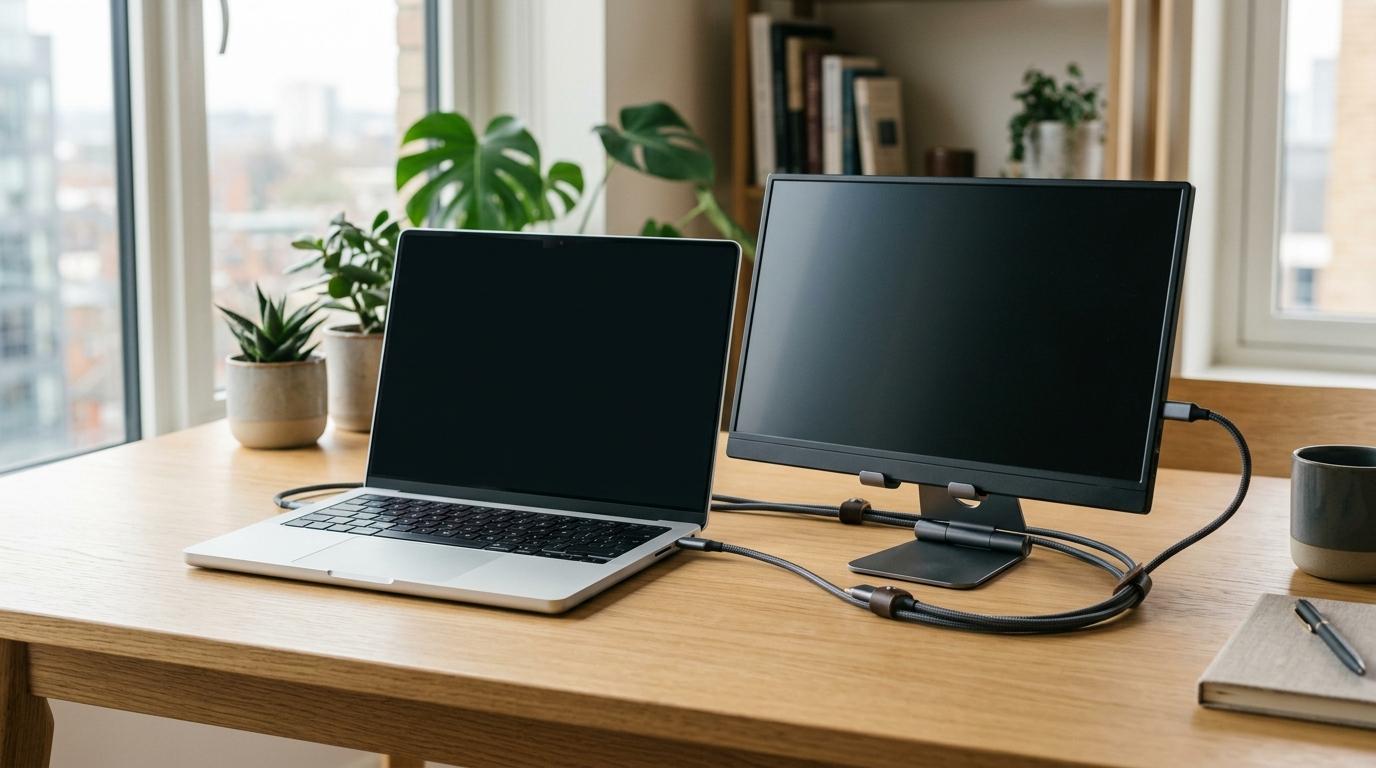
Before you buy a portable monitor, do yourself a favor and check the boring details first.
Yes, screen size, slim bezels, and nice product photos are more exciting. But the things that decide whether a portable monitor is actually pleasant to use are usually much less glamorous: your laptop’s ports, how the monitor gets power, how bright the screen is, whether the size fits your bag and desk, and whether the stand is any good.
The biggest thing to check is whether your laptop can send video through USB-C. You might see this described as DisplayPort Alt Mode, Thunderbolt, USB4, or USB-C display output. If you plan to use HDMI instead, remember this simple rule: HDMI sends video only. The monitor will still need power from another cable or adapter.
Category: Smart Buying & ReviewsPrimary keyword: portable monitor buying checklist
Short Answer: What Should You Check Before Buying a Portable Monitor?
#Check these six things first:
- USB-C compatibility: Look for USB-C with DisplayPort Alt Mode or video output so the monitor can work through the easiest one-cable setup.
- HDMI support: A mini-HDMI or full-size HDMI input is useful for older laptops, desktops, consoles and mixed setups.
- Power setup: Check whether the monitor runs from USB power, wall power or power pass-through so you avoid battery drain and cable surprises.
- Screen size: Most portable monitors are around 13 to 17 inches; size affects comfort, portability and desk space.
- Stand design: A built-in kickstand or stable folio case makes the monitor more usable in real places.
- Brightness: Check the listed brightness before buying because dim screens are frustrating near windows or bright lights.
For most people, a 15.6-inch 1080p USB-C portable monitor is the safest starting point. If you use more than one device, choose a model with both USB-C and HDMI. Touchscreen and gaming models can be great too, but only if those features actually fit the way you work or play.
Who This Guide Is For
#This guide is for anyone who wants a second screen for a laptop without setting up a full desktop monitor.
It is especially useful if you are:
- A remote worker moving between home, the office, cafés, hotels, or shared spaces
- A student who wants more room for notes, research, lectures, and documents
- A traveler building a lightweight laptop workstation
- Someone working with a small desk
- A gamer who wants a portable screen for a console or gaming laptop
- A beginner trying to understand USB-C, HDMI, power pass-through, brightness, and stand options
Portable monitors can be wonderfully simple when everything matches. The trouble usually starts when a product listing says “USB-C compatible,” but your laptop’s USB-C port does not actually support video. Or when the monitor works with HDMI, but you realize after buying it that HDMI does not power the screen.
So instead of starting with the prettiest product photo, start with compatibility.
What to Check Before Buying a Portable Monitor
#Most portable monitors promise the same basic thing: an extra screen you can carry with you.
In real life, though, they can feel very different. The ports, power requirements, screen brightness, size, and stand design all affect whether the monitor feels easy or annoying to use.
Use this practical portable monitor buying checklist before you order one.
1. Check Your Laptop Ports First
#This is the most important step.
For the cleanest setup, your laptop needs a USB-C port that supports video output. Depending on the brand or laptop model, this may be listed as:
- DisplayPort Alt Mode
- USB-C with video output
- USB-C display output
- Thunderbolt
- USB4
Do not assume every USB-C port can send video. Some USB-C ports are only for charging or data, which is annoying because they all look almost identical.
If your laptop supports USB-C video output, a USB-C portable monitor can often receive both video and power through one cable. That is the simplest setup for remote work, studying, and travel.
If your laptop only has HDMI, that can still work. You just need a portable monitor with HDMI input. You will also need a separate USB cable or wall adapter to power the monitor.
Simple rule:USB-C video can mean one cable. HDMI means video plus separate power.
2. Check Whether the Monitor Has HDMI
#A USB-C only portable monitor can be clean and convenient. But it is not always the most flexible option.
A portable monitor with HDMI is useful if you want to connect to:
- Older laptops
- Desktop PCs
- Some gaming consoles
- Devices that do not send video through USB-C
Many portable monitors use mini-HDMI instead of full-size HDMI, so check the product photos and included cables carefully. Some listings are clear about this. Others make you dig for it.
If you only use one modern laptop, USB-C only may be perfectly fine. If you switch between devices, USB-C plus HDMI is usually the safer choice.
3. Understand the Power Setup
#Power is where a lot of portable monitor buyers get caught off guard.
A portable monitor does not always need to be plugged into the wall. If you connect through USB-C and your laptop supports video output, the monitor may draw power from the laptop.
That is convenient, but it also drains your laptop battery faster. Sometimes much faster.
If you work for long sessions, look for portable monitor power pass-through. With power pass-through, you plug your laptop charger into the monitor, and the monitor passes power through to your laptop while the display is running.
This can be very helpful at hotel desks, libraries, shared offices, study spaces, and long work sessions where you do not want cables running everywhere.
Before buying, check:
- Does the monitor need separate power when using HDMI?
- Can it run from your laptop over USB-C?
- Does it support power pass-through?
- Does the listing clearly explain how power works?
- Is a power adapter included, or do you need to supply your own?
If the product page is vague about power, be cautious. A portable monitor that needs wall power all the time can still be useful, but it may not feel as portable as you expected.
4. Choose the Right Screen Size
#Most portable monitors fall somewhere between 13 and 17 inches.
A 15.6-inch 1080p screen is the common middle ground. It is large enough for email, documents, chat, dashboards, browser tabs, and reference windows, but still easy enough for many people to carry.
A smaller 13 or 14-inch model is easier to pack, especially if you already use a compact laptop. A 17-inch model gives you more room, but it can feel awkward on café tables, airplane trays, small desks, and crowded workspaces.
Think about where you will actually use it.
If it mostly stays on a desk, a larger screen can be more comfortable. If it goes into your bag every day, weight and footprint matter more than a little extra screen space.
5. Check Resolution and Aspect Ratio
#For general productivity, 1080p is still the standard choice for many portable monitors. It is enough for office work, studying, browsing, spreadsheets, and keeping extra windows open.
Aspect ratio matters too.
A 16:9 screen is the most common option. It works well for video, presentations, gaming, and general multitasking.
A 16:10 screen is a little taller. That extra vertical space can feel better for reading, writing, coding, and working with long documents because you see more before scrolling.
Do not choose only by resolution. A screen that fits your workflow and your workspace will usually matter more than a bigger number on a spec sheet.
6. Do Not Ignore Brightness
#Brightness is easy to overlook until you use the monitor near a window, in a bright classroom, or under harsh office lights.
Some portable monitors keep brightness modest to save power. That may be fine indoors, but it can look dim in brighter spaces.
Before buying, check the listed brightness and think about where you normally work.
If you mostly work in a controlled indoor space, brightness may not be a major issue. If you work in cafés, airports, classrooms, shared offices, or near windows, brightness matters a lot more.
7. Check the Portable Monitor Stand
#The stand can make or break the whole experience.
Some portable monitors use a folding magnetic cover that also acts as a stand. These are slim and easy to pack, but they may only give you a couple of viewing angles.
Others use a built-in kickstand. These often feel more stable and easier to adjust, especially on small desks or uneven surfaces.
Look closely at the product photos and ask yourself:
- Can the screen stand in both tight and open spaces?
- Does the angle look adjustable enough?
- Will it stay stable while you type?
- Does the case protect the screen during travel?
- Will the stand work on a café table, hotel desk, classroom desk, or small home desk?
A good display with a bad stand becomes annoying very quickly.
Comparison: USB-C Only vs USB-C Plus HDMI vs Touchscreen and Gaming Portable Monitors
#Different portable monitors are built for different needs. Here is a simple breakdown before you decide.
Option 1: USB-C Only Portable Monitor
#A USB-C portable monitor is the cleanest option when your laptop supports USB-C video output.
You connect one cable, and the screen works as a second display while drawing power from the laptop. For travel and simple desk setups, this is hard to beat.
Best for:
- Modern laptop users
- Remote workers who want fewer cables
- Students carrying a light setup
- People who only connect to one main laptop
- Anyone who wants the simplest second screen for laptop work
Avoid if:
- Your laptop USB-C port does not support video output
- You need to connect older laptops or desktops
- You plan to use a gaming console that relies on HDMI
- You want maximum device flexibility
Main trade-off:USB-C only is tidy, but it depends heavily on your laptop’s USB-C capabilities.
Option 2: USB-C Plus HDMI Portable Monitor
#A portable monitor with both USB-C and HDMI is the more flexible choice.
You can use USB-C when your laptop supports it, then switch to HDMI when you need to connect another device. This makes it better for mixed setups.
For example, you might use USB-C with your work laptop, then HDMI with a home PC or game console.
Best for:
- Users with more than one device
- People with older and newer laptops
- Gaming console users
- Families or shared workspaces
- Buyers who want fewer compatibility worries
Avoid if:
- You want the fewest cables possible all the time
- You only use one modern USB-C laptop
- You dislike carrying extra adapters or cables
Main trade-off:HDMI adds flexibility, but you still need separate power when using HDMI.
Option 3: Touchscreen Portable Monitor
#A touchscreen portable monitor sounds useful, and sometimes it is. But not everyone needs one.
Touch can help with interactive work, design reviews, presentations, drawing-style workflows, or setups where you want tablet-like control. But if you do not normally touch your laptop screen, you may not use touch much on a portable monitor either.
Also check whether touch support works with your device and operating system before buying. In some setups, the display signal and touch input are not handled through the same cable, which can make things less simple than expected.
Best for:
- Interactive presentations
- Design or review workflows
- Users who specifically need touch input
- People who already like touchscreen laptops or tablets
Avoid if:
- You only need a second screen for email, documents, browsing, or chat
- You want the lightest and simplest setup
- You are trying to avoid extra cost and power draw
Main trade-off:Touch is useful when your workflow needs it. Otherwise, it can be an expensive extra.
Option 4: Portable Gaming Monitor
#A portable gaming monitor is built around a different priority. Instead of basic productivity, it focuses on smoother play, faster response, and gaming-friendly performance.
If you want to connect a console or gaming laptop while traveling, this type of monitor makes sense. For normal office work, studying, writing, or browsing, it may be more than you need.
Best for:
- Console gaming on the go
- Gaming laptops
- Users who care about refresh rate and responsiveness
- Travel setups built around both entertainment and work
Avoid if:
- You mainly need spreadsheets, documents, video calls, or research tabs
- Battery life and low power use matter more
- You want the most affordable basic second screen
Main trade-off:Gaming features are useful for gaming, but they can add cost and increase power demand.
Best For / Avoid If
#A Portable Monitor Is Best For
#A portable monitor makes sense if you need more screen space but cannot, or do not want to, use a full desktop monitor.
It is especially good for:
- Remote workers who move between locations
- Students working with notes, lectures, and research
- Travelers who want a laptop-based workstation
- People with small desks
- Users who want a second screen for laptop multitasking
- Anyone who wants a monitor-style setup instead of using a tablet as a workaround
It is also useful when you need a screen that packs away quickly. You can set it up for focused work, then put it back in a bag or drawer when you are done.
Avoid a Portable Monitor If
#A portable monitor is not always the best answer.
You may want to avoid one if:
- You always work at a fixed large desk
- A full-size desktop monitor would fit your space better
- Your laptop has no suitable video output
- You do not want to deal with extra cables
- You need a very bright, large, permanent display
If your workspace never moves, a regular desktop monitor may be more comfortable. If your workspace changes often, a portable monitor becomes much more useful.
Step-by-Step Portable Monitor Buying Checklist
#Use this checklist before buying. It will help you avoid most of the common compatibility and usability problems.
Step 1: Confirm Your Main Device
#Start with the device you will use most.
Is it a laptop, tablet, phone, console, or desktop PC?
Then check what kind of video output it supports. For laptops, look up the exact model and port specifications. Do not rely only on the shape of the port.
You are looking for terms like:
- USB-C video output
- DisplayPort Alt Mode
- HDMI output
- Thunderbolt
- USB4
If the device cannot send video, a portable monitor will not solve that problem by itself.
Step 2: Decide Between USB-C Only and USB-C Plus HDMI
#If your laptop has USB-C video output and you only plan to use that laptop, USB-C only may be enough.
If you want more flexibility, choose a model with both USB-C and HDMI.
This is one of the most important buying decisions. It affects cables, power, compatibility, and how many devices you can use with the monitor.
Step 3: Check the Power Requirements
#Read the power section of the listing carefully.
Check whether the monitor:
- Runs from laptop USB-C power
- Needs separate USB power
- Includes or requires a wall adapter
- Supports portable monitor power pass-through
- Needs extra power when brightness is raised
If you travel often, power flexibility matters. If you work mostly at a desk, wall power may be less of a problem.
Step 4: Choose Screen Size Based on Where You Work
#Do not buy the biggest screen just because it looks better in photos.
Choose based on your real workspace.
- For daily travel, smaller and lighter is easier
- For general laptop work, 15.6 inches is a common middle choice
- For desk-heavy use, 16 or 17 inches may feel more comfortable
- For cramped spaces, a large portable monitor can become annoying
Think about your bag, desk depth, table size, and how often you move.
Step 5: Check the Stand Before the Screen Specs
#A stable portable monitor stand matters more than many buyers expect.
Look closely at the stand style:
- Folio cover stand
- Built-in kickstand
- Adjustable stand
- Magnetic case-style stand
If you plan to work in tight spaces, angle adjustment matters. If you type heavily or use a small table, stability matters.
A monitor that keeps slipping backward or sitting at the wrong angle will slow you down.
Step 6: Match the Screen to Your Work
#Choose based on what you do most.
For email, documents, chat, and web research, a standard 1080p portable monitor is usually enough.
For coding, reading, writing, and document-heavy work, consider a taller aspect ratio if available.
For gaming, check gaming-specific features instead of buying a basic productivity monitor and expecting the same experience.
For touch workflows, only pay for touchscreen support if you know you will use it.
Step 7: Check the Included Cables
#Do not assume every cable in the box will cover your setup.
Check whether the monitor includes:
- USB-C to USB-C cable
- HDMI or mini-HDMI cable
- USB cable for power
- Power adapter
- Protective case or folio stand
Also remember that not every USB-C cable can carry video. A basic phone charging cable may not work as a display cable.
If the monitor depends on a specific cable type, make sure it is included or easy to buy separately.
Common Mistakes to Avoid
#Mistake 1: Assuming All USB-C Ports Work With Monitors
#This is probably the most common mistake.
A USB-C port can look right but still not support video output. Always check your laptop’s specifications before buying a USB-C portable monitor.
Mistake 2: Forgetting That HDMI Does Not Carry Power
#HDMI sends video. It does not power the monitor.
If you use a portable monitor’s HDMI input, plan for a second cable for power. That power may come from your laptop’s USB port, a wall adapter, or another supported power source.
Mistake 3: Buying the Biggest Screen First
#A larger portable monitor is not always better.
A 17-inch screen may feel great on a desk, but it can be awkward in a café, classroom, train, or plane. Portability is not just about weight. It is also about how easily the monitor fits into real working spaces.
Mistake 4: Ignoring the Stand
#Many buyers focus on resolution and forget the stand.
A weak folio stand or limited angle range can make the monitor frustrating. If you work in different places, prioritize a stable and adjustable portable monitor stand.
Mistake 5: Paying for Touchscreen Features You Will Not Use
#Touchscreen portable monitors can be useful, but only for the right workflow.
If your normal use is email, browsing, writing, spreadsheets, chat, or reference windows, a non-touch model may be enough. Do not pay extra for touch unless it solves a real need.
Mistake 6: Overlooking Brightness
#A dim screen may look acceptable in product photos but feel difficult to use in bright spaces.
If you often work near windows, in shared offices, airports, classrooms, or cafés, brightness should be part of your buying checklist.
Quick Buying Recommendations by Use Case
#For Remote Work
#Choose a USB-C portable monitor if your laptop supports USB-C video output. Look for a stable stand and power pass-through if you work long sessions.
For Students
#A 15.6-inch 1080p model is a practical starting point. Prioritize weight, stand stability, and a simple USB-C connection.
For Travel Workstations
#Choose the lightest setup that still gives you enough screen space. USB-C only is clean if your laptop supports it. USB-C plus HDMI is safer if you use multiple devices.
For Small Desks
#Focus on stand design and footprint. A bigger screen may not help if it takes over the whole desk.
For Gaming
#Look at portable gaming monitors rather than basic office-focused models. Also check whether your console or gaming laptop connects through HDMI or USB-C.
Final Buying Advice
#The best portable monitor is not the one with the longest feature list. It is the one that matches your device, your power situation, and the places where you actually work.
Start with ports. Confirm USB-C video output or HDMI. Then check power, especially if you want one-cable use or portable monitor power pass-through. After that, choose the size, brightness, and stand design that fit your routine.
If you remember only one thing from this portable monitor buying checklist, make it this: compatibility comes before screen size. A slightly smaller monitor that connects easily and stands securely will be far more useful than a bigger one that needs adapters, extra power, and constant adjusting.