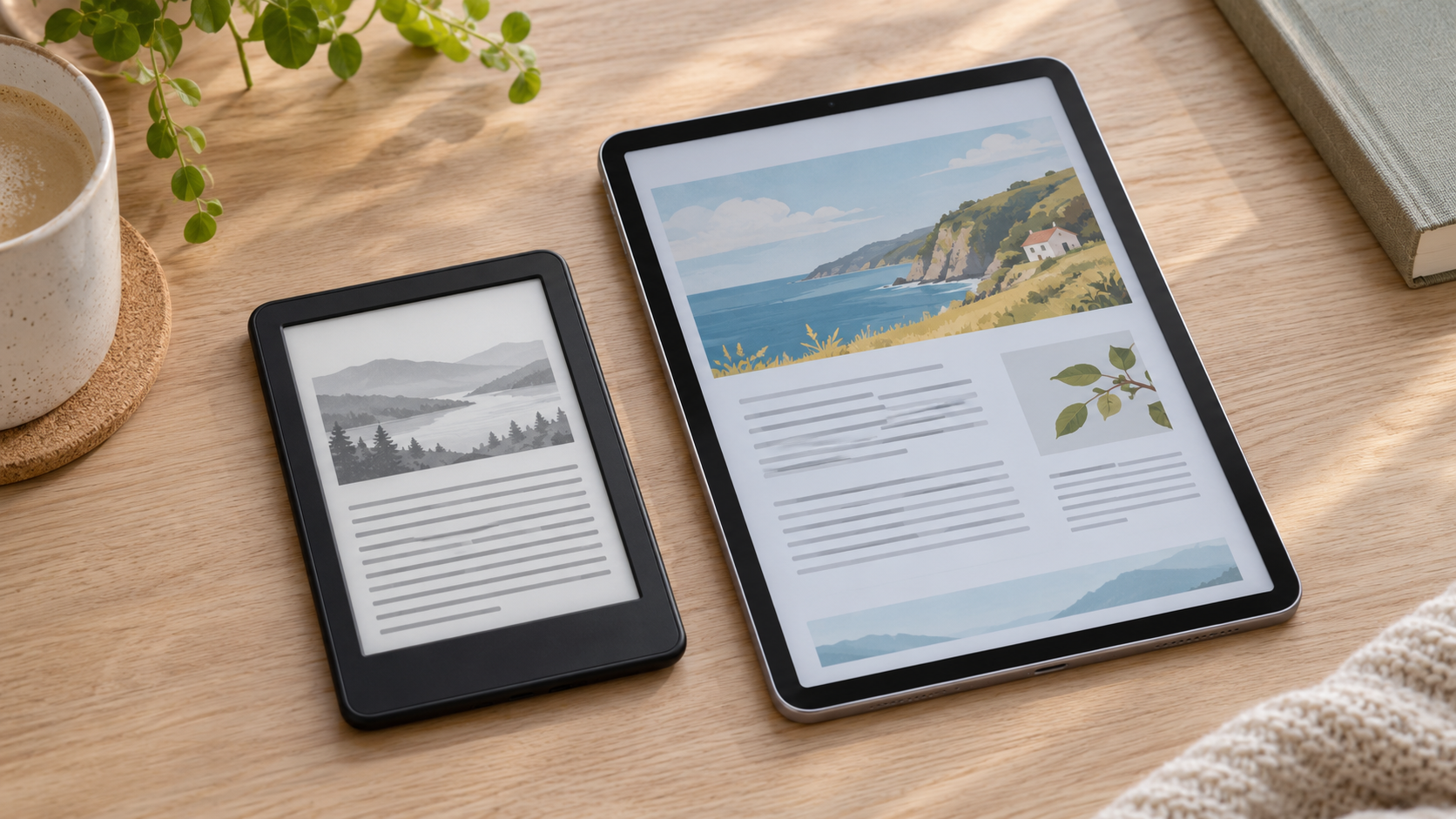
Choose an e-reader if most of what you read is text that can resize to fit the screen and you want a device mainly for books. Choose a tablet if you regularly read large PDFs, colour comics or textbooks and need to zoom, annotate or switch between apps. Before buying either one, check that it can open the books you actually get from your store or library.
Start with your last five things you read. Include the PDF you opened for class, the book you borrowed and the comic you abandoned because the lettering was too small. Those five items tell you more about a purchase than a chart of screen sizes on its own.
Match the device to the page
#| What you open most | Where to start | The check that decides it |
|---|---|---|
| Novels and text-led ebooks | A small dedicated e-reader | Can you enlarge the text and still see enough lines to read comfortably? |
| Scanned textbooks and A4 or letter-size PDFs | A larger tablet or an e-paper device you can try with the actual file | Can you read the smallest caption without moving around the page every few seconds? |
| Colour comics, maps and illustrated books | A colour tablet or a colour e-reader tested with a sample page | Does lettering stay readable and are important colour distinctions clear? |
| Library ebooks | The device that works with your local library and the titles you borrow | Can you borrow a compatible title and open it on the device? |
| Documents you edit or mark up every day | A device and app with the exact tools you need | Can you export a marked-up file and see the notes on another screen? |
A device can support a file and still be a frustrating place to read it. A six-inch screen might be plenty for changing the font size in a novel. Open a scan of a page with two columns, and the entire sheet shrinks to fit the same display. Zoom in and you may have to move sideways to finish each line. The difference is in the way the page is built as much as the screen size.
Understand what the screen changes
#An E Ink display reflects light from the environment, rather like a printed page. The display can hold an image without continuously refreshing it. That is one reason dedicated e-readers can be good at showing a page of largely static text. The rest of the device still uses energy, and the frontlight, wireless connection and reading patterns affect how long the battery lasts.
Check for a frontlight if you often read in a dark room. It illuminates the reading surface from the front. With the light off, a reflective screen still needs enough light around you to read. A tablet screen makes its own light, which can be convenient in a dark space and harder to see in direct glare depending on the exact device, brightness and finish. Try the screen in the conditions you care about, including by a window if you commute or read outside.
A typical tablet can move quickly through pages and respond smoothly when you zoom in on a diagram. An e-paper display can feel different during quick scrolling or visual transitions. Try turning several pages, doing a search and jumping back and forth between a diagram and the text. Slow refresh may be unimportant in a novel and noticeable when you do that dozens of times with a workbook.
A colour e-reader makes sense to try if the colours in your material are helpful and you prefer reading on e-paper. Check a real magazine page or comic before assuming it will look like a tablet. Pay attention to small lettering, contrast and whether similar colours carry different meanings on a map or chart. Screen technology can narrow the choices, but readability is something you can check directly.
Separate resizable books from fixed pages
#Many EPUB books use reflowable text. Change the font size, and the app lays the words out again so the lines fit the screen. This is why a small reader can work well for long novels. You can change the amount of text on the page without having to scroll sideways through each paragraph.
A PDF generally preserves the original arrangement. That is useful when a page includes printed page numbers, charts, footnotes or classroom instructions that refer to a specific layout. A scan may contain a picture of the page. If it has no accompanying text layer or recognition support in the app, changing the normal ebook font setting does little for that scanned text.
Try a page that actually represents the hard part of your work. The title page of a textbook is usually easy to read. A two-column page with a figure, a legend and small reference numbers is a better test. Open it in portrait and landscape. Count how often you have to zoom or drag. Check that you can move to the next page without losing the view you need.
Suppose you mostly read novels on the train but open a ten-page scanned handout on Sunday. You might prefer a light e-reader for the train and keep using your existing laptop for the handout. If the handouts are your weekly reading and you highlight diagrams every day, a bigger display and good document tools may be more valuable to you than carrying a second device.
Work out where your books will come from
#Make a short list of your sources before comparing brands. You might have a collection bought from one store, a library card and a folder of unprotected files. Each source can need a different route onto the device.
A listing that says “supports EPUB” tells you something about the format. It does not grant permission to transfer or read a particular file. Digital rights management, often abbreviated DRM, can limit the apps and services that open an ebook. A book bought through one store may be readable through the store's tablet app while an e-reader from a different ecosystem needs a supported transfer method or a different edition.
Kobo documents direct import of unprotected PDFs and EPUBs on its e-readers. Its instructions also say that content imported this way stays on the device used for the import, and the same instructions direct protected documents to a separate supported process. It is worth checking that difference if you expect your reading position or personal documents to appear on every screen you own. For Kindle personal EPUB files, use the supported Send to Kindle workflow and check the result on the actual device.
Library borrowing has its own checks. OverDrive offers Kindle Books through participating US libraries. Kobo describes built-in Libby by OverDrive support for particular devices and markets, and your library must also provide a supported service. An ebook you see in the library catalogue may have different delivery options depending on the title. Use the local library's instructions and the exact device support page together.
Check one specific title you would really borrow. If a salesperson says a device works with library books, ask whether it works with your library and how the title reaches the screen. Find out whether you borrow on the reader, make the loan elsewhere and sync, or need another supported transfer step. If the answer is unclear and loans are the main reason for buying, resolve that before you order.
Test a real annotation from start to finish
#Opening a document is one check. Highlighting it and getting the result off the reader is another. If you need annotations for class or work, think about what you will do with them after closing the book.
A simple test starts with a lawful sample file. Highlight a sentence, add a short note and mark a diagram. Close the document, reopen it, then send or export it using the method you would normally use. Open the result on a second screen. Look for the parts that matter to you. Can someone else see the note? Does the comment stay attached to the passage? Does the export preserve the original page or give you a separate notebook?
Apple documents PDF reading and Markup in Books on iPad where that service is available. Comparable capabilities on another tablet or dedicated reader depend on the app, file and model. A device with a stylus is not automatically a good fit for your workflow. Check which pen is compatible, whether it is included and whether the file type you use supports the feature.
If you read for pleasure, you may need only bookmarks or an occasional highlight. That can simplify the purchase. If you need a screen reader, text-to-speech, high contrast or a specific font and layout adjustment, test the same book in the intended application. Accessibility support can differ between the operating system, the reader app and the file itself. The most useful check is whether you can carry out your normal reading session comfortably with the setup you intend to use.
Think through the rest of a reading session
#Pick the device up with its expected case. A comfortable screen on a desk can feel heavy after a few minutes held in one hand. Check whether you can turn pages with the grip you naturally use, reach the controls and carry it in the bag you normally take. If you use a stand in bed or at a desk, test the viewing angle and stability as well.
Offline reading deserves a real check before travel. Download the intended book while you have a connection, switch the device offline and open several pages. A cover visible in the library does not prove the content is ready to read. Borrowed books can also have expiry conditions, so check the loan and download before leaving.
Look at charging and battery claims in context. A reading device used for a little text each evening and a tablet used for video, study, web browsing and comics will have very different sessions. Compare the use you expect. If you need to recharge in shared places or while travelling, include the cable and charger you will actually carry.
Distraction is a separate practical question. A dedicated reader can make it easier to leave other tasks behind, but you might get enough of that benefit by testing a reading-only session on your existing tablet with notifications silenced. Try the routine for a few evenings. If the issue is primarily interruptions, a change in settings may solve it. If the screen, weight or page handling still bothers you, you have a clearer reason to buy.
Compare the full cost after the sample test
#Start with the device, then add whatever your use genuinely needs. That could mean a protective cover for commuting, a compatible pen for study, a stand, or a reading app you expect to pay for. Check whether new titles are available at the store you want to use and whether the library will cover enough of your reading. A cheap device that pushes you into buying books you expected to borrow can cost more to live with.
For a gift, find out what the recipient already reads and which accounts or library they use. Buying a reader based on a brand you like may leave them having to split their library between devices. A return policy gives them time to test a sample that the usual demo page did not cover. Check its conditions before opening or registering a device.
If you have two finalists, give both the same small test. Open one ordinary novel, one hard-to-read page, and one book from the source you use most. Try the annotation or accessibility feature you would miss if it were absent. Look at the result without assuming you will adapt to a frustrating screen after paying for it.
For a page of prose that reflows comfortably and books you can get from your usual sources, a dedicated e-reader makes sense. For fixed layouts, frequent markup, colour and several reading apps, start with a suitable tablet. If the device you already have handles all three samples comfortably, keep reading on it until you can name the specific thing a new purchase would improve.