Want to check your Instagram login activity? Open Instagram, go to your profile, tap the menu, then go to Accounts Center > Password and security > Where you’re logged in. Choose your Instagram account, review the devices, and log out of anything you don’t recognize.
After that, change your password if anything looked suspicious, turn on two-factor authentication, check your recovery email and phone number, save backup codes, and remove third-party apps you no longer trust.
Instagram security can sound stressful, but most of it is a short review of where your account is signed in and whether your recovery options still belong to you. Menus can change, so use the wording below as a practical guide rather than a permanent promise of exact button names.
Why Instagram Login Activity Matters
#Your Instagram login activity shows where your account is currently signed in. You may see your phone, laptop, tablet, a browser session, an old device, a shared computer, or a device used by a team member.
This page helps you spot anything strange before it becomes a bigger account problem. If you see a device you do not recognize, a location that makes no sense, or activity you know was not yours, clean it up.
Do not panic over every unusual city. Login locations can be approximate because mobile networks, VPNs, and internet providers may show nearby or routed locations. But if the device is unfamiliar too, or your account has been posting, messaging, or changing details without you, treat it seriously.
Step 1: Open Instagram Login Activity
#The common path is:
Instagram app > Profile > Menu > Accounts Center > Password and security > Where you’re logged in
Then select your Instagram account and review the list of active sessions.
If your app looks different, look for password, security, login activity, or Accounts Center settings. Meta often adjusts menu names and placement, but the purpose is the same: find where your account is signed in.
Step 2: Review Every Device Slowly
#For each login, ask:
- Do I recognize this phone, tablet, laptop, or browser?
- Did I recently log in at work, school, a hotel, a café, or a friend’s device?
- Is this an old phone I forgot about?
- Does the location roughly match where I was?
- Is this device connected to a team member, agency, or social media manager?
- Is there anything here I genuinely cannot explain?
If everything looks normal, continue with the rest of the checklist anyway. Prevention is easier than recovery.
Step 3: Remove Unknown Devices from Instagram
#If a device or session looks suspicious, open it and choose Log out. Repeat this for every device you do not recognize or no longer use.
This is especially important for creator, business, and shared accounts. Instagram accounts often stay logged in on old office computers, freelancer devices, agency laptops, or phones that nobody remembers. If a person no longer needs access, remove that session.
Step 4: Change Your Password If Anything Looked Suspicious
#If you removed an unknown device, change your Instagram password right away.
The common path is:
Accounts Center > Password and security > Change password
Use a password that is unique to Instagram. Do not reuse your email, Facebook, TikTok, banking, school, or work password. Avoid names, birthdays, usernames, pet names, or business names.
If remembering strong passwords is hard, use a reputable password manager. Reusing one easy password feels convenient, but it turns one leaked password into a risk across many accounts.
Step 5: Turn On Two-Factor Authentication
#Two-factor authentication, or 2FA, adds another check when someone tries to log in. A password alone is no longer enough; Instagram may also ask for a code or approval method.
The common path is:
Accounts Center > Password and security > Two-factor authentication
Depending on your account, Instagram may offer options such as an authentication app, text message code, or another approval method. An authentication app is usually stronger than SMS, but the safest option is the one you can reliably access.
Step 6: Save Backup Codes Safely
#Backup codes can help if your normal 2FA method is unavailable. They may be useful if your phone is lost, your number changes, your authenticator app stops working, you are traveling, or your main device breaks.
Save backup codes somewhere private. Do not store them in shared chats, public notes, screenshots that sync everywhere, or folders your team can access. Treat them like spare house keys.
Step 7: Check Recovery Email and Phone Number
#Your recovery email and phone number are critical because Instagram may use them when you need to regain access.
The common path is:
Accounts Center > Personal details > Contact info
Check that your email and phone number are current, controlled by you, and not old or unfamiliar. Remove outdated contact details. If someone controls your recovery email, they may be able to reset your Instagram password, so protect that email account too.
Step 8: Verify Recent Emails Before Clicking Links
#Fake Instagram emails often claim your account will be deleted, your verification is at risk, or you must confirm a login immediately. Before clicking, check inside Instagram.
The common path is:
Accounts Center > Password and security > Recent emails
This helps confirm whether Instagram actually sent certain security emails. If an email looks scary but is not confirmed inside the app, slow down. Open Instagram directly rather than typing your password through a link in an email or DM.
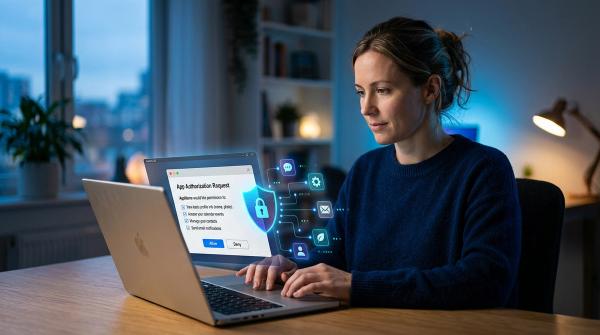
Step 9: Remove Suspicious Third-Party Apps
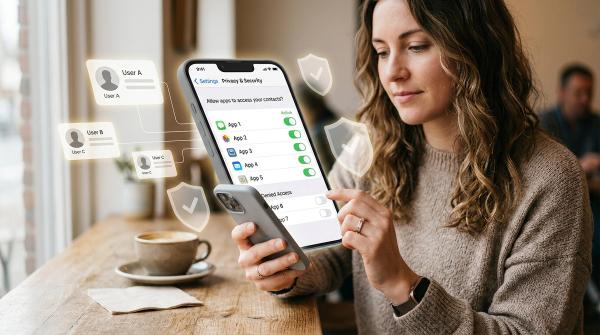
#Some account risks come from connected apps rather than a guessed password. Review apps connected for follower tracking, profile viewers, engagement boosting, analytics, scheduling, giveaways, auto-likes, or “free followers.”
The common path is:
Settings > Website permissions > Apps and websites
Remove apps you do not recognize, do not use, do not trust, or that promise instant growth or hidden profile-viewer data. Tools that ask for more access than they need should be treated carefully.
Signs an Unknown Device Could Be a Problem
#A strange login is worth attention when the device type is unfamiliar, the location is impossible to explain, or your account is doing things you did not do.
Watch for:
- Posts, stories, comments, or messages you did not create
- Accounts you did not follow
- Profile photo, bio, email, or phone changes you did not make
- Password reset emails you did not request
- Security alerts about changes you cannot explain
If any of these happen, log out unknown devices, change your password, turn on 2FA, review recovery details, and remove suspicious apps.
Instagram Security Settings to Check
#What to Do If You Are Already Locked Out
#If someone changed your password, email, phone number, or 2FA settings, use Instagram’s official recovery options. Start from the login screen and look for options such as Forgot password?, Get help logging in, Can’t reset your password?, or My account was hacked.
Instagram may ask you to confirm your email, phone number, a security code, or other verification steps. Follow prompts inside the official app or Meta help pages only.
Avoid people who claim they can recover, hack back, or bypass Instagram support for money. Recovery scammers often ask for payment, login codes, passwords, backup codes, or access to your email. Do not share those details.
A Simple Instagram Security Routine
#You do not need to check login activity every day. For most people, a light routine is enough:
- Check where you are logged in every few weeks
- Review after travel or shared-computer use
- Review after logging in at school, work, hotels, or cafés
- Review when you receive a suspicious login email
- Remove old devices you no longer use
- Keep recovery email and phone number updated
- Review access whenever a team member or freelancer leaves
Final Checklist
#- I checked my Instagram login activity
- I removed unknown or old devices
- I changed my password if anything looked suspicious
- I turned on two-factor authentication
- I saved backup codes somewhere private
- I checked recovery email and phone number
- I verified suspicious emails inside Instagram
- I removed risky third-party apps
- I know to use official Instagram recovery if locked out
Small steps like these can make your Instagram account much safer without turning security into a full-time job.