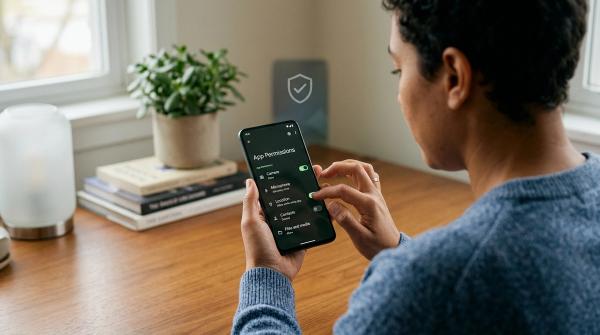
If you want to clean up third-party app access, start with the security or privacy settings for your main accounts. Look through the apps and websites connected to Google, Apple, Facebook, and Instagram, then revoke app access for anything old, unused, or unfamiliar.
In plain English: check your Google Account app access, review your Sign in with Apple apps, and look through your Facebook app permissions in Apps and Websites or Meta Accounts Center.
Most of us have clicked buttons like:
- “Continue with Google”
- “Sign in with Apple”
- “Log in with Facebook”
They’re convenient. They save time. And half the time, we barely think about it.
The problem is that those connections can hang around for years.
Maybe it was a quiz app you opened once. A class tool you used for one semester. A shopping site you never visited again. A game, photo editor, contest, dating app, or work tool from an old job.
Even if you deleted the app from your phone, it may still be connected to your Google, Apple, Facebook, or Instagram account.
This guide from AllBlogs is for regular people who want a cleaner, safer privacy setup without turning it into a tech project. Whether you’re a parent, student, creator, worker, senior, or just someone trying to tidy up your digital life, this checklist will help you decide what to keep, what to review, and what to remove.
What third-party app access means
#A third-party app is an app or website made by someone other than the company that owns your main account.
So if you use your Google Account to sign in to a fitness app, that fitness app is the third party. If you use Facebook to log in to a game, the game is the third party. If you use Sign in with Apple for a shopping site, that site is the third party.
When you connect one of these apps, you may be giving it permission to see certain account details.
Sometimes it’s basic information, like:
- Your name
- Your email address
- Your profile photo
Other times, the app may ask for more sensitive access, such as:
- Contacts
- Calendars
- Files
- Photos
- Social profiles
- Pages you manage
- Account activity
Not every connected app is bad. Plenty of them are useful, safe, and legitimate.
The issue is that people forget what they connected over time.
You might still have access sitting around from:
- A school app you used for one class
- A shopping site you tried once
- A photo editor, quiz, or game
- A work tool from an old job
- A dating app or free trial
- A contest entry
- A creator tool you tested and abandoned
- A file converter you used one time
CISA, the Cybersecurity and Infrastructure Security Agency, recommends managing app permissions as part of basic privacy and security habits. The simple version is this: every so often, check what can access your accounts and remove what you no longer need.
Before you revoke access, know this
#Revoking app access is a good privacy habit, but it does not fix everything.
When you remove a third-party connection, you usually stop that app from getting future access through Google, Apple, Facebook, or Instagram.
But revoking access may not delete data the app already collected.
For example, an old app may have already saved your:
- Email address
- Name
- Profile information
- Uploaded files
- Photos
- Account history
- Preferences
- Messages or activity inside that app
Removing the Google, Apple, or Facebook connection does not automatically wipe that information from the app’s own system.
If you want the app to delete your account or stored data, you may need to do that separately.
A good order is:
- Sign in to the old app or website first.
- Look for account, privacy, or data settings.
- Delete the account, close the profile, or request data deletion.
- After that, go back to Google, Apple, or Facebook and revoke the connection.
This order matters because sometimes social sign-in is your only way into the old account. If you revoke access first, you might make it harder to log in and delete your data later.
So if you care about deleting old data, deal with the app itself before disconnecting it.
Keep, review, or revoke: a simple decision table
#When you open your connected apps list, it may look messy. Don’t panic. You don’t have to understand every permission perfectly.
Use this table to sort things quickly.
A good rule: if you would not sign up for the app again today, it probably belongs in the revoke pile.
Step-by-step cleanup checklist
#Before you start clicking remove buttons, take a few minutes to work through this checklist. It helps you clean things up without accidentally breaking something you still need.
1. Make a quick “do not break” list
#Think about the apps and services you actually rely on.
For example:
- Work platforms
- School tools
- Banking or finance apps
- Cloud storage services
- Calendar and meeting apps
- Creator dashboards
- Paid subscriptions
- Health apps
- Travel services
- Family or household tools
You do not need to remove something just because it appears in your connected apps list.
The goal is not to disconnect everything. The goal is to remove old and unnecessary third-party access.
2. Start with apps you do not recognize
#Once you open your connected apps list, look for names that feel unfamiliar.
Ask yourself:
- Do I remember using this?
- Do I still have the app installed?
- Do I still have an account there?
- Is it connected to a subscription?
- Would anything important stop working if I removed it?
- Would I sign up for this again today?
If the answer is mostly no, it is probably safe to revoke.
3. Check what each app can access
#Some apps only use your account for basic login. Others may have broader permissions.
Look for access to things like:
- Email address
- Profile information
- Contacts
- Calendar
- Files
- Cloud storage
- Photos
- Social media pages
- Posting or account management permissions
If a simple app has access that feels too broad, slow down and review it.
For example, a calendar app needing calendar access makes sense. A random quiz app needing contacts or files probably does not.
4. Delete old app accounts first when needed
#If you want to fully delete an old account, try doing that inside the app or website before revoking the Google, Apple, or Facebook login.
This is especially important if the social sign-in button is your only login method.
If you remove the connection first, you may have to deal with account recovery or customer support just to get back in. Nobody wants that.
5. Revoke access from Google, Apple, and Facebook
#After you’ve reviewed your list, remove the apps you no longer use.
The sections below walk through where to look for:
- Google Account app access
- Sign in with Apple apps
- Facebook app permissions
- Instagram-connected tools
6. Repeat every few months
#You do not need to do this every week.
For most people, checking every six months is enough.
It is also smart to review app access after big life changes, such as:
- Changing jobs
- Finishing school
- Getting a new phone
- Closing old accounts
- Starting or ending a business project
- Cleaning up subscriptions
How to review Google Account app access
#Google lets you review and manage connections between your Google Account and apps or services from other developers.
Here’s the beginner-friendly way to find them:
- Open your Google Account in a browser.
- Go to the security section.
- Look for connected third-party apps and services.
- Open the full list of apps and services.
- Select an app to see what access it has.
- If you no longer use it, choose the option to remove or delete the connection.
- Confirm the change.
Google changes its layout and wording sometimes, so the labels may not match exactly.
Look for phrases like:
- Third-party apps
- Connections
- Linked apps
- Apps and services
- Third-party access
When reviewing Google Account app access, pay special attention to apps connected to:
- Gmail
- Google Drive
- Google Photos
- Google Calendar
- Contacts
If you still use the app and the access makes sense, keep it. If it was a one-time tool, old trial, or service you forgot about, revoke it.
How to manage Sign in with Apple apps
#When you use Sign in with Apple, you use your Apple Account to log in to apps and websites made by other developers.
Apple lets you view and manage those apps from your iPhone, iPad, Mac, or Apple Account on the web.
On iPhone or iPad
#- Open Settings.
- Tap your name at the top.
- Look for Sign in with Apple.
- Open the list of apps.
- Tap an app to review it.
- If you no longer need it, choose the option to stop using your Apple ID with that app.
On Mac
#- Open System Settings.
- Select your name or Apple Account section.
- Find Sign in with Apple.
- Review the listed apps.
- Stop using your Apple ID with apps you no longer want connected.
On the web
#- Go to your Apple Account page.
- Sign in.
- Open the sign-in and security area.
- Find Sign in with Apple.
- Review and remove old app connections.
One nice Apple feature is Hide My Email. If you used it, the app may have received a private relay email address instead of your real email address.
That is helpful, but it does not mean you should leave every old app connected forever.
If you no longer use the app, remove the connection.
How to review Facebook app permissions
#Facebook login has been around for a long time, so this list can get surprisingly crowded.
People have used Facebook to log in to:
- Games
- Quizzes
- Shopping sites
- Streaming apps
- News sites
- Dating apps
- Community tools
- Contest pages
Some of those old connections may still be there.
Meta and Facebook settings can vary depending on your device, app version, and region. In general, you are looking for Apps and Websites, either inside Facebook settings or through Accounts Center.
Try this general path:
- Open Facebook in the app or browser.
- Go to Settings or Settings & privacy.
- Look for Apps and Websites.
- If you do not see it, check Accounts Center.
- Review the apps and websites connected to your Facebook account.
- Open any app you no longer use.
- Choose the option to remove it.
- Confirm the removal.
When reviewing Facebook app permissions, pay attention to apps that can access profile information or interact with your account.
If Facebook gives you an option to remove past activity posted by that app, read the prompt carefully before choosing. You may want to remove old posts from a game or quiz, but it is still worth understanding what the setting does.
Removing an app from Facebook usually stops future access. It does not always delete your account with that app, and it may not erase data the app already collected.
What about Instagram?
#Instagram is part of Meta, so some app permissions may be managed through Meta account settings or connected app settings.
This matters especially if you use Instagram for:
- Creator tools
- Scheduling apps
- Analytics platforms
- Link-in-bio tools
- Business dashboards
- Message management tools
- Social media automation
- Ad or campaign tools
If you are a creator or small business owner, go slowly here.
Some tools may need access to post content, show analytics, manage comments, or connect to your business account. Removing them without checking could interrupt your workflow.
That does not mean you should keep everything. It just means you should review the details before revoking access.
Keep the tools you actively use. Remove the ones you tested once and forgot about.
A practical cleanup plan for different users
#For families
#Pick one quiet evening and review accounts together.
Parents can check for old:
- Learning apps
- Games
- Streaming tools
- Shopping sites
- Family organizer apps
- School platforms
It also helps to remind everyone that deleting an app from a phone is not the same as removing account access.
Those are two different things.
For students
#Students tend to collect a lot of temporary tools.
Look for old:
- Classroom apps
- Note-taking tools
- Flashcard apps
- Survey platforms
- File converters
- Group project tools
- Scholarship or campus service accounts
If the course is over and you no longer need the tool, consider removing it.
You may be surprised how many apps you only used once for an assignment.
For workers
#Be careful with work-related apps.
If a tool is connected to your job, ask your workplace, manager, or IT contact before removing it. You do not want to break access to something your team still needs.
For personal accounts, look for:
- Old productivity trials
- Document tools
- Scheduling apps
- Services from past roles
- Apps connected during job searches
- Old collaboration platforms
If you no longer use them, revoke access.
For creators
#Creators test a lot of tools, and those connections can pile up quickly.
Review:
- Social media schedulers
- Analytics tools
- Design platforms
- Newsletter apps
- Video editing tools
- Link-in-bio services
- Brand deal platforms
- Automation tools
Keep the tools you use regularly.
Revoke access for old experiments, abandoned trials, and platforms you tested but never added to your workflow.
For seniors
#Go slowly and do not feel rushed.
If you do not recognize an app, write down the name before removing it. If you are unsure, ask a trusted family member or friend to look with you.
Start with the easy ones:
- Games you no longer play
- Quizzes
- Old shopping sites
- Apps you do not remember using
- Services you know you do not need
You do not have to clean everything in one sitting. Even removing a few old connections is progress.
Common mistakes to avoid
#Mistake 1: Deleting the app from your phone and stopping there
#Removing an app from your phone does not always remove its account access.
The app icon may be gone, but the connection may still exist in your Google, Apple, Facebook, Instagram, or app account settings.
If you want to fully clean things up, check the connected apps list too.
Mistake 2: Revoking access before deleting an old account
#If you want an old app to delete your data, try to delete the account inside that app first.
Then revoke the Google, Apple, or Facebook connection.
Doing it in the opposite order can make it harder to sign back in and finish deleting the account.
Mistake 3: Removing tools you still rely on
#If you revoke access for something you use daily, the app may stop syncing or ask you to sign in again.
That is usually fixable, but it can be annoying.
If you recognize the app and still use it, review the permissions before removing it.
Mistake 4: Forgetting about paid subscriptions
#Revoking login access usually does not cancel a paid subscription.
Billing is separate.
If an app is charging you, cancel the subscription through the place where you signed up, such as:
- The app itself
- The company’s website
- The App Store
- Google Play
- PayPal
- Your credit card or bank
Do not assume removing login access stops payments.
Mistake 5: Assuming every permission is bad
#Permissions are not automatically suspicious.
Some apps need certain access to work.
For example:
- A calendar app may need calendar access.
- A cloud backup tool may need file access.
- A social media scheduler may need posting access.
- A photo editor may need photo access.
The better question is: does this access still make sense today?
If the answer is yes, keep it. If the answer is no, remove it.
Quick cleanup checklist
#Use this as your working list:
- Open your Google Account security settings.
- Review Google Account app access.
- Revoke old Google-connected apps you no longer use.
- Open Apple Account settings.
- Review Sign in with Apple apps.
- Stop using your Apple ID with old or unwanted apps.
- Open Facebook settings.
- Review Facebook app permissions in Apps and Websites or Accounts Center.
- Remove old Facebook-connected apps.
- Check Instagram-connected tools if you use creator or business apps.
- Delete old accounts inside apps first when data deletion matters.
- Check active subscriptions separately.
- Set a reminder to repeat this cleanup every six months.
Final thought
#Third-party app access is not something to panic about. It is just something worth tidying up.
Keep the tools you actually use. Review the ones you are unsure about. Revoke old connections that no longer serve you.
A quick cleanup twice a year can make your accounts easier to manage and reduce unnecessary access to your personal information.