If you lost a security key, use another approved sign-in method first: a spare key, backup code, authenticator app, passkey, phone prompt, trusted device, or the account’s official recovery flow. Once you’re back in, remove the missing key, add a replacement, refresh backup codes, and review every important account where that key was registered.
Losing a security key is stressful because it protects the accounts you cannot afford to lose: email, password managers, work logins, banking apps, social accounts, and cloud storage. But a lost key does not automatically mean someone can access your account. In most cases, the key is only one part of multi-factor authentication.
What matters now is recovering safely without weakening your protection.
Do not turn off two-factor authentication just to make login easier. Do not send backup codes to anyone. Do not trust strangers who claim they can recover your account for a fee. Use the official recovery options only.
Quick lost security key checklist
#- Open the official sign-in page or app.
- Try your spare security key if you have one.
- Use a 2FA backup code if you saved them.
- Try another approved method, such as an authenticator app, passkey, phone prompt, recovery email, or trusted device.
- If a phone or laptop was also lost, secure that device too.
- Once signed in, remove the lost key from your account.
- Add a replacement key or another strong backup method.
- Generate new backup codes if you used, lost, or exposed any.
- Check every important account where that security key was registered.
What can a lost security key actually do?
#A physical security key is usually part of multi-factor authentication, also called MFA or 2FA. That means your account asks for more than one proof before letting someone in.
Common factors include:
- Something you know, such as a password.
- Something you have, such as a security key or phone.
- Sometimes something you are, such as a fingerprint or face unlock.
So if someone finds your key, they usually still need your username, password, and sometimes a device PIN or biometric unlock. Still, the key remains a trusted sign-in method until you remove it. Treat the loss seriously, especially if it disappeared with a laptop, phone, password notebook, or bag.
Your goal is simple: regain access, remove the missing key, add a safer replacement, and prevent the same lockout problem later.
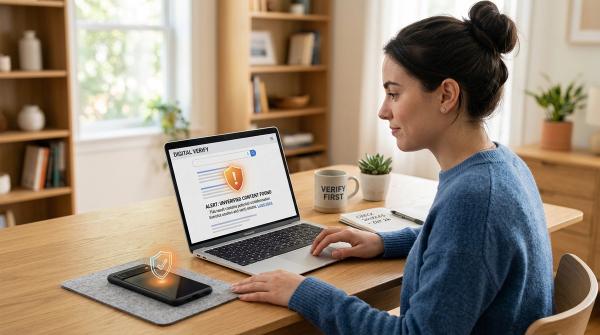
Step 1: Make sure you are on the real login page
#Stress makes people click quickly. Scammers rely on that.
Use the official website, official app, or a bookmark you already trust. Avoid recovery links from random emails, texts, social posts, search ads, or comment replies. If someone says they can unlock your account if you send a password, OTP, 2FA code, or backup code, assume it is a scam.
Look for the platform’s official options, such as:
- “Try another way”
- “Forgot password”
- “Account recovery”
- “Need help signing in?”
- The official help center
Stay inside the official recovery flow, even if it takes longer.
Step 2: Try your spare security key
#If you registered a spare security key, use it first. This is the safest and simplest recovery path because you keep strong 2FA instead of falling back to weaker methods.
A good security key setup usually has:
- One daily key on your keyring or in your work bag.
- One spare key stored somewhere separate and safe.
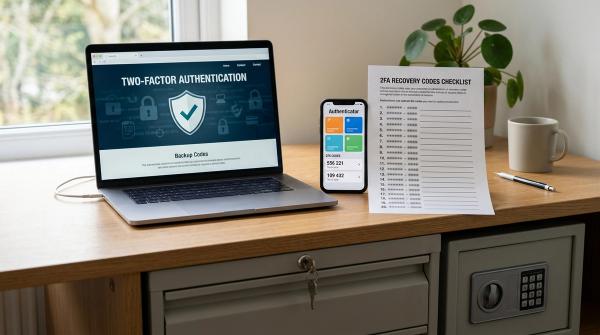
- Backup codes or another official recovery method in case both keys are unavailable.
If the spare key works, sign in and immediately go to your account security settings. Remove the missing key before you forget.
Step 3: Use 2FA backup codes if you saved them
#2FA backup codes are emergency sign-in codes created when you set up two-factor authentication. They are designed for moments like this: lost key, broken phone, unavailable authenticator app, travel problems, or device changes.
Use one code to sign in. After that, assume that code is used up. Once you regain access, generate a fresh set if the service allows it, especially if you used a code, lost the printed list, or stored the codes somewhere unsafe.
Treat backup codes like emergency keys:
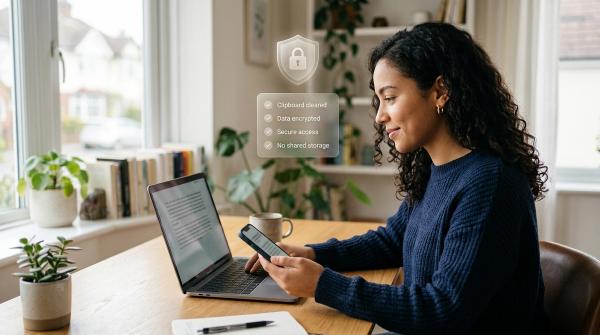
- Do not send them by email, chat, or text.
- Do not read them out over a phone call.
- Do not give them to anyone claiming to be support.
- Do not keep screenshots in your camera roll.
A backup code can help you recover. In the wrong hands, it can also help someone else get in.
Step 4: Try another approved sign-in method
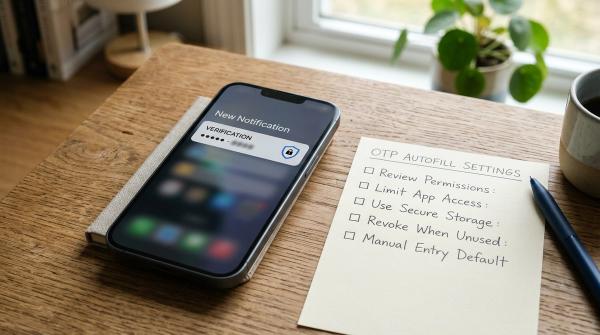
#If you do not have a spare key or backup codes, use another official second step if available.
Depending on the account, this may include:
- A phone prompt from a device where you are already signed in.
- A code from an authenticator app.
- A passkey saved on another device.
- A trusted computer you used before.
- A recovery email.
- A recovery phone number.
- Another registered security key.
Use the strongest option you still control. A spare key or passkey is usually stronger than SMS, but if SMS or recovery email is the only official option offered, use it carefully, then improve your setup afterward.
Step 5: If another device was lost too, secure it
#Sometimes the key is not the only thing missing. If your phone, laptop, backpack, or notebook disappeared with it, treat the situation as a wider account-security issue.
Take these extra steps:
- Sign out of the missing device remotely if the service allows it.
- Change your password if it may have been exposed.
- Review active sessions.
- Remove devices you do not recognize.
- Check recovery email, recovery phone, passkeys, authenticator apps, and security keys.
- Report a lost work or school device to the official IT team.
If your security key and backup codes were stored together, prioritize your most important accounts first.
Step 6: Remove the missing key from every account
#Once you are signed in, remove the lost key. Look in account settings for sections such as:
- Security keys
- Passkeys
- 2-Step Verification
- Two-factor authentication
- MFA
- Sign-in methods
- Authentication methods
If the account lists several keys and you cannot tell which one is missing, check labels, dates added, and last-used details if available. If you are still unsure, you may need to remove uncertain entries and re-register the keys you still physically have.
Do this for every account where the key was used, not just the first account you recovered.
Step 7: Register a replacement and create a backup plan
#After removing the lost key, add a replacement. If the service supports multiple keys, register at least two:
- One daily key.
- One spare key stored somewhere separate.
For important accounts, a strong setup may include:
- Two registered security keys.
- Fresh backup codes.
- An authenticator app or passkey.
- A recovery email you actually control.
- A trusted device with a strong lock screen.
The goal is not to make your account easier to break into. The goal is to give yourself safe ways back in if one method is lost, stolen, or broken.
Backup methods compared
#No backup method is perfect. A spare security key is excellent, but only if you registered it before the problem. Backup codes are useful, but only if they stay private. Recovery email can save you, but only if that email account is protected too.
What if you have no backup options?
#If you have no spare key, no backup codes, no authenticator app, no passkey, no trusted device, and no active session, use the platform’s official account recovery process.
This may take time. You may need to verify a recovery email, answer account questions, confirm an old device, or wait for review. That delay is frustrating, but it also protects accounts from attackers trying to bypass security.
Do not pay unofficial “recovery experts.” Do not share codes. Do not download remote-access apps because someone says they can help.
Google Account notes if you lost a security key
#For a Google Account, recovery depends on the other second steps you already set up. These may include Google prompts, verification codes, backup codes, another security key, passkeys, or a trusted registered computer.
After you regain access:
- Review 2-Step Verification.
- Remove the missing key.
- Add a replacement key or passkey.
- Generate fresh backup codes if needed.
- Review signed-in devices.
- Check your recovery email and phone.
If the lost key was your only second step, recovery can be harder. That is why setting up backup methods before trouble matters.
How to prevent future lockouts
#A secure account should not depend on one tiny object.
Use this simple prevention plan:
- Register a spare security key for important accounts.
- Keep the spare somewhere separate from your daily key.
- Store backup codes in a password manager, locked drawer, safe, or secure household document folder.
- Protect your recovery email with a strong password and 2FA.
- Remove old phones, shared computers, and devices you no longer use.
- Check whether your most important accounts have at least one safe backup path.
Ask yourself: if I lost my main security key today, what would I use? If the answer is “I don’t know,” fix that while you still have access.
Bottom line
#A lost security key is annoying, but it does not have to become an account disaster. Use another approved sign-in method, remove the missing key, add a replacement, and update your backup plan. Keep 2FA on, protect your recovery email, save backup codes safely, and use official recovery only.