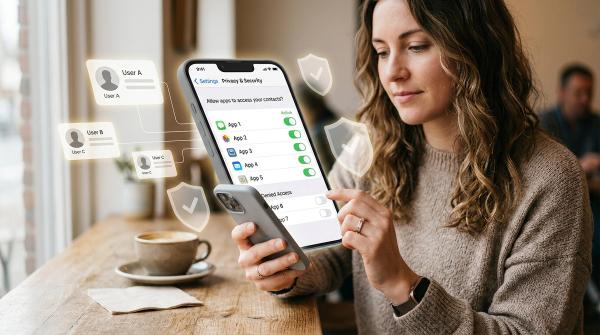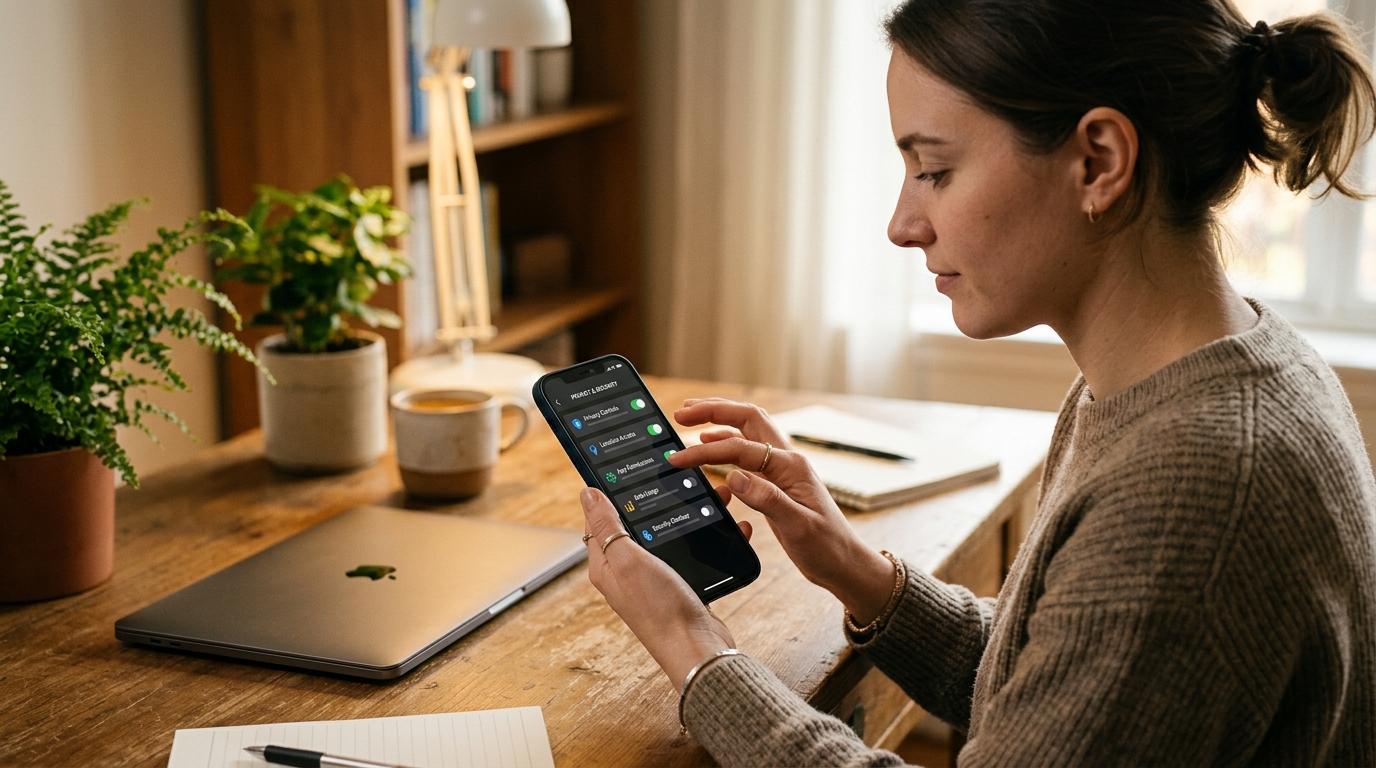
If you want more phone privacy, use built-in tools first: lock apps you use often, hide apps you do not want visible, and use Android Private Space for a separate protected app area. These settings help against casual snooping, but they do not erase accounts, defeat device management, or make apps completely invisible.
Sometimes you just want a little privacy on your phone—not because you are doing anything wrong, but because your phone contains banking, health, work, family, and personal information that does not need to be visible to everyone who borrows it.
This guide explains how app locking and hiding work on iPhone and Android, when to use Android Private Space, what these tools do not protect, and what to check before handing your phone to someone else.
First, Use App Privacy for Healthy Boundaries
#App privacy settings are meant for normal personal boundaries. They can reduce accidental taps, casual snooping, and awkward moments where someone sees something they were not meant to see.
Do not use app hiding for stalking, spying, controlling another person’s phone, hiding abuse, concealing fraud, or evading legitimate safety checks. These features are for privacy, not harm.
Also, app hiding is not a full security vault. If someone knows your passcode, manages your device, controls your Apple or Google account, or inspects the phone with advanced tools, some information may still be visible.
When Should You Lock or Hide an App?
#You probably do not need to lock every app. That can become frustrating and may make you ignore the settings later.
Focus on apps that reveal sensitive information:
- Banking and payment apps
- Email and work apps
- Health, therapy, medication, or fitness apps
- Private messaging apps
- Dating apps
- Journal or diary apps
- Notes and cloud storage apps
- School, family, or workplace account apps
- Photo apps or private albums
Use this simple rule:
- Lock an app if you use it often but do not want others opening it.
- Hide an app if you do not even want it visible during casual scrolling.
- Use single-app controls if someone only needs one app for a short time.
For example, if a child wants to watch a video, you may not need to hide half your phone. Open the video app and use Guided Access on iPhone or app pinning on Android if available.
How to Lock Apps on iPhone
#On supported iPhones, many apps can be locked so opening them requires Face ID, Touch ID, or your passcode.
The exact wording can vary by iPhone model and iOS version, but the usual flow is:
- Find the app on your Home Screen.
- Touch and hold the app icon.
- Tap Require Face ID or the available authentication option.
- Confirm your choice.
After that, the app should ask for authentication before it opens.
This is useful for banking, messages, email, photos, notes, health, and work tools. Apple’s support guidance also says information inside a locked app is kept out of some places such as notification previews, Search, Siri suggestions, and other surfaces where private details could appear.
What iPhone App Lock Does Not Do
#Locking apps on iPhone is helpful, but it is not magic.
Remember these limits:
- If someone knows your iPhone passcode, they may be able to open protected apps.
- Locking applies on that device. It does not automatically lock the same app on another iPhone or iPad.
- Some Apple apps and system apps may not support the same lock or hide options.
- Screen Time, Family Sharing, school/work management, or device management tools may still show some activity.
- Locking an app does not delete the app, close your account, or erase cloud data.
For everyday privacy, app lock is still a strong first step because it stops casual opening.
How to Hide Apps on iPhone
#Hiding goes further than locking. Instead of keeping the app visible on your Home Screen, iPhone can move supported apps into a protected Hidden folder in the App Library.
To hide a supported app on iPhone:
- Touch and hold the app icon.
- Tap Require Face ID or the available authentication option.
- Choose Hide and Require Face ID, if that option appears.
- Confirm your choice.
The app is then removed from normal Home Screen view. To open it again, go to the App Library and unlock the Hidden folder.
This can help with apps you do not want someone to notice at a glance, such as a finance app, journal, therapy app, dating app, or private messaging app.
What Hidden Apps on iPhone Do Not Hide
#Hidden does not mean erased.
Keep these limits in mind:
- The app is still installed.
- The Hidden folder may still appear in the App Library.
- A person who knows your passcode may still be able to access protected areas.
- Other devices using the same account need their own privacy checks.
- Screen Time, parental controls, or managed-device settings may still show some information.
- Hiding does not delete app data or your account.
Use iPhone hiding to reduce casual visibility, not to bypass accountability or device management.
How Android Private Space Works
#Android Private Space is a built-in privacy feature for keeping sensitive apps in a separate locked area on supported Android phones.
Instead of keeping every app in your regular app drawer, Private Space lets you place selected apps in a more private section. When Private Space is locked, those apps are not sitting openly with your regular apps.
You might use Android Private Space for:
- Banking apps
- Private notes
- Health apps
- Personal messaging apps
- Dating apps
- Work apps
- Journaling apps
- Apps connected to a separate Google Account
Google’s Android guidance describes Private Space as a separate space for sensitive apps, and notes that apps there can be isolated from the rest of the phone. Availability depends on your Android version and phone model.
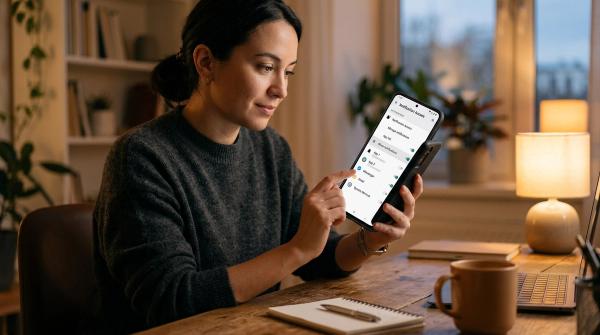
How to Set Up Android Private Space
#On supported Android phones, the general setup is:
- Open Settings.
- Go to Security & privacy.
- Tap Private space.
- Authenticate with your screen lock.
- Follow the setup steps.
- Choose whether to use your current Google Account or a separate one.
- Set a Private Space lock.
- Add or install the apps you want to keep there.
Once it is ready, lock Private Space when you are not using it.
Some phones may also let you hide Private Space from the app drawer, making it less obvious during regular use. Manufacturer features can vary, so use the settings available on your device rather than downloading random app lockers first.
What Android Private Space Does Not Hide
#Private Space helps with casual privacy, but it is not invisible to every system.
Important limits include:
- If someone knows your phone lock or Private Space lock, they may be able to access it.
- A work, school, or family-managed device may have extra visibility or controls.
- Apps inside Private Space are still installed on the device.
- If you use the same Google Account inside and outside Private Space, some activity may connect across both areas.
- Google notes that Private Space may still be detectable in certain situations, such as system logs, app installation records, or computer-based inspection.
Use Private Space together with a strong phone lock, careful notifications, and strong Google Account security.
Lock vs Hide vs Uninstall vs Delete
#If your goal is simple privacy, locking or hiding may be enough. If your goal is to stop using a service, uninstall it. If your goal is to remove personal information, look for the app’s delete-data or delete-account options.
Phone Privacy Checklist Before Handing Someone Your Phone
#Before you pass your phone to a friend, child, classmate, coworker, or family member, take a few seconds to set a boundary.
- Lock the phone first, then unlock it yourself. Avoid sharing your passcode unless truly necessary.
- Open the exact app they need. Do not hand over your Home Screen if they only need Maps, Photos, YouTube, or a game.
- Lock sensitive apps. Start with banking, email, payments, health, notes, work, and messaging apps.
- Hide apps that feel too personal. If seeing the icon would make you uncomfortable, hide it or move it to Private Space.
- Clear sensitive notifications. Remove private messages, one-time codes, work alerts, and health reminders from view.
- Check your photo view. Open the exact photo first instead of handing over your full gallery.
- Use single-app controls when possible. Try Guided Access on iPhone or app pinning on Android.
- Take the phone back before switching apps. A simple “I’ll open it for you” is polite and effective.
You would not hand someone your whole wallet when they only need to see one card. Your phone deserves the same care.
Should You Use Third-Party App Lockers?
#Usually, start with built-in tools.
Many third-party app lockers ask for broad permissions. Some show too many ads, collect unnecessary data, or stop working after system updates. A privacy app that needs too much access can create the same risk you were trying to reduce.
Built-in tools are usually:
- Easier to manage
- Better supported
- Less likely to break after updates
- More tightly connected to your phone lock
- Safer than unknown apps with broad permissions
If you do use a third-party app locker, check its permissions, reviews, developer reputation, privacy policy, and update history first.
Final Advice: Keep App Privacy Simple
#If you want to stop someone from opening a banking app, lock it.
If you do not want a personal app visible while someone scrolls your phone, hide it.
If you want a separate area for sensitive Android apps, use Private Space.
If you do not want the app on your phone anymore, uninstall it.
If you want your information removed, look for delete-data or delete-account options inside the service.
App privacy works best when it stays simple: a strong phone lock, a few protected apps, careful notifications, and a quick phone-handoff routine.