If you’ve ever opened an incognito window and thought, “Okay, am I private now?” — you’re not alone.
A lot of people use private browsing, VPNs, HTTPS, Secure DNS, and browser privacy settings as if they all do the same thing. They don’t. Each one protects a different part of your online life.
Here’s the short version:
Private browsing mainly stops your browser from saving certain things on your device, like your history, cookies, form entries, and temporary site data after you close that private window.
A VPN protects something different. It encrypts the connection between your device and the VPN server, which can be especially useful on public Wi-Fi or networks you don’t fully trust.
So no, incognito mode does not make you anonymous. And no, a VPN is not a magic invisibility cloak either.
A simple way to think about it:
Private browsing is like cleaning up after yourself before you leave a room.A VPN is like sending your internet traffic through a sealed tunnel.HTTPS is like making sure the website connection itself is secure.
They’re all useful. They just don’t do the same job.
This guide from allblogs breaks down what private browsing really does, what a VPN actually protects, when to use each one, and how to browse more safely without overthinking every click.
Private Browsing vs VPN: The Basic Difference
#Private browsing mostly protects you from other people who use the same device after you.
A VPN mostly protects you from people or networks that may be watching the connection between your device and the VPN server.
That’s the big difference.
If you’re using a family laptop and don’t want your gift shopping, search history, or login session saved on that computer, private browsing can help.
If you’re using airport Wi-Fi, hotel Wi-Fi, college Wi-Fi, library Wi-Fi, or a coffee shop network, and you want to limit what that network can see, a VPN is usually the better tool.
You can also use both at the same time.
Private browsing helps reduce local traces on the device.A VPN helps protect part of your network traffic.
Private Browsing: What It Actually Does
#Private browsing is built into most browsers. Depending on the browser, you might see it called:
- Incognito Mode
- Private Window
- InPrivate Browsing
- Private Browsing
The name changes, but the basic idea is the same.
Your browser tries not to save certain information from that session on your device.
Private browsing usually avoids saving or clears:
- Browsing history from that private window
- Cookies from that session
- Site data from that session
- Form entries
- Temporary login sessions after the window is closed
That can be genuinely useful, especially on shared devices.
But it’s important to understand the limit: private browsing is mostly local privacy. It helps with what gets saved on the device you’re using. It does not make you invisible online.
A Simple Shared Device Example
#Let’s say you’re buying a birthday gift on a family computer.
In a normal browser window, the online store might save cookies. The website could show up in your browser history. Someone else might open the browser later and see the site, or even find that you’re still signed in.
In a private window, your browser is less likely to leave those traces behind after you close the private session. The history and session cookies from that private window should be cleared.
So yes, private browsing can absolutely help keep the surprise safe.
It’s also useful when:
- You’re checking email on a friend’s laptop.
- You’re searching something personal on a shared computer.
- You want to sign into a second account without affecting your main login.
- You’re using a school, library, or family device.
- You don’t want that session saved in local browser history.
One small but important detail: you need to close the private window when you’re done.
If the private window is still open, the session is still active.
What Incognito Does Not Hide
#A common question is: “Is private browsing actually private?”
The honest answer is: yes, but only in a limited way.
Private browsing is private from some people in some situations. It is not private from everyone. It does not hide your activity from the whole internet. It does not make you anonymous. It does not create a secure tunnel for everything you do.
Incognito does not hide:
#- Your IP address from websites you visit
- Your activity from your internet service provider
- Your activity from a school, employer, or network administrator
- Downloaded files after they are saved to the device
- Bookmarks you create
- Your activity from websites you sign into
- Tracking linked to your account
- Browser fingerprinting
- Other non-cookie tracking methods
- Malware, phishing pages, or unsafe downloads
So, does incognito hide your IP address?
No. It does not.
Websites can still see an IP address connected to your visit. Your internet provider can still see that your connection is reaching certain online services, although HTTPS affects how much detail they can actually read.
Private browsing is helpful. It just has a smaller job than many people assume.
VPNs: What They Actually Do
#A VPN, or Virtual Private Network, creates an encrypted connection between your device and a VPN server.
When the VPN is turned on, your traffic goes through that encrypted connection before reaching websites and apps.
This changes what different people can see.
Your local Wi-Fi network and internet provider can usually see that you are connected to a VPN. But they generally cannot inspect your traffic in the same way they could if you were browsing without one.
Websites you visit usually see the VPN server’s IP address instead of your normal home, hotel, school, or cafe network IP address.
That can improve privacy, especially on networks you don’t control.
But a VPN does not make you fully anonymous. It does not make you completely safe. It does not protect you from every bad link, fake website, scam, or risky download.
It is a useful privacy tool, not a magic shield.
Why a VPN Helps on Public Wi-Fi
#Imagine you’re sitting in an airport, hotel lobby, university campus, or coffee shop. You connect to the public Wi-Fi because you need to check email, join a meeting, pay a bill, or submit an assignment.
You probably don’t know who manages that network. You don’t know who else is connected. And sometimes, you may not even be completely sure the Wi-Fi network name is real.
That’s where a VPN can help.
With a VPN turned on, your connection is encrypted between your device and the VPN server. That makes it harder for someone on the same public Wi-Fi network, or the network operator, to observe the details of your browsing traffic.
A VPN is especially useful for:
- Travelers using airport, hotel, or cafe Wi-Fi
- Remote workers connecting from shared networks
- Students using campus or hostel Wi-Fi
- Families using public networks while traveling
- Anyone who wants to reduce what their ISP or local network can see
Still, don’t expect a VPN to fix everything.
If you type your password into a fake banking website, a VPN won’t save you.If you download malware, a VPN won’t clean your device.If you’re logged into a website, that website can still know it’s you.
A VPN helps with network privacy. It does not replace careful browsing.
The VPN Trust Trade-Off
#Using a VPN changes who you trust.
Without a VPN, your internet provider and local network may be able to see more about your connection.
With a VPN, your traffic goes through the VPN provider’s server.
So now you’re trusting the VPN company instead.
That’s why choosing a VPN should not be based only on ads, big discounts, influencer promotions, or scary marketing. Look for a provider with clear privacy policies, understandable logging practices, a decent reputation, and settings that normal people can actually use.
Be extra careful with random free VPNs too.
Running a VPN service costs money. If a VPN is free, it still has to be funded somehow. That business model matters.
A VPN can be a solid privacy tool, but it should never be treated like an invisibility cloak.
Also, VPNs should be used for lawful privacy and security reasons. They are not tools for hacking, illegal bypassing, breaking service rules, or ignoring school, workplace, or local laws.
Private Browsing vs VPN: Quick Comparison Table
#The simple rule:
Use private browsing when you care about what gets saved on the device.Use a VPN when you care about what the network can observe.
Incognito Mode vs VPN: Which One Should You Use?
#Use private browsing when:
- You’re on a shared computer.
- You don’t want your browser history saved locally.
- You’re signing into an account temporarily.
- You’re shopping for gifts on a family device.
- You want cookies from that session cleared when you close the window.
Use a VPN when:
- You’re on public Wi-Fi.
- You’re traveling.
- You’re working remotely from a network you don’t control.
- You want to reduce what your internet provider or local network can see.
- You want websites to see the VPN server’s IP address instead of your normal network IP address.
Use both when:
- You’re on public Wi-Fi and using a shared or borrowed device.
- You want local browsing traces cleared and network traffic encrypted.
- You’re logging into important accounts while traveling.
Neither tool replaces common sense, software updates, strong passwords, or checking links before you click them.
HTTPS Basics: The Lock Icon Still Matters
#HTTPS stands for Hypertext Transfer Protocol Secure.
In plain English, it means your connection to that website is encrypted.
When a website starts with https://, the information exchanged between your browser and that website is protected while it travels. This matters for passwords, payment details, messages, forms, and account pages.
Before entering sensitive information, check:
- Does the address start with
https://? - Is the domain spelled correctly?
- Is it really the site you meant to visit?
- Are there strange extra words or weird characters in the address?
- Did you arrive from a random message or suspicious link?
HTTPS does not automatically mean a website is trustworthy. Scam websites can use HTTPS too.
But if a website asks for sensitive information and does not use HTTPS, that is a major warning sign.
HTTPS protects the connection to the website. It does not replace private browsing, a VPN, or careful browsing habits.
Secure DNS Basics: What It Does and Does Not Do
#DNS stands for Domain Name System.
You can think of it as the internet’s address book.
When you type allblogs.in into your browser, your device needs to find the numerical address for that website. DNS handles that lookup.
Traditional DNS lookups may be visible to your network or internet provider. Secure DNS, sometimes called DNS over HTTPS or private DNS, encrypts those lookups so they are harder for others on the network to read.
Secure DNS vs VPN
#Secure DNS and VPNs are not the same thing.
Secure DNS helps protect the lookup request — the moment your device asks, “Where is this website?”
It does not encrypt all your internet traffic.It does not hide your IP address from websites you visit.It does not replace a VPN on public Wi-Fi.
A VPN encrypts more of the connection between your device and the VPN server. It can also make websites see the VPN server’s IP address instead of your usual network IP address.
Secure DNS is a useful privacy improvement, and many modern browsers and devices already offer it in privacy or security settings.
But it is one layer. It is not a complete privacy system.
Browser Privacy Settings Worth Checking
#You don’t need to become a cybersecurity expert to improve your everyday privacy.
A few browser settings can make a real difference.
Check your browser’s privacy and security section for options like:
- Secure DNS or DNS over HTTPS
- Blocking third-party cookies
- Clearing browsing data
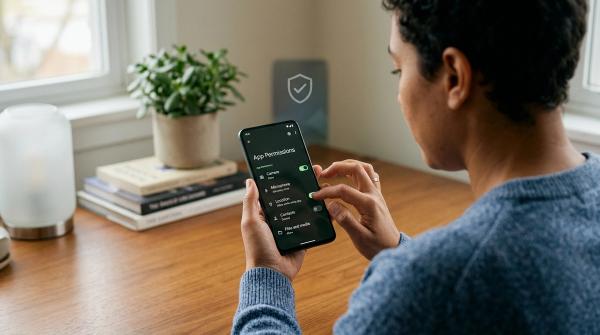
- Camera, microphone, and location permissions
- Pop-up and redirect controls
- Safe browsing or phishing protection
- Password manager and breach alert settings
- Extension permissions
Browser extensions deserve extra attention.
Some extensions can read or change data on websites you visit. If you don’t use an extension anymore, remove it. If an extension asks for broad permissions and you don’t understand why, don’t rush to install it.
Good privacy usually isn’t about one dramatic tool.
It’s more about small, boring habits you repeat consistently.
Beginner Online Privacy Checklist
#Here’s a practical checklist for everyday users, students, families, travelers, and remote workers.
- Use private browsing on shared devicesOpen a private window when using a family computer, library computer, friend’s laptop, or shared tablet.
- Close the private window when finishedPrivate browsing clears session data after the session ends. If the window is still open, the session is still active.
- Use a VPN on public Wi-FiTurn on a trusted VPN before using hotel, airport, cafe, or other public networks, especially for work, email, banking, or personal accounts.
- Check HTTPS before entering sensitive informationLook for
https://and check the URL carefully. Don’t rely only on the lock icon. - Be careful with links in messagesIf a message pressures you to log in, pay, or verify something urgently, go to the website directly instead of clicking the link.
- Review browser privacy settingsCheck cookies, site permissions, Secure DNS, pop-ups, and safe browsing settings.
- Remove unused browser extensionsExtensions can have broad access. Keep only the ones you trust and actually use.
- Keep your browser and device updatedUpdates often fix security problems. Delaying them can leave known weaknesses open.
- Use strong, unique passwordsA VPN or private window will not protect you if you reuse the same password everywhere.
- Do not treat any tool as complete protection Private browsing, VPNs, HTTPS, and Secure DNS all help in different ways. They work best with careful habits.
Simple “Use This When” Guide
#If your problem is: “I don’t want someone else using this computer to see my browsing history,” use private browsing.
If your problem is: “I’m on public Wi-Fi and don’t trust the network,” use a VPN.
If your problem is: “I want my browser’s website lookups to be more private,” enable Secure DNS if available.
If your problem is: “I’m entering a password or card number,” check HTTPS and the URL carefully.
If your problem is: “I clicked a suspicious link,” stop, close the page, and go directly to the official website or app.
If your problem is: “I want to be completely anonymous online,” be careful. These tools do not guarantee that. Online identity can still be revealed through accounts, payments, device details, cookies, browser fingerprinting, unsafe downloads, or your own actions.
Final Takeaway
#Private browsing vs VPN is not really about which one is “better.”
It’s about which problem you’re trying to solve.
Private browsing helps keep your activity off the device after you close the session. A VPN helps protect your connection on networks you don’t fully trust. HTTPS protects data sent between your browser and a website. Secure DNS makes website lookups more private.
None of these tools gives you total invisibility online. But used together, along with careful habits, they can make everyday browsing much safer and more private.
Use the right layer for the right situation, and be skeptical of anything that promises complete anonymity with one click.