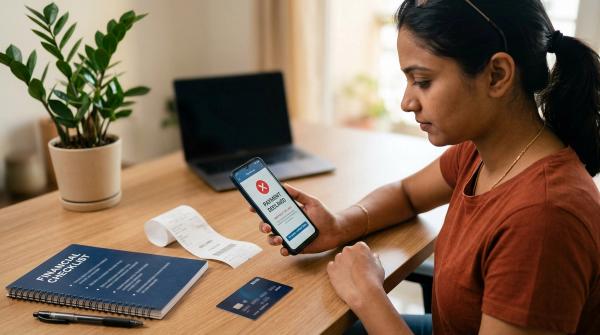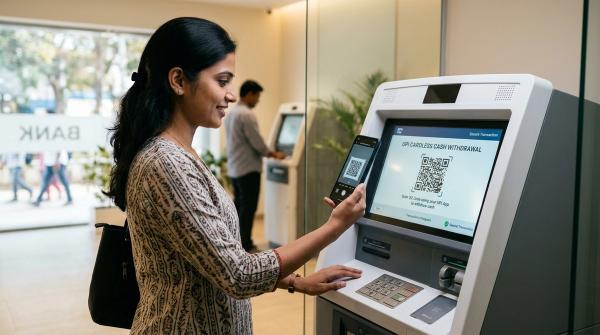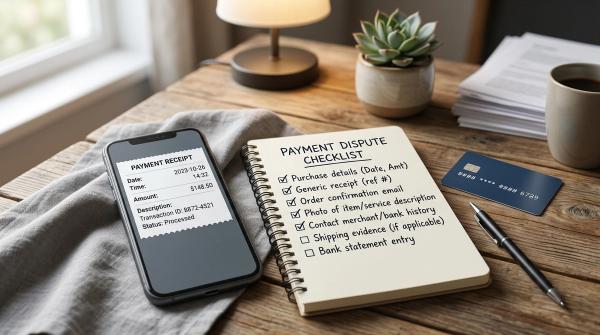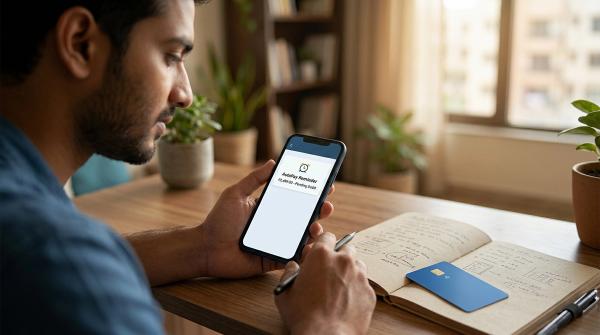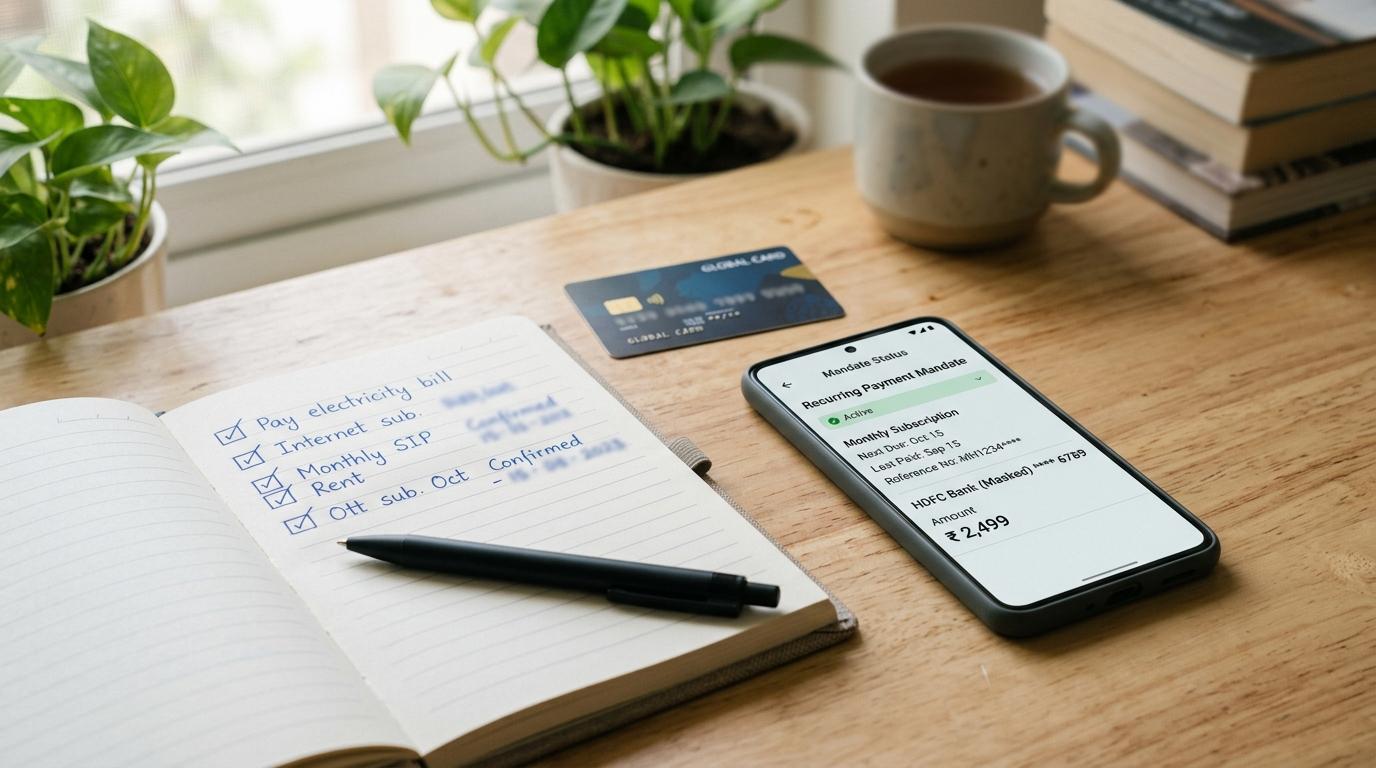
If your UPI AutoPay status says “Approval in Progress,” it means the recurring payment mandate has not reached a final approved, failed, expired, or cancelled status yet. Do not rush to pay again. First check your UPI app’s AutoPay or Mandates section, the merchant billing page, and your bank statement.
This matters because a manual payment made too early can create confusion. The manual payment may succeed, while the AutoPay mandate may later become active or continue into the next billing cycle.
UPI AutoPay is useful for OTT subscriptions, mobile bills, insurance premiums, EMIs, utilities, donations, and other recurring payments. But when a mandate is stuck, the status can be unclear. Your UPI app may say “Approval in Progress,” the merchant may say “Payment Pending,” and your bank may not show a final result yet.
The safest approach is simple: don’t guess, and don’t pay twice in a hurry. Check all three places first — your UPI app, the merchant, and your bank.
What Does UPI AutoPay Approval in Progress Mean?
#“Approval in Progress” means the AutoPay mandate request is still being processed.
A UPI AutoPay mandate is the permission you give a merchant to debit your account in the future, based on the amount limit, frequency, and validity period shown at the time of approval.
You may see “Approval in Progress” when:
- the merchant has created the AutoPay request, but you have not approved it yet;
- you approved it using your UPI PIN, but the final status has not updated;
- the bank, UPI network, payment gateway, or merchant system is taking time to confirm it;
- the mandate request is close to expiry, but your app has not refreshed the final result.
The important point: Approval in Progress does not mean the mandate is active, but it also does not always mean it failed. It simply means the final result is not clear yet.
UPI AutoPay Status Table
#Why You Should Not Pay Again Too Quickly
#A common situation: you set up UPI AutoPay for a subscription, EMI, insurance premium, mobile bill, or electricity bill. The screen says “Approval in Progress.” The due date is close, so you make a manual UPI payment.
Later, the original AutoPay mandate becomes active, or the merchant receives delayed confirmation. Now you may face one of these issues:
- your manual payment succeeds, but AutoPay also becomes active;
- the merchant treats both attempts as valid;
- the mandate stays active and debits you in the next cycle;
- you need to chase the merchant, bank, or UPI app for adjustment or refund.
This does not mean every pending AutoPay request will cause a duplicate debit. But the risk is enough that you should not create another payment path until you understand what happened to the first one.
Checklist Before Paying Manually Again
#1. Check the AutoPay or Mandates Section in Your UPI App
#Do not check only the merchant app. Open the UPI app where you received or approved the mandate request. Look for sections named AutoPay, Mandates, Subscriptions, Recurring Payments, or Pending Requests.
Check the merchant name, amount limit, frequency, start date, end date, linked bank account, mandate status, and any mandate reference shown. If the mandate is still pending and you do not want it, see if your app lets you decline or cancel the pending request.
2. Check the Merchant’s Billing Page
#Open the merchant app or website. Look for payment or subscription messages such as Payment Processing, Mandate Pending, Awaiting Confirmation, Subscription Active, Payment Failed, or Retry Payment.
If the merchant says “Payment Processing” or “Awaiting Confirmation,” avoid paying again immediately. Their system may still be waiting for confirmation from the payment gateway, bank, or UPI network.
3. Check Your Bank Statement and UPI History
#Check your bank app and UPI transaction history for the actual bill amount, refund entries, UPI transaction ID, UPI reference number or RRN, mandate creation messages, and any failed or cancelled status.
Do not depend only on SMS. Bank SMS alerts can be delayed or missed.
4. Wait If the Due Date Allows
#Many pending UPI or mandate updates become clearer after some time, but the exact timeline can vary by bank, UPI app, merchant, and payment gateway.
You can consider paying manually only when the mandate says Request Expired, Failed, or Declined; you have cancelled the pending mandate where supported; both the merchant and UPI app show the earlier attempt did not succeed; and your bank statement shows no successful debit for the bill amount.
5. If the Due Date Is Today, Contact the Merchant First
#If the due date is urgent, contact the merchant through official support and ask:
- Has the AutoPay mandate been received?
- Is the payment still processing?
- Should I wait or pay manually?
- If I pay manually, will the pending mandate be cancelled?
- Can you give written confirmation or a ticket ID?
Do not call random phone numbers from search results, social media replies, WhatsApp forwards, or unofficial websites.
Proof You Should Save
#Save screenshots before the status changes or disappears.
UPI App Proof
#Save the mandate status, merchant name, amount limit, frequency, validity period, date and time of approval or expiry, mandate reference or UMN if shown, UPI transaction ID, and revocation or cancellation confirmation if applicable.
Merchant Proof
#Save the invoice or bill number, subscription ID, customer ID, policy number, loan account number, service ID, merchant payment status screenshot, email or SMS from the merchant, support ticket number, and any written instruction to pay manually.
Bank Proof
#Save the statement entry, debit SMS or email, refund entry, UPI reference number or RRN, date and time of debit, amount debited, and the account from which money was deducted.
When raising a complaint, be specific. Instead of saying “money deducted twice,” say: “₹999 was debited on 12 March at 8:41 PM through UPI reference number XXXXX, while the AutoPay mandate was still showing Approval in Progress.”
Who Should You Contact First?
#Start with your UPI app’s in-app support or dispute option linked to the transaction or mandate. Choose the closest issue type, such as failed transaction, duplicate debit, mandate issue, refund not received, wrong status, or AutoPay cancellation issue.
If the merchant received the money but your subscription, bill, EMI, or policy status did not update, raise a ticket with the merchant. Share the UPI reference number, transaction screenshot, and mandate details.
If money was debited from your account and neither the merchant nor UPI app resolves it, raise the issue with your bank through official app, net banking, branch, official customer care, or official complaint form.
You may also use official UPI complaint routes where applicable. NPCI operates UPI, and UPI AutoPay works through participating banks, apps, and merchants. RBI’s digital payments and e-mandate framework focuses on customer consent, authentication, transparency, and grievance handling. Exact screens, timelines, and options can differ by provider.
UPI PIN and OTP Safety
#No genuine support person needs your UPI PIN.
Follow these safety rules:
- Never share your UPI PIN, OTP, card details, bank passwords, or net banking passwords.
- Never give screen-sharing access to someone claiming to help with AutoPay.
- Do not install remote-access apps to cancel a mandate or receive a refund.
- Do not scan a QR code to receive money.
- Do not approve random collect requests.
- Do not call unofficial helpline numbers from search ads, social media replies, or forwarded messages.
Your UPI PIN is used to approve payments or authenticate certain mandate actions. It is not required by a customer support agent.
What If the Mandate Becomes Active After You Paid Manually?
#If the AutoPay mandate becomes active after you already made a manual payment, don’t ignore it.
- Open your UPI app.
- Go to AutoPay, Mandates, or Subscriptions.
- Check whether the mandate is active.
- Pause or revoke it if you do not want future debits.
- Take a screenshot of the active mandate and revocation confirmation.
- Contact the merchant with both payment references.
- Ask whether the manual payment will be adjusted, refunded, or counted for the current billing cycle.
- If unresolved, raise a dispute through your UPI app, bank, or official UPI complaint route.
Avoid creating another new mandate until the first one is clearly closed or resolved.
Quick Decision Guide
#If your screen says Approval in Progress, wait and check your UPI app, merchant page, and bank statement before paying again.
If it says Pending, open the mandate request. Approve it only if you want the AutoPay to continue.
If it says Request Expired, that specific request is no longer valid. Still check whether another mandate for the same merchant is active.
If it says Active, the mandate is live. Do not create another mandate for the same bill unless you are intentionally replacing the old one.
If it says Paused, future debits may be temporarily stopped, depending on app and merchant support.
If it says Revoked or Cancelled, the mandate has been stopped. Save proof if there was any dispute.
Final Word
#When UPI AutoPay says Approval in Progress, pause before paying again. Check your UPI app, merchant, and bank first. If the mandate is still pending, don’t create another payment unless you are sure the first attempt has failed, expired, or been cancelled. A few minutes of checking can help you avoid duplicate debits, refund delays, and unnecessary support tickets.
Disclaimer: This article is for general information only. UPI AutoPay screens, options, authentication steps, timelines, and complaint routes may vary by bank, UPI app, and merchant. Always use official support channels for payment-related issues.