Quick answer: To check WhatsApp linked devices, open WhatsApp and go to Linked Devices. Review every phone, computer, browser, tablet, or desktop session listed there. If you see anything you do not recognise, tap it and choose Log Out. If WhatsApp Web is logged in and you did not use it, remove it right away. After that, turn on WhatsApp two-step verification, review your privacy settings, and let close contacts know if strange messages may have been sent from your account.
WhatsApp is not just a chatting app for most of us.
It is where family plans are made, school notices arrive, office work gets discussed, society updates are shared, payment screenshots are sent, and private photos or documents often sit for months.
That is why the Linked Devices screen is worth checking once in a while.
Linked devices are useful when you want WhatsApp on your laptop, desktop, browser, or tablet. But if a device gets linked without your knowledge, someone else may be able to see messages that sync to that session until you remove it.
The good news is that checking this is simple. You do not need to be technical. You only need your main phone and a few quiet minutes.
This guide walks you through a practical WhatsApp linked devices privacy checklist so you can spot unknown logins and remove them safely.
What are WhatsApp linked devices?
#WhatsApp linked devices let you use the same WhatsApp account on extra devices, along with your main phone.
For example, you may use WhatsApp:
- On your office laptop.
- On your home computer.
- On a shared family desktop.
- On a tablet.
- In a browser through WhatsApp Web.
- On the WhatsApp Desktop app.
The important thing to remember is this: the Linked Devices page shows the sessions currently connected to your WhatsApp account.
If your own laptop is listed there and you use it every day, that is normal. But if you see a browser, computer, or device name you do not recognise, do not ignore it.
Also, WhatsApp’s Help Center notes that some linked devices may not show up to one year of chat history. So if your own linked laptop does not display very old chats, that alone is not proof of anything suspicious. Your full chat history may still be visible on your primary phone.
But an unfamiliar linked device is different. That deserves immediate attention.
Why checking linked devices matters
#An unknown linked device does not always mean your phone was “hacked” in some dramatic, movie-style way.
Often, the explanation is much more ordinary.
Maybe someone had your unlocked phone for a minute and linked WhatsApp Web. Maybe you scanned a QR code without realising what it was for. Maybe you used WhatsApp on a shared computer months ago and simply forgot to log out.
The risk is that someone may not do anything obvious. They may not send messages. They may not change your settings. They may simply read new messages quietly.
Checking linked devices helps you:
- Spot an unknown WhatsApp Web or desktop login.
- Remove access from old or shared computers.
- Log out forgotten sessions on office, college, or cybercafe systems.
- Notice strange activity before it becomes a bigger problem.
- Reduce the chance of someone reading your new messages.
- Build a small privacy habit that actually helps.
No privacy setting can make you completely safe. But regularly checking linked devices makes quiet misuse much harder to miss.
Step by step: how to check WhatsApp linked devices
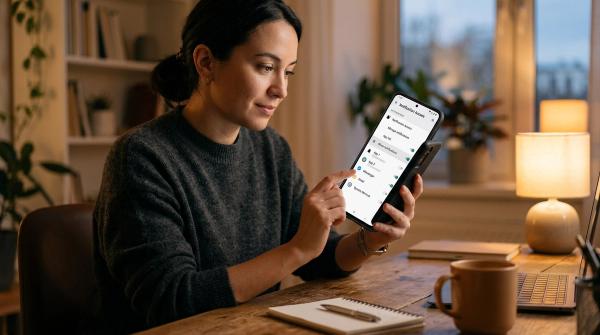
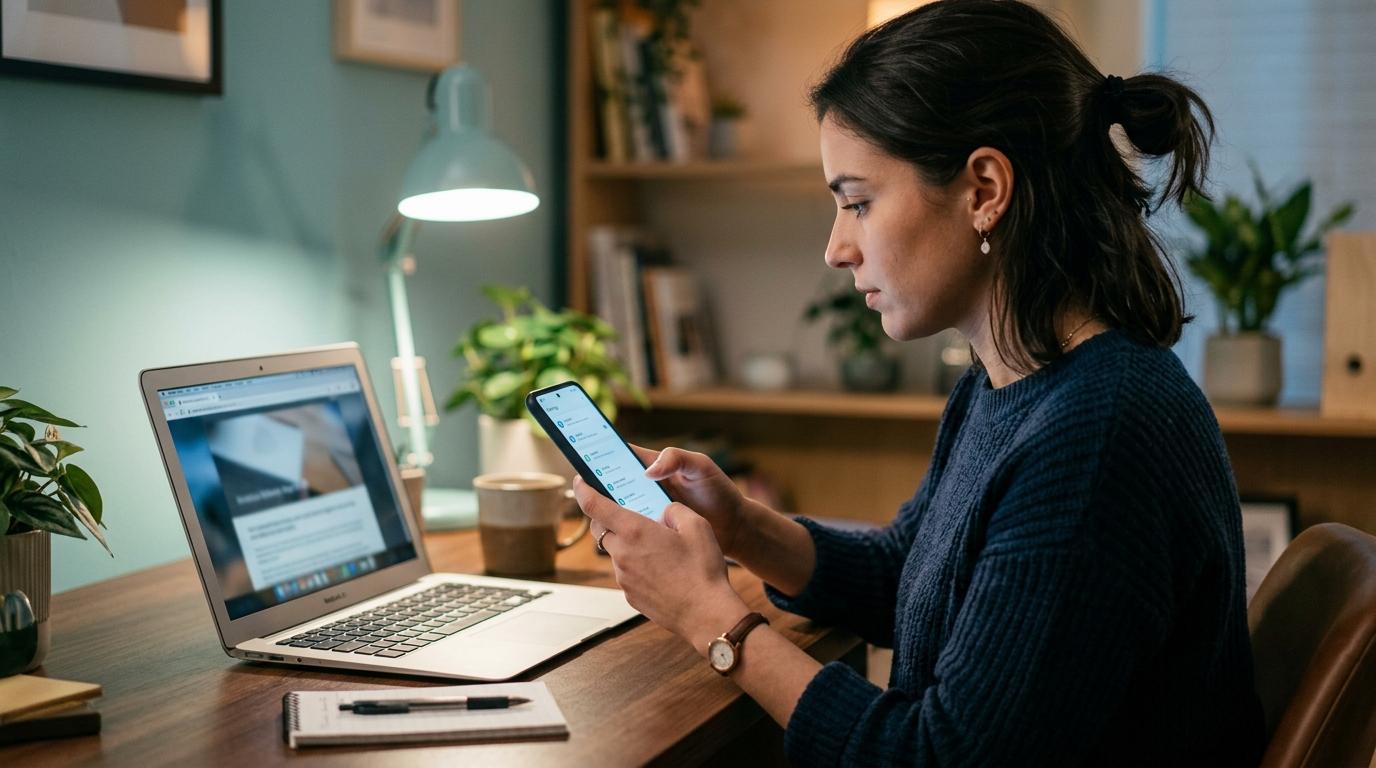
#Use your main phone, the one where your WhatsApp account is active.
On Android
#- Open WhatsApp.
- Tap the three dots in the top-right corner.
- Tap Linked devices.
- Look carefully at every listed device.
- If you see something you do not recognise, tap it.
- Tap Log out.
On iPhone
#- Open WhatsApp.
- Tap Settings in the bottom-right corner.
- Tap Linked Devices.
- Review the list slowly.
- Tap any device you do not recognise.
- Choose Log Out.
Pay attention to the device name, browser name, desktop session, and last active time.
If you use WhatsApp on your own laptop every day, that may be perfectly fine. But if you see a browser you never use, a computer you do not know, or a session active at a strange time, log it out.
This is the fastest way to remove unknown device WhatsApp access.
Practical WhatsApp linked devices privacy checklist
#Use this checklist today. Then repeat it regularly, especially after travel, phone repair, exams, office computer use, cybercafe use, or lending your phone to someone.
Warning signs someone may be using a linked session
#These signs do not prove someone is spying on your WhatsApp. But they are enough reason to check your linked devices immediately.
- You see WhatsApp Web logged in and you did not use it.
- A linked device appears that you do not recognise.
- Messages look read before you opened them.
- Friends say they received strange links or money requests from your number.
- Chats are archived, muted, deleted, or opened unexpectedly.
- A linked device shows activity at a time when you were not using WhatsApp.
- You recently gave your unlocked phone to someone, even for a short time.
- You scanned a QR code after receiving a KYC, reward, job, refund, or payment message.
In India, be extra careful with messages claiming to be from banks, delivery companies, electricity boards, telecom providers, government schemes, or UPI/payment support.
Scammers often create pressure with lines like:
- “Your account will be blocked.”
- “KYC pending.”
- “Claim refund now.”
- “Scan this code to receive money.”
- “Verification required urgently.”
Do not let urgency push you into scanning something or sharing a code. That is exactly what scammers are hoping for.
What to do if you find an unknown linked device
#If you find a device you do not recognise, do not panic. Just act in the right order.
1. Log it out first
#Go to Linked Devices, tap the unknown device, and select Log Out.
Do this before anything else. Removing access is the main priority.
2. Check recent chats
#After logging it out, check your recent chats and groups.
Look for anything you did not send, especially:
- Money requests.
- Suspicious links sent to friends or groups.
- Messages asking for OTPs or codes.
- New chats with unknown numbers.
- Deleted, archived, or suspicious conversations.
Do not click suspicious links while checking.
3. Warn close contacts if needed
#If you find messages that look suspicious, warn close contacts quickly.
You can keep it simple:
“Please ignore any unusual message or money request from my WhatsApp today. I found an unknown linked device and logged it out.”
If many people may have been contacted, post a WhatsApp Status too.
4. Turn on two-step verification
#If you have not already enabled it, turn on WhatsApp two-step verification.
It does not replace checking linked devices, but it adds another layer of protection to your account.
5. Secure your phone
#Linked-device access usually depends on your primary phone being used to approve or scan something. So your phone lock really matters.
- Use a strong screen lock.
- Do not casually share your unlocked phone.
- Do not leave your phone unattended at work, school, events, shops, or family functions.
- Be extra careful during phone repair or service visits.
- Lock your phone before handing it to anyone.
6. Review privacy settings
#Open WhatsApp privacy settings and reduce what random people can see.
For many users, My Contacts is safer than Everyone for:
- Profile photo.
- About.
- Last seen.
- Online.
- Status.
- Groups.
This takes only a minute, but it can reduce unwanted attention and random contact.
How to enable WhatsApp two-step verification
#WhatsApp’s Help Center says two-step verification adds an extra layer of security to your account. It lets you create a PIN that WhatsApp may ask for when your phone number is registered again.
Here is how to turn it on:
- Open WhatsApp.
- Go to Settings.
- Tap Account.
- Tap Two-step verification.
- Tap Turn On.
- Create a six-digit PIN.
- Add an email address if prompted, so you can recover access if you forget the PIN.
Choose a PIN you can remember, but others cannot easily guess.
Avoid using:
- Your birth year.
- Your phone number digits.
123456.- Repeated numbers like
111111. - Any obvious personal number.
Also, never share your WhatsApp registration code or two-step verification PIN.
Not with a caller claiming to be support.Not with a “friend” asking urgently.Not with someone saying a code was sent to you by mistake.
If someone is asking for a WhatsApp code, treat it as a red flag.
Common linked-device and WhatsApp scams to avoid
#Most WhatsApp scams work because they create confusion, speed, or trust. Here are the common ones to watch for.
The “I sent a code by mistake” message
#Someone messages you and says something like:
“A code came to your phone by mistake. Please forward it.”
They may pretend to be a friend, relative, delivery person, job recruiter, or support agent.
Do not share the code.
A six-digit code may be connected to registration or verification. Sharing it can help someone take actions on your account.
The fake QR code trick
#You may be asked to scan a QR code for:
- KYC update.
- Prize claim.
- Work-from-home job.
- Delivery confirmation.
- Refund.
- Event entry.
- Payment receiving.
- Account verification.
If someone tells you to open WhatsApp and scan a QR code, pause.
A WhatsApp QR code can be used to link a device. Only scan WhatsApp linking QR codes for your own trusted device, such as your own laptop or desktop.
The fake “WhatsApp support” message
#Be cautious of anyone claiming they need your PIN, code, screenshot, or screen-sharing access to “secure” your WhatsApp.
Real safety steps can be done inside your own WhatsApp settings. You do not need to give codes, PINs, screenshots, or remote access to a stranger.
The family emergency money request
#If a known contact suddenly asks for urgent money, mobile recharge, gift cards, or UPI help, verify it another way first.
Call the person. Ask a question only they would know. Or check with another family member.
Scammers often use compromised or fake accounts to pressure relatives and friends.
Recovery guidance if your WhatsApp feels compromised
#If you only found an unknown linked device, logging it out may be enough.
But if your full WhatsApp account seems taken over, or you cannot access it normally, use WhatsApp’s official recovery flow from your phone.
Practical recovery steps:
- Try to register your phone number again in WhatsApp.
- Enter the verification code sent to your number.
- If two-step verification is enabled, enter your PIN.
- If you do not know the PIN, follow WhatsApp’s recovery prompts.
- Once you are back in, go to Linked Devices.
- Log out anything unfamiliar.
- Turn on or update two-step verification.
- Warn contacts if suspicious messages were sent.
If you receive repeated WhatsApp code requests that you did not ask for, do not share any code. It may mean someone is trying to register your number.
A simple weekly routine for families and seniors
#If you help parents, grandparents, students, or less technical family members, make this a simple five-minute habit.
You can explain it like this:
“Open WhatsApp. Tap Linked Devices. If you see only your own laptop, fine. If you see anything unknown, tap it and log out. Never scan WhatsApp QR codes for prizes or KYC. Never share six-digit codes.”
That small habit can prevent a lot of stress.
For seniors, it may help to write down the safe path:
WhatsApp > Settings > Linked Devices > Log out unknown devices
Keep the note near their phone, or save it in a family safety group. Simple reminders usually work better than long lectures.
Source notes
#This guide is based on practical WhatsApp safety guidance and source-aware checks, including:
- WhatsApp Help Center information on linked devices, including its note that some linked devices may not display up to one year of chat history.
- WhatsApp Help Center guidance that two-step verification adds an extra layer of security to your account.
- Public safety reporting that encourages users to review linked devices and remove unknown sessions.
- Privacy checklist advice that commonly recommends two-step verification, reviewing Linked Devices, and limiting public profile visibility.