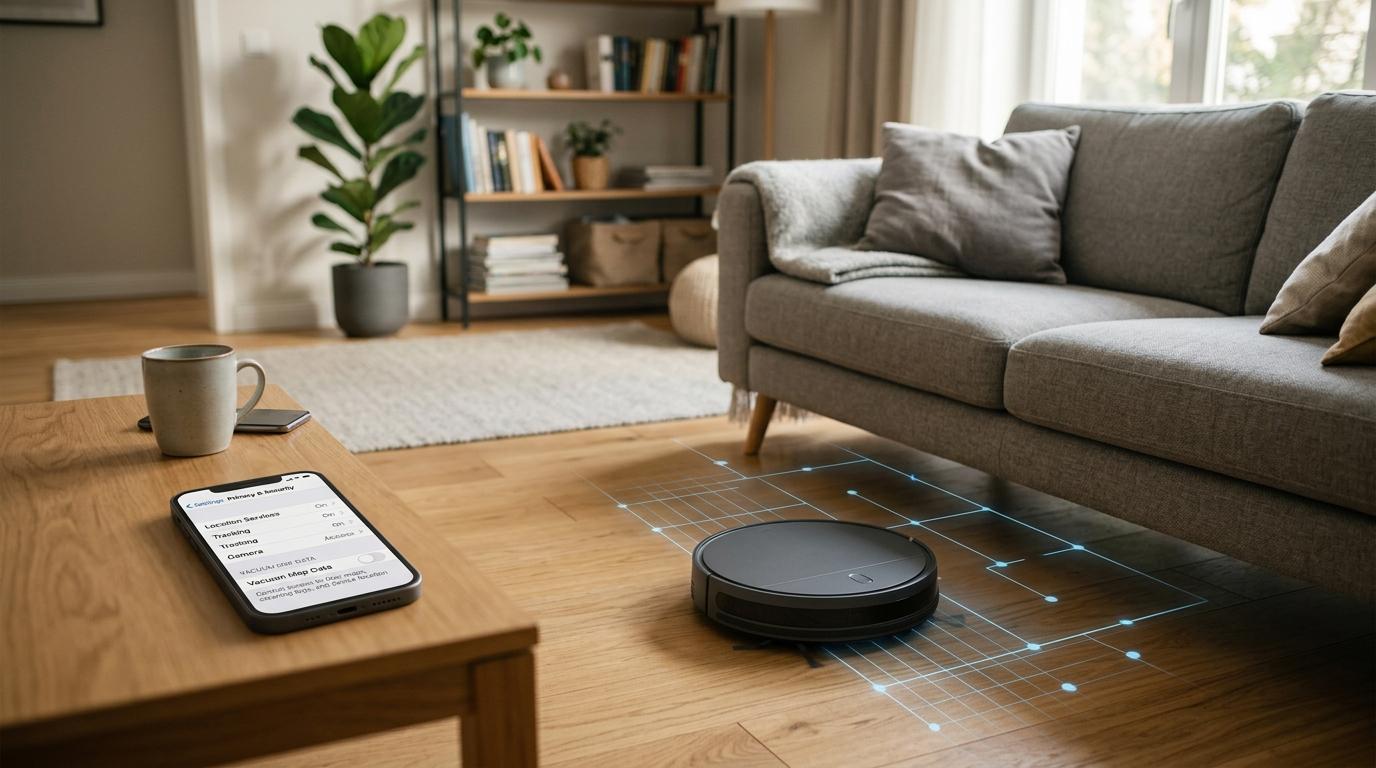
A robot vacuum privacy checklist is mostly about three things: how the vacuum “sees” your home, where it stores your maps, and what its app collects from your phone.
If you care about smart home privacy, a camera-free LiDAR robot vacuum is often the safer place to start. You still get smart mapping and efficient cleaning, but you avoid having a camera moving around your home.
Before the first clean, take a few minutes to set things up properly: use guest Wi-Fi if you can, create a unique password, update the firmware, and review the robot vacuum app permissions. It is not difficult, and it can help you avoid sharing more than you intended.
Safety note
#This guide is for general smart device awareness and everyday consumer education. It is not professional cybersecurity advice, legal advice, or emergency guidance. For your exact model, always read the manufacturer’s setup guide, privacy policy, and security recommendations.
Why robot vacuum privacy matters
#A robot vacuum seems harmless enough.
It rolls around, picks up dust, bumps into a chair leg, gets stuck on a sock, and eventually finds its way back to the dock. For apartment residents, renters, families, pet owners, and busy people, it can be one of the most useful smart home devices in the house.
But it is still a connected device inside your private space.
Many modern robot vacuums can build maps of your home, remember room layouts, store cleaning schedules, connect to phone apps, work with voice assistants, sync data to cloud services, and use cameras or visual sensors to avoid obstacles.
That does not mean robot vacuums are automatically unsafe. Most people can use them comfortably. But it does mean you should know what kind of data the vacuum needs before you connect it to Wi‑Fi.
The better question is: how much data does this model need to clean my home, and am I okay with that?
Start with the tradeoff: privacy, cleaning, or convenience
#Before comparing models, decide what matters most to you. Robot vacuum shopping gets much easier when you stop chasing every feature on the box.
If privacy is your top priority
#Start with camera-free models, especially LiDAR robot vacuums.
LiDAR uses laser distance sensing to map your home. It does not take normal camera images, which makes it a better starting point if you do not want a moving camera indoors.
That said, LiDAR still creates robot vacuum mapping data. A map of your home is still personal. It can show room layouts, doorways, no-go zones, and cleaning patterns.
So LiDAR is not “no privacy risk.” It is just usually less sensitive than a camera-based system.
If obstacle avoidance matters more
#If you have pets, toys, charging cables, laundry on the floor, or a generally lived-in home, a camera-based robot vacuum may avoid obstacles better.
That can be useful. The tradeoff is that robot vacuum camera privacy becomes more important. You need to check whether images are processed on the robot or uploaded to the cloud, whether remote viewing is available, whether camera features can be turned off, how long images are stored, and whether images are used for product improvement.
If you want the least connected option
#A simpler robot vacuum with bump sensors, cliff sensors, or basic gyroscope-style navigation may collect less detailed data.
It may not create perfect room maps. It may clean in a less organized pattern. It may miss some spots or take longer. But for a small flat, studio, hostel room, or rental, it may be enough.
Sometimes “less smart” also means less to worry about.
If convenience is your priority
#App schedules, room-by-room cleaning, no-go zones, multi-floor maps, voice control, and automatic routines are all useful.
The only catch is that convenience usually means more account setup, more cloud syncing, more app permissions, and more settings to review.
The goal is balance, not paranoia.
Cameras, LiDAR, basic sensors, and app risks
#Robot vacuums “see” your home in different ways. The sensor type matters, but so does the app behind it.
A useful rule: the hardware matters, but the app matters too.
A camera-free vacuum can still build a detailed map. A basic vacuum can still come with an app that asks for unnecessary permissions. Privacy is about the whole setup, not just the sensor listed on the product page.
What robot vacuum mapping data can reveal
#A floor map sounds boring. Just walls, rooms, and furniture, right?
Not exactly.
Robot vacuum mapping data can reveal the layout of your home, where bedrooms and bathrooms are, which rooms are cleaned most often, no-go zones, cleaning schedules, routines connected to other smart devices, and patterns that suggest when people are home or away.
For families, renters, and apartment residents, this matters because the robot is mapping a private space.
In many homes, the vacuum may run while guests, roommates, domestic workers, caregivers, elderly parents, or children are present. Not everyone in the home may realize what the device can collect.
This is not a reason to avoid robot vacuums completely. It is a reason to check the settings before you let one roam around.
Robot vacuum camera privacy: questions to ask before buying
#If you are considering a camera-based robot vacuum, pause before clicking “buy.” Marketing terms like “AI obstacle avoidance,” “visual recognition,” “pet monitoring,” and “remote viewing” often mean the robot uses a camera or visual sensor.
Ask these questions first:
- Does the robot use an RGB camera or visual sensor?
- Is image processing done on the device, in the cloud, or both?
- Are images stored?
- If images are stored, for how long?
- Can camera features be disabled?
- Is remote viewing available?
- Can remote viewing be turned off?
- Does the app clearly explain what visual data is collected?
- Does the privacy policy mention analytics, product improvement, or optional data sharing?
- Can you opt out of non-essential sharing?
Local processing is usually better for privacy because less sensitive data may need to leave your home. But “local processing” does not mean you can ignore everything else.
You should still use a strong, unique password, update the firmware, review app permissions, turn off features you do not use, and check data-sharing settings.
For many buyers, the simplest privacy rule is this: if you do not need a camera, do not buy a camera model.
LiDAR privacy: better, but not invisible
#LiDAR is a good middle ground for many people.
It gives you smart navigation, room maps, no-go zones, and efficient cleaning without using normal camera images.
That makes it especially appealing for a robot vacuum for apartments, where you may want organized cleaning without adding a camera to your home.
But LiDAR is not privacy-free. It still creates a map of your home. That map may sync to the manufacturer’s servers. It may be visible in the app. It may be connected to your account.
If someone gets access to that account, they may be able to see your home layout.
Before buying a LiDAR model, check whether maps can be deleted manually, whether maps are stored locally or in the cloud, whether cleaning works without constant cloud access, and whether factory reset is clearly explained.
Robot vacuum app permissions: the quiet privacy layer
#A lot of privacy concerns do not come from the vacuum itself. They come from the app.
When you install a robot vacuum app, your phone may ask for permissions. Some are normal. Others deserve a second look.
Permissions that may be reasonable
#These can make sense depending on the app and setup process:
- Local network access, so the phone can find the vacuum
- Bluetooth, especially during pairing
- Notifications, if you want cleaning alerts
- Approximate location, which some phones require for Wi‑Fi or Bluetooth setup
Permissions to question
#Be more cautious with:
- Contacts
- Microphone, unless there is a clear voice feature
- Phone camera, unless it is only for scanning a setup QR code
- Precise location in the background
- Photo library access
- Unnecessary background activity
The best habit is simple: allow only what the feature actually needs.
If the app asks for something that does not make sense, deny it and see if the vacuum still works. You can usually change permissions later in your phone settings.
Smart home privacy basics for robot vacuums
#Most smart home security advice is not glamorous. It is the boring stuff that actually helps: strong passwords, software updates, fewer permissions, and better network separation.
Use a unique password
#Do not reuse your email, banking, work, or streaming password for the vacuum app.
Create a strong, unique password. If the app supports two-factor authentication, turn it on.
Update the firmware
#Run firmware updates during setup. Then check occasionally after that.
Updates can fix bugs, improve cleaning, and patch security issues. If the app offers automatic updates, review the option and decide whether it makes sense for your home.
Use guest Wi‑Fi if possible
#If your router supports it, connect your robot vacuum to a guest Wi‑Fi network instead of the same network used by your phones, laptops, and work devices.
This is especially useful in apartments where one router may handle everything: phones, laptops, tablets, smart TVs, speakers, children’s devices, and other smart gadgets.
If your router or building internet setup does not support guest Wi‑Fi, use the controls you do have: keep a strong Wi‑Fi password, update apps and firmware, avoid casually sharing your main Wi‑Fi password, and remove old devices you no longer use.
Review smart home integrations
#If you connect the vacuum to a voice assistant or smart home platform, check what commands and routines are enabled.
A cleaning schedule linked to other automations might reveal patterns about when you are usually home or away.
Use integrations only if they actually help you. Do not connect every platform just because the app suggests it.
Disable unused features
#If you do not use remote viewing, turn it off where possible. If you do not need product improvement data sharing, opt out. If you do not use voice control, do not link a voice assistant.
Unused features are still part of your privacy setup.
The master robot vacuum privacy checklist
#Use this checklist in three stages: before buying, before setup and first cleaning, and before selling, gifting, returning, or discarding.
Checklist 1: Before buying
#1. Identify the sensor type
#Do not rely only on marketing words like “AI,” “smart navigation,” or “advanced obstacle avoidance.”
Check whether the robot uses camera-based visual navigation, LiDAR laser navigation, basic bump or gyroscope-style navigation, or a mix of sensors.
If privacy is your main concern, a camera-free LiDAR robot vacuum is often a sensible starting point.
2. Read the privacy policy before purchase
#You do not need to understand every legal sentence. Just look for the practical parts:
- What data does the company collect?
- Does it collect maps, images, diagnostics, or usage history?
- Does it share data with service providers or partners?
- Can you opt out of optional data sharing?
- Can you delete your account and data?
Do not assume every brand sells your data. Also do not assume every brand keeps everything on the device. Check first.
3. Check map storage and deletion controls
#For any mapping robot vacuum, find out where maps are stored, whether maps can be deleted, whether cleaning history can be cleared, whether multiple users can access maps, and whether the device supports factory reset.
If you cannot find clear answers, treat that as a buying concern.
4. Ask whether cloud access is required
#Some features may need an account or cloud connection. Others may work locally.
Ask whether the robot can start, pause, dock, and clean without internet; whether it can keep maps if cloud access is limited; whether the app requires constant login; and what happens if the company’s servers are down.
You are not necessarily looking for a fully offline robot vacuum. You are looking for clarity.
5. Look for camera controls
#For camera-based models, check whether you can disable live viewing, turn off image sharing for product improvement, limit obstacle photo storage, delete captured images, and use the vacuum without camera-based extras.
If the camera features are always on and poorly explained, consider another model.
6. Think about your actual home
#A single adult in a minimal studio has different needs from a family with kids, pets, guests, roommates, or domestic help.
For apartments, ask yourself:
- Do I need room-by-room mapping?
- Do I have pets or lots of small obstacles?
- Will the robot enter bedrooms?
- Will guests, roommates, caregivers, or workers be present while it runs?
- Do I actually want a camera moving around my home?
Buy for your real life, not for the longest feature list.
Checklist 2: Before setup and first cleaning
#1. Create the account carefully
#Use a unique password. Do not reuse an important password from another account.
If the app offers extra login protection, such as two-step verification, consider turning it on.
2. Connect to guest Wi‑Fi if available
#Put the robot vacuum on a guest Wi‑Fi network if your router supports it. This helps separate smart devices from personal phones, laptops, and work machines.
Also use a strong Wi‑Fi password, and avoid sharing your main network password casually.
3. Update firmware immediately
#Before the first proper cleaning run, check for firmware updates in the app.
Install available updates, then restart the vacuum if the app or manual recommends it.
4. Review robot vacuum app permissions
#Open your phone settings and inspect the app permissions.
Keep what is needed. Remove what is not.
For example:
- Allow local network or Bluetooth if needed for setup
- Allow notifications only if you want alerts
- Deny contacts unless there is a clear reason
- Deny microphone unless you use a specific voice feature
- Deny photo library access unless required for a clear task
- Review location access and avoid unnecessary background access
5. Turn off optional data sharing
#During setup, the app may ask if you want to share data to improve the product experience. If privacy matters to you, decline optional sharing where possible.
Look for settings such as usage analytics, product improvement data, personalized recommendations, obstacle image sharing, remote viewing, and voice assistant linking.
The wording changes from brand to brand, so read each screen slowly. It is very easy to tap “agree” without noticing what you accepted.
6. Set up maps with privacy in mind
#When the robot maps your home:
- Remove sensitive items from the floor
- Close doors to rooms you do not want mapped
- Create no-go zones where needed
- Use simple room names
- Avoid naming rooms after children or very personal uses unless necessary
Keep it plain. “Bedroom 1” is enough.
7. Limit smart home connections
#Do not connect the vacuum to every platform just because the option is there.
If app control is enough, skip voice assistant integration. If you do use voice control, review the commands and routines.
8. Tell household members the basics
#You do not need to hold a serious family meeting about sensors.
But if the robot has a camera, remote viewing, or pet monitoring, people at home should know.
This is especially important with roommates, caregivers, domestic workers, frequent guests, or anyone who may be around while the vacuum runs.
Checklist 3: Before selling, gifting, returning, or discarding
#Robot vacuums store more than dust. Before passing one on, clean up the digital side too.
1. Delete maps and cleaning history
#Open the app and delete saved maps, room names, no-go zones, schedules, and cleaning history if the app allows it.
2. Remove smart home integrations
#Unlink the vacuum from voice assistants, smart home apps, shared family accounts, and automation routines.
This helps stop the next owner from inheriting parts of your setup.
3. Factory reset the robot
#Follow the manufacturer’s instructions for a factory reset. Use the physical reset method if the manual gives one.
Deleting the app from your phone is not the same as wiping the robot. Many people miss this.
4. Remove the device from your account
#After the reset, check your account device list and remove the vacuum.
If you no longer use that brand’s products, you can also decide whether to delete the account.
5. Remove accessories and labels
#If your box, setup card, or device label has QR codes, pairing stickers, or account-related notes, do not pass along anything that exposes your personal setup.
Keep the handover clean.
A practical recommendation for most apartment buyers
#For many apartment residents and renters, the simplest privacy-friendly choice is a camera-free LiDAR robot vacuum with clear map controls, a decent app, and an easy way to delete maps before resale.
That gives you useful cleaning features without adding a roaming camera to your home.
If your floors are cluttered, you have pets, or you really value advanced obstacle avoidance, a camera model may still make sense. In that case, treat robot vacuum camera privacy as part of the buying decision, not something to think about later.
The best robot vacuum is not the one with the most sensors. It is the one that cleans your home well, asks for only the access it needs, and gives you clear control over your data.
Related AllBlogs reading
#- Robot Vacuum Maintenance Checklist: Filters, Brushes and Hidden Costs
- Robot Vacuum vs Cordless Vacuum vs Wet-Dry Vacuum: What Should You Buy for a Small Apartment?
- Home Wi‑Fi Security Checklist: Router Settings to Change First
Quick robot vacuum privacy checklist
#Use this shorter version when comparing products online or in a store.
- Does it use a camera, LiDAR, basic sensors, or a mix?
- If it has a camera, can camera features be disabled?
- Does it offer remote viewing, and do you actually need it?
- Where are maps stored?
- Can maps and cleaning history be deleted?
- Does the app ask for unnecessary phone permissions?
- Can you opt out of optional data sharing?
- Does the device receive firmware updates?
- Can you use a unique account password?
- Can you connect it to guest Wi‑Fi?
- Can it work if cloud features are limited?
- Is factory reset clearly explained?
- Is it suitable for your apartment, family, guests, pets, and daily routine?