Quick answer: Before you upload anything personal to ChatGPT, open Settings > Data Controls and turn off Improve the model for everyone. Then check Settings > Personalization > Memory and delete anything sensitive ChatGPT has saved about you. For private one-time tasks, use Temporary Chat. And as a general rule, do not upload passwords, government IDs, unredacted bank statements, medical records, legal documents, confidential work files, or screenshots that show private details.
AI tools are useful because they make everyday tasks easier.
You can upload a PDF and ask for a summary. You can paste a messy email and ask for a cleaner version. You can share a screenshot and ask why something is not working.
That convenience is the point.
But it is also exactly why privacy matters.
ChatGPT, Claude, Gemini, and similar tools are not the same as a private notebook sitting on your laptop. When you type, paste, or upload something, that information is processed by the company running the chatbot. That does not mean you need to panic or stop using AI completely. It just means you should pause before sharing anything personal.
This checklist is for regular people: students, parents, freelancers, creators, employees, small-business owners, and anyone else who wants practical privacy steps without becoming a cybersecurity expert.
The quick privacy checklist before uploading personal data
#Before you upload a document, screenshot, image, PDF, resume, or personal note to ChatGPT, do this:
- Turn off “Improve the model for everyone”
- Check ChatGPT Memory
- Use Temporary Chat for private one-off tasks
- Clean up old chats
- Redact before uploading
- Keep high-risk data out of ChatGPT
That is the short version. Now let’s walk through what these settings actually do, and where their limits are.
Why ChatGPT privacy settings matter
#ChatGPT can work with text, files, images, screenshots, and documents, depending on the features available in your account. That makes it powerful. It also makes it very easy to overshare without realizing it.
People often upload things like:
- Screenshots that show email addresses, phone numbers, or private messages
- PDFs with names, addresses, account numbers, or client details
- Resumes with full contact information
- Bank statements for budgeting help
- Medical test results because they want a simple explanation
- Contracts, NDAs, or internal work documents
- Photos of IDs, forms, receipts, or official papers
The problem is not that every upload will automatically lead to something bad. The real issue is that most files contain more personal information than ChatGPT needs to complete the task.
If you want help summarizing a bill, ChatGPT probably does not need your full name, home address, account number, barcode, and payment history.
If you want resume feedback, it probably does not need your home address or personal phone number.
If you want help understanding an error message, the screenshot probably does not need to show your open inbox, browser tabs, notifications, or private chats.
Good AI privacy usually comes down to one simple habit:
Share less than you think you need to.
The main ChatGPT privacy settings to know
#The exact wording and menu locations can change over time. The web app may also look slightly different from the mobile app. But these are the main privacy controls most everyday users should understand.
1. Data Controls
#Where to look: Settings > Data Controls
Data Controls is the first place to check if you care about how your ChatGPT data is handled.
This is where you will usually find settings related to whether your content can be used to improve models. If you are only going to check one privacy section before uploading a file, check this one.
2. Improve the model for everyone
#Where to look: Settings > Data Controls > Improve the model for everyone
This is one of the most important ChatGPT privacy settings for regular users.
When Improve the model for everyone is turned on, your chats and uploaded content may be used to help improve OpenAI’s models. If you do not want that, turn it off.
This is especially important if you use ChatGPT for:
- Personal documents
- Schoolwork
- Work drafts
- Client writing
- Business planning
- Resume editing
- Sensitive emails
- Screenshots
- PDFs
- Private notes
Turning this setting off does not mean your data is processed only on your device. ChatGPT still needs to process your prompt or file so it can respond.
It also does not make every upload safe.
What it does is limit one major use of your content: model improvement.
That is a useful privacy step, but it should not be your only one.
3. Temporary Chat
#Where to look: Start a new chat and choose Temporary Chat from the chat or model menu, depending on your app layout.
Temporary Chat is useful when you want a conversation that does not show up in your normal chat history. OpenAI says Temporary Chats are not used to train models.
Use Temporary Chat for things like:
- Summarizing a document after removing personal details
- Rewriting a sensitive email after replacing real names with placeholders
- Asking about a cropped screenshot
- Testing a prompt you do not want mixed into your usual chat list
- Working through a private idea you do not need saved long term
Temporary Chat is helpful, but it is not magic. It is a privacy tool, not a guarantee that nothing is ever retained anywhere.
So yes, use it. But still redact first.
4. Memory
#Where to look: Settings > Personalization > Memory
Memory lets ChatGPT remember details about you across conversations.
That can be convenient. For example, it might remember that you prefer short answers, that you run a small business, or that you like a certain writing style.
But Memory can also save things you might not want sitting there long term.
Check Memory if you have ever told ChatGPT about:
- Your job or employer
- Your family
- Your health habits
- Your goals
- Your business plans
- Your clients
- Your location
- Your finances
- Your school or university
- Your ongoing projects
You can review saved memories, delete individual items, or turn Memory off completely.
A good rule is this:
If you would feel weird seeing that detail come up in a future chat, delete it from Memory.
5. Chat history
#Your chat history is the list of past conversations visible in ChatGPT.
It is useful when you want to go back to previous work, but it can also turn into a long record of personal information.
Every now and then, review old chats and delete conversations that include:
- Family details
- Student information
- Client names
- Financial details
- Medical information
- Legal questions tied to real people
- Work files
- Internal notes
- Private plans
- Sensitive screenshots
Deleting a chat removes it from your visible history. It does not always mean every copy disappears immediately from backend systems. OpenAI’s help documentation says deleted chats and files may be retained for a limited time, including up to 30 days in some cases, for safety and abuse monitoring.
So deleting old chats is still worth doing, but do not treat it as an instant erase button.
6. Data deletion
#Where to look: Settings > Data Controls
If you want to clean up your ChatGPT activity, look for deletion options inside ChatGPT settings. Depending on your account and app version, you may see options for deleting chats or deleting your account.
Be careful with account deletion. That is a much bigger step than deleting one conversation.
For most people, a simple cleanup routine is enough:
- Delete chats that contain personal information.
- Clear conversations you no longer need.
- Review Memory and remove sensitive saved details.
- Keep Improve the model for everyone turned off if you do not want your content used for model improvement.
- Use Temporary Chat for private one-time tasks.
What each setting protects, and what it does not
#What to turn off before uploading personal data to ChatGPT
#If you are about to upload a document, image, screenshot, or PDF, start with these three steps.
Turn off model improvement
#Go to Settings > Data Controls and turn off Improve the model for everyone.
This is the clearest setting for people who do not want their content used to improve AI models.
It is especially important if you upload or paste:
- Personal documents
- School drafts
- Work files
- Business plans
- Private emails
- Screenshots
- Resumes
- PDFs
- Notes about real people
Again, this does not make ChatGPT completely private. But it does reduce one important privacy risk.
Review or turn off Memory
#Go to Settings > Personalization > Memory.
If you do not want ChatGPT remembering personal details about you, turn Memory off.
If you like Memory because it saves time, keep it on but review it regularly. Delete anything that feels too personal, too specific, or no longer useful.
Examples of things you may not want saved in Memory:
- Your employer’s name
- Your city or neighborhood
- Your family situation
- Your health details
- Your financial goals
- Your clients
- Your private projects
- Your personal struggles
Memory can be helpful, but it should not become a quiet storage box for sensitive information.
Use Temporary Chat for sensitive one-time tasks
#Temporary Chat is a good choice when the task is private but not extremely risky, especially after you have removed identifying details.
Good uses include:
- “Summarize this policy document,” after removing names and account numbers
- “Rewrite this complaint email,” after replacing real names with placeholders
- “Explain this screenshot error,” after cropping out private tabs and messages
- “Improve this resume bullet,” after removing contact details
- “Help me make this message sound calmer,” after deleting personal names
Bad uses include:
- Uploading a passport
- Uploading a driver’s license
- Uploading a bank statement with account numbers visible
- Uploading a medical report with your full name
- Uploading a legal notice with real names and addresses
- Uploading confidential company files without approval
Temporary Chat reduces some exposure. It does not remove the need to think before uploading.
What not to upload to ChatGPT
#Even with the best privacy settings, some information is better kept out of AI chatbots completely.
1. Passwords, login codes, and security keys
#Never paste or upload:
- Passwords
- One-time passcodes
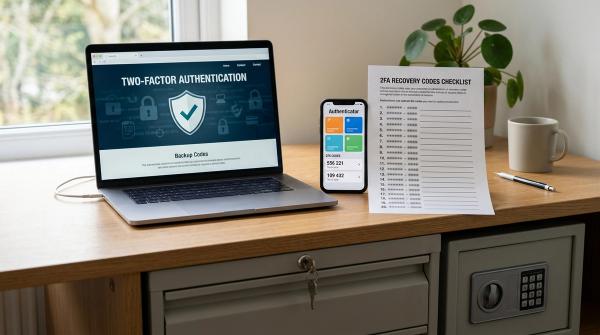
- Recovery codes
- API keys
- Security tokens
- Private keys
- Login screenshots that show codes
- Password manager exports
If you need help organizing passwords, use a trusted password manager. Do not ask a chatbot to store, format, clean up, or analyze login secrets.
2. Screenshots with personal information
#Screenshots are sneaky. They often show more than you notice.
Before uploading a screenshot, check for:
- Email addresses
- Phone numbers
- Usernames
- Browser tabs
- Notifications
- Private messages
- Location details
- Order numbers
- Payment information
- Faces or names in the background
- Calendar events
- File names
- Chat previews
Crop the screenshot. Blur what is not needed. If the private information does not help answer the question, remove it.
3. PDFs with names, addresses, or account details
#PDFs are easy to upload, but they often contain a lot of personal information.
Be careful with:
- Bills
- Statements
- Invoices
- School documents
- Rental agreements
- Insurance papers
- Tax documents
- Client files
- Internal reports
- Receipts
- Application forms
If you only need a summary, remove names, addresses, account numbers, signatures, barcodes, QR codes, and reference numbers first.
4. Resumes and job documents
#A resume can include your full name, phone number, email address, city, education, job history, LinkedIn profile, portfolio links, and references.
If you want ChatGPT to improve your resume:
- Remove your phone number.
- Remove your home address.
- Consider replacing your name with “Candidate.”
- Remove personal links if they are not needed.
- Remove names and contact details of references.
- Avoid uploading identity documents requested during hiring.
You can still get useful resume feedback without sharing every personal detail.
For example, this is usually enough:
“Improve these resume bullets for a marketing role. Keep them clear, specific, and achievement-focused.”
Then paste only the relevant bullet points, not the whole resume.
5. Government IDs
#Do not upload photos or scans of:
- Passports
- Driver’s licenses
- National ID cards
- Voter IDs
- Tax IDs
- Student ID cards
- Employee ID cards
- Residence permits
- Visa documents
These documents are high-risk because they combine identity numbers, photos, dates, addresses, signatures, and sometimes machine-readable codes.
It is simply not worth it.
6. Medical data
#Avoid uploading medical information tied to your identity, such as:
- Lab reports with your name
- Prescriptions
- Diagnosis documents
- Insurance claims
- Hospital discharge papers
- Medical bills
- Mental health notes
- Doctor letters
- Scan reports
If you want a plain-language explanation, remove identifying details first.
You can ask something like:
“Explain what these common blood test terms mean in simple language.”
Or:
“What questions should someone ask their doctor about this type of result?”
Also remember: ChatGPT is not a doctor and should not replace professional medical advice.
7. Financial data
#Be careful with:
- Bank statements
- Credit card statements
- Loan documents
- Tax records
- Salary slips
- Investment statements
- Payment screenshots
- UPI or wallet screenshots
- Invoices with customer details
- Insurance documents
For budgeting help, you usually do not need to upload a full statement.
Instead, type a simplified version:
“My monthly income is [amount]. My main expenses are rent, groceries, transport, subscriptions, loan payments, and savings. Help me create a budget.”
Use categories and rough numbers instead of full documents.
8. Legal data
#Avoid uploading unredacted:
- Contracts
- NDAs
- Court notices
- Legal complaints
- Settlement documents
- Property documents
- Divorce or custody papers
- Police reports
- Employment disputes
- Business agreements
ChatGPT can help explain general wording, but it is not a lawyer.
If the matter is serious, private, active, or tied to real legal consequences, talk to a qualified professional.
A safer prompt would be:
“Explain what a non-compete clause usually means in plain English.”
Instead of uploading your full contract with names, addresses, signatures, and company details.
9. Work files and client data
#If you are an employee, freelancer, consultant, creator, or business owner, be extra careful with work-related material.
Do not casually upload:
- Internal memos
- Strategy documents
- Client lists
- Customer support exports
- Sales data
- Proprietary code
- Product plans
- Unpublished creative work
- Legal drafts
- HR files
- Meeting transcripts
- Financial projections
- Roadmaps
- Private Slack or email threads
If your organization has approved AI tools, use the approved account, policy, or enterprise setup. If it has not, assume confidential work files should stay out of public AI chatbots.
Safer ways to use ChatGPT with personal documents
#You do not always need to upload the original file. In many cases, you can get the same help with less risk.
Use placeholders
#Replace real details with labels.
Instead of writing:
“My landlord, Rajesh Mehta, at 14 Park Road, is refusing to return my deposit of ₹45,000.”
Write:
“My landlord, [LANDLORD NAME], at [ADDRESS], is refusing to return my deposit of [AMOUNT].”
This gives ChatGPT enough context without exposing real personal details.
Ask for a template instead of uploading the real document
#Instead of uploading your bank statement, ask:
“Create a monthly budget template with categories for rent, groceries, transport, subscriptions, savings, and debt payments.”
Instead of uploading your legal notice, ask:
“Explain the common sections found in a legal notice in simple language.”
Instead of uploading a medical report, ask:
“What do these common lab test terms usually mean, and what questions should I ask my doctor?”
Templates are often safer than real documents.
Paste only the part you need help with
#If one paragraph is confusing, do not upload the whole file.
Copy the paragraph, remove names and numbers, then ask your question.
For example:
“Explain this contract clause in plain English. I have removed the names and company details.”
That is usually much safer than uploading the full contract.
Summarize the situation yourself
#You can often describe the issue without sharing private identifiers.
For example:
“I received a work contract with a clause saying I cannot work with competitors for 12 months after leaving. Explain what this type of clause usually means in plain English.”
That gives ChatGPT enough context without exposing the whole agreement.
Check images twice
#Before uploading an image or screenshot, zoom in and scan the whole thing.
Look at:
- The corners
- Browser tabs
- Notification previews
- File names
- Email addresses
- Names in sidebars
- Chat bubbles
- Background windows
- Location hints
- Faces
- QR codes
- Barcodes
People miss these details all the time.
If it does not need to be visible, crop it or blur it.
A simple rule before uploading anything
#Before you upload a file to ChatGPT, ask yourself three questions:
- Does ChatGPT need the real document, or can I use a redacted version?
- Would I be uncomfortable if this file were seen by someone else?
- Have I turned off model improvement, checked Memory, and considered Temporary Chat?
If any of those questions make you pause, do not upload the original file.
Use a summary, a fake example, a template request, or a redacted excerpt instead.
ChatGPT privacy settings help, but they have limits
#Privacy settings reduce risk. They do not remove risk completely.
Turning off Improve the model for everyone helps stop your content from being used for model improvement.
Temporary Chat keeps a conversation out of your normal chat history and is not used for training, according to OpenAI.
Memory controls what ChatGPT can remember for future conversations.
Deleting chats cleans up your visible account history.
All of that is useful.
But none of it makes it smart to upload passwords, government IDs, unredacted financial documents, medical records, legal files, or confidential work material.
The safest personal data is the data you never upload.
Safety note for urgent situations
#This guide is about everyday privacy habits. It is not legal, cybersecurity, fraud recovery, or incident-response advice.
If you are dealing with active fraud, hacking, blackmail, identity theft, account takeover, financial theft, or threats, do not rely on ChatGPT privacy settings to protect you.
Contact the right official channels, such as:
- Your bank or payment provider
- The platform where the account was compromised
- Your workplace security or IT team
- Local authorities, if appropriate
- A qualified lawyer or cybersecurity professional, if needed
Final checklist: before you upload anything to ChatGPT
#Use this quick checklist every time:
- I turned off Improve the model for everyone in Data Controls.
- I checked Memory and removed sensitive saved details.
- I considered using Temporary Chat.
- I asked whether the file needs to be uploaded at all.
- I removed names, phone numbers, addresses, account numbers, and IDs.
- I cropped screenshots to hide private messages, tabs, and notifications.
- I removed or blurred barcodes, QR codes, signatures, and faces if they are not needed.
- I avoided passwords, login codes, API keys, and security keys.
- I avoided unredacted medical, financial, legal, and government ID documents.
- I avoided confidential work files unless my organization has approved that use.
- I deleted old chats that contain private information I no longer need.
ChatGPT can be genuinely useful. Just treat it like any other online service that handles your information.
Share less. Redact more. Check the settings. And keep the highest-risk data out of the chatbot completely.